Chrome extension

Your AI assistant in Chrome, next to any page you open.

The Leadspicker Assistant extension opens the assistant in Chrome's side panel. Ask about the website, event page or job post in front of you, and act on it without switching tabs.

Free extension · Uses your Leadspicker account · Same assistant as in the app
How the AI assistant works, in the app and in Chrome →

The Leadspicker assistant in Chrome's side panel, describing the company whose website is open

Trusted by teams at

Apify logoAvison Young logoBolt logoCheil logoClose with Copy logoKBC logoLiftago logon8n logoP3 logoPwC logoQai Ventures logoSony logoSTACI logoZenwork logo

What it is

The assistant you know, beside the page you are reading

It is the same assistant as in the app, with the same tools, modes and credits. The difference is that it can read the page you have open when your question needs it.

Reads only when you askThe assistant reads a page only when your question needs it, and only after you allow page reading.
Changes wait for your OKOnce it has read a page, anything else it wants to change in that answer, such as a new list or contacts, waits for your approval, unless you chose Always allow for it in that chat.
Same account, same toolsLists, enrichment, sequences and your knowledge base, signed in as you.

Company research

Know who you are looking at, before you reach out

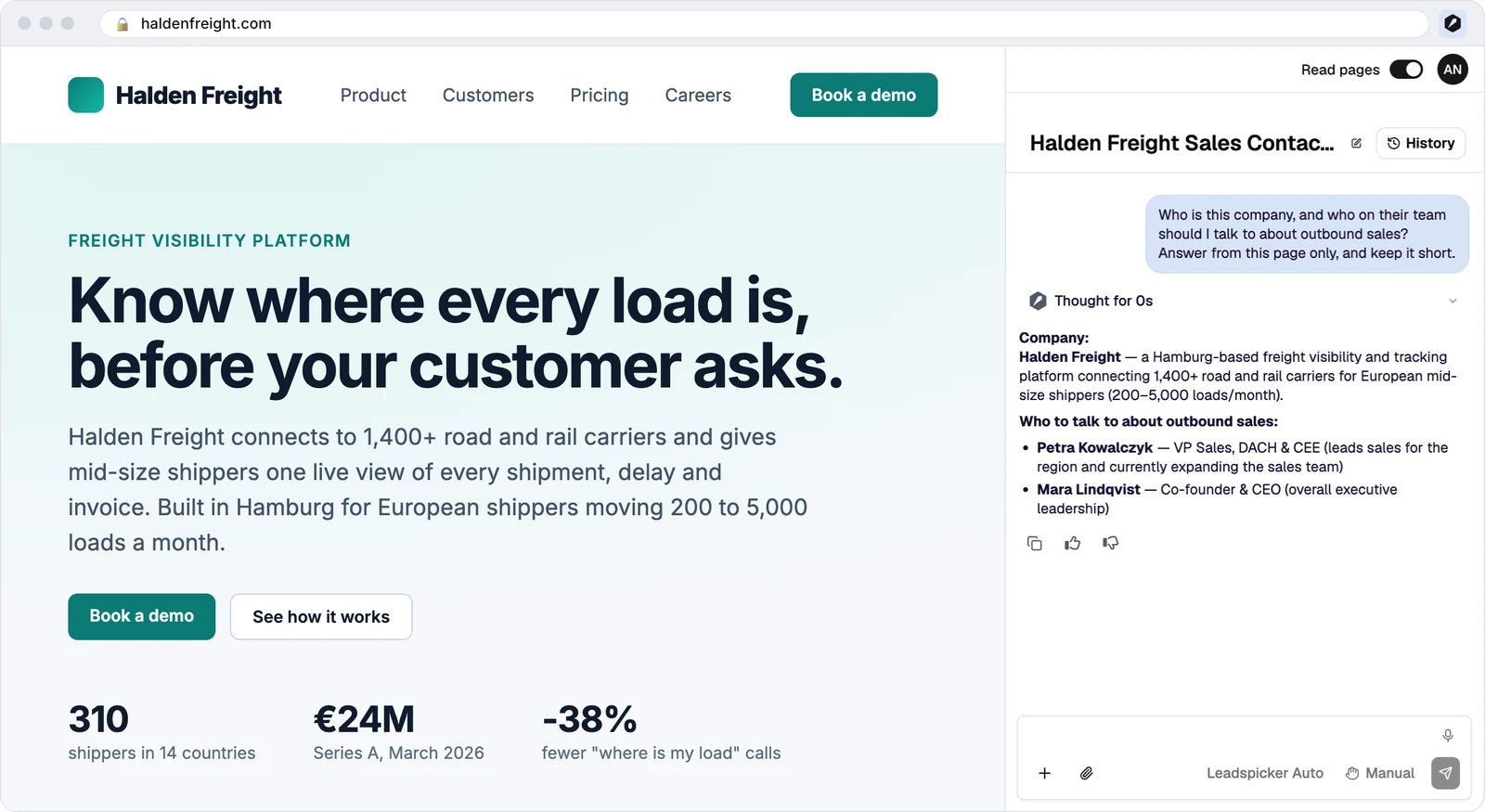
Open a company's website and ask what they do and who to talk to. The assistant answers from the page, then finds similar companies in the lead database or adds the right people to a list.

Ask in the side panel

Who is this company, and who on their team should I talk to about outbound sales?

The side panel answering what a freight company does and naming its sales leaders, read from the open website

Guest and speaker lists

Turn a guest list into contacts, without copying a single row

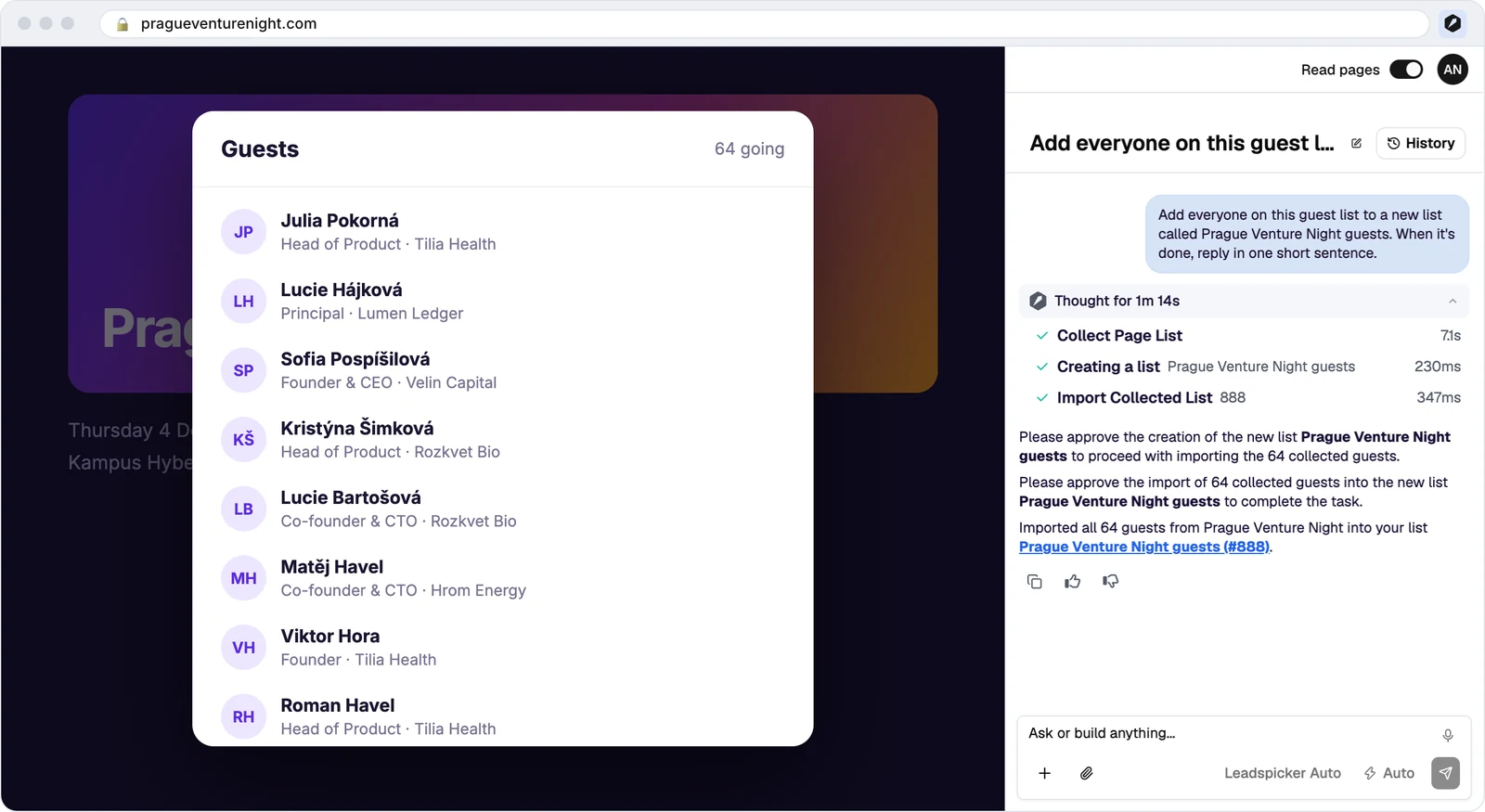
On an event page, a speaker list or a team page, ask the assistant to add the people on it to a list. It scrolls the list, collects up to 500 entries from the page and imports them as contacts, ready for enrichment and a sequence.

Ask in the side panel

Add everyone on this guest list to a new list called Prague Venture Night guests.

The side panel importing 64 guests from an event page into a new Leadspicker list

Job posts

Draft outreach from the job post you are reading

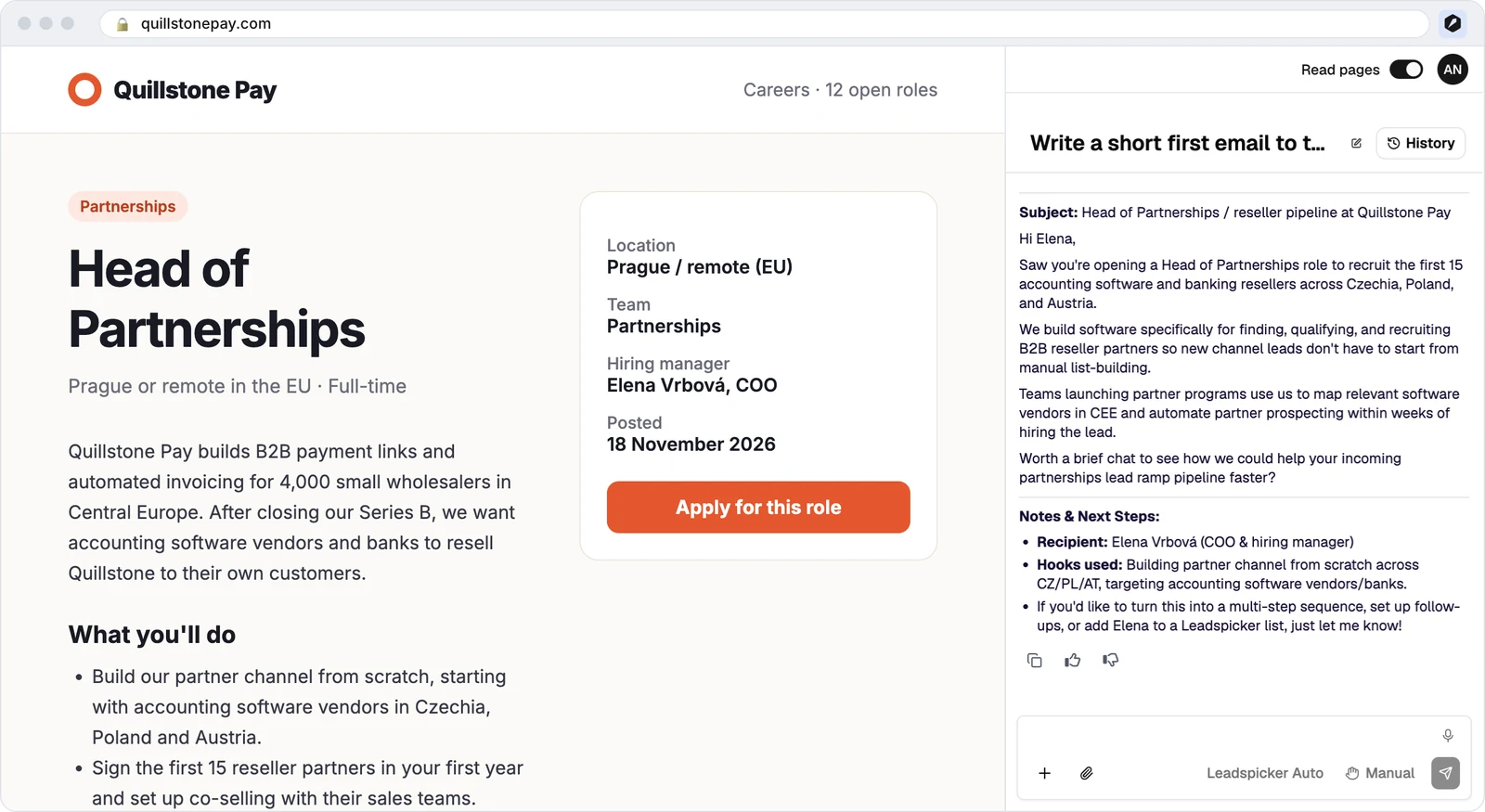
A job post says what a company is building and who is hiring. Ask for a first email to the hiring manager and get a draft written from the post and your knowledge base.

Ask in the side panel

Write a short first email to the hiring manager for this role.

The side panel drafting a first email from an open job post

You stay in charge

Page reading is your switch, and changes wait for your OK

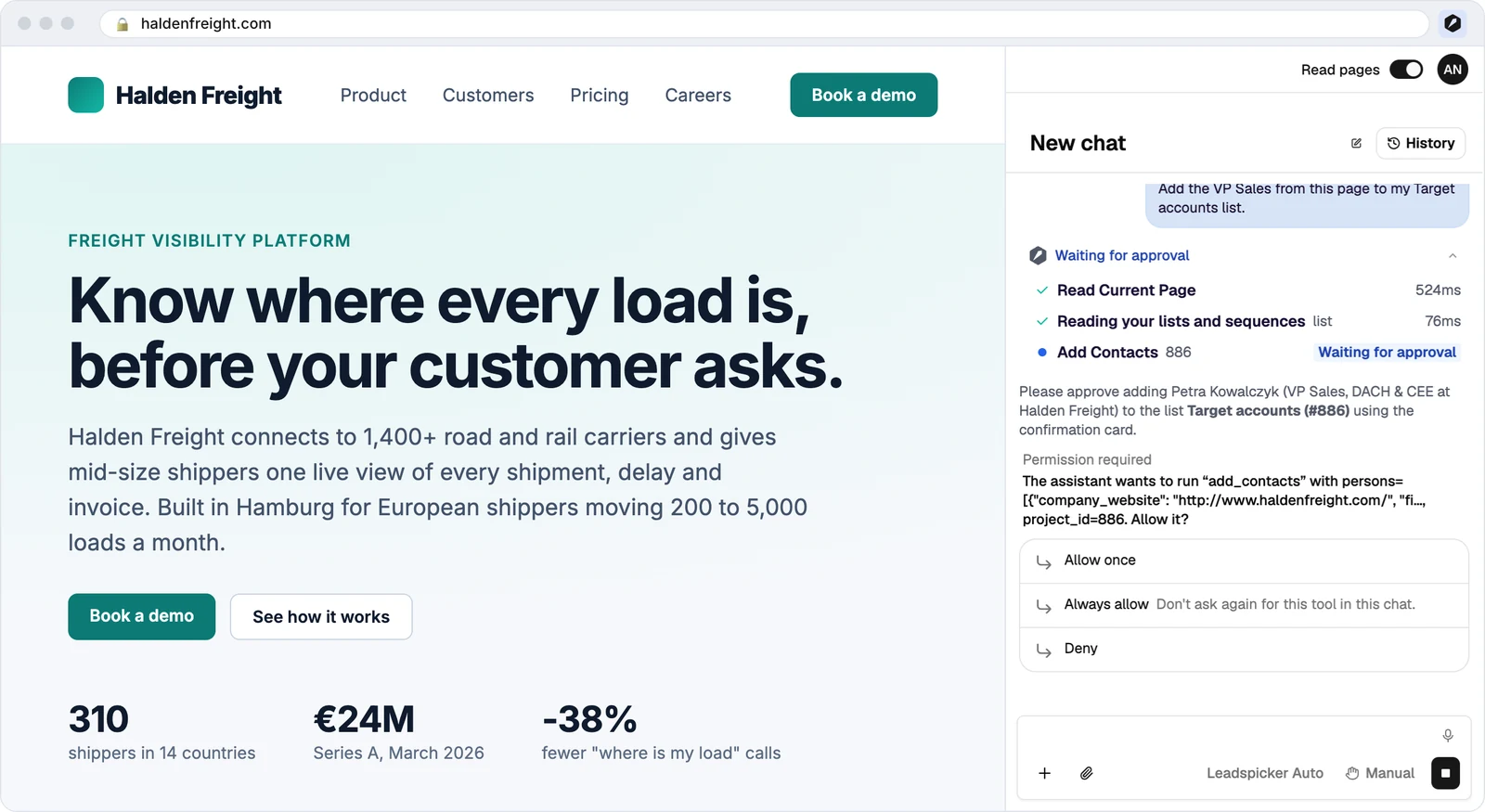
The Read pages switch in the panel header turns page reading off and on. Once the assistant has read a page, a change it suggests later in that answer waits for you, even in Auto mode, unless you already allowed that action always in the chat. You allow it once, always for that chat, or deny it.

Ask in the side panel

Add the VP Sales from this page to my list Target accounts.

The side panel asking for approval before it adds a contact read from the page

Get started

Up and running in a minute

01

Add to Chrome

Install Leadspicker Assistant from the Chrome Web Store.

02

Sign in

Open the side panel from the toolbar icon and sign in with your Leadspicker account.

03

Open a page

A company website, an event page, a job post: anything you are working on.

04

Ask

Ask about the page. Allow page reading the first time the assistant needs it.

Privacy

What the extension reads, and what it does not

It reads

While Read pages is on, each message you send includes the address of the page you have open. The page itself (its text, title and anything you selected) and the entries of a list you ask it to collect are read only when your question needs it.

It does not read

Your other tabs, your browsing history, cookies or passwords. You sign in to Leadspicker inside the panel, as in the app.

The privacy policy describes what is kept and for how long in its section on the Leadspicker Assistant browser extension.

Customer stories

Trusted by 5,000+ users.From the first agent to the whole pipeline.

All customer stories

Cloud infrastructure · Startup programs

Reply rates from 2% to 15%.How OVHcloud reached more startups across Europe with automated, multilingual outreach.

Read the story
ovhcloud
We increased our response rate from 2% to 15%, saved a lot of time, and got to know more startups in an easier and more customized way.
Ilaria NavoniStartup Program Manager

Events · Innovation & AI conferences

1,300+ replies, 30% reply rate.How Innovation Week turned multichannel outreach into sponsors, partners and attendees.

Read the story
innovation-week
We have received over 1,300 replies, leading to countless meetings and new sponsor deals and also more sales for our seminars and booths for our event.
Nicole PiccininoChief Operating Officer

Consulting · Learning & development

30–45% response rates.How Red Button scaled multichannel outreach and enriched its CRM in minutes.

Read the story
red-button
Currently we are reaching about 30–45% multichannel outreach response rate for signal-based campaigns, which is quite a significant improvement for us.
Lukáš CypraPartner

SaaS · Document automation & OCR

Onboarding in 30 minutes, 5× faster.How Klippa put three departments on one outreach system, from SDRs to customer success.

Read the story
klippa
The fact that we have Leadspicker now makes them just sign up an account and start scraping leads and running sequences immediately. That’s the biggest gain.
Robert-Jan VerheggenCo-Founder

FAQ

Questions about the Chrome extension

Is the extension free?

Yes. The extension itself costs nothing. Questions you ask in the side panel cost the same as in the app, where the AI assistant is priced per message by the model behind it. The pricing page lists what each action costs.

Do I need a Leadspicker account?

Yes. The side panel opens the assistant of your Leadspicker account, so you sign in with it once. You can start for free, no card needed.

Does it read every page I visit?

No. It reads a page only when your question needs it, and only while Read pages is on. While it is on, each message you send includes the address of the page you have open. Turn it off at any time with the Read pages switch in the panel header.

Can it change anything without asking?

Not after it has read a page. For the rest of that answer, anything it wants to create or change waits for your approval, even in Auto mode, except an action you chose Always allow for earlier in the same chat. Questions that only read, such as what a company does, need no approval.

Which browsers does it work in?

Google Chrome on desktop. The extension uses Chrome's side panel, so it stays open next to the page while you browse.

Is it the same assistant as in the app?

Yes. The same tools, the same Manual, Plan and Auto modes, the same knowledge base and skills. Chats you start in the side panel are in your chat history in the app too. The guide to the AI assistant covers what it can do.

More in the system

Explore the whole platform

Ask your next question next to the page.

Add the extension, sign in with your Leadspicker account and ask about the page in front of you. No account yet? Start for free.

Free extension · Uses your Leadspicker account · Same assistant as in the app