Lists: the table, columns and filters
A list is a spreadsheet that knows what its columns mean. This page covers the parts of it you use every day.
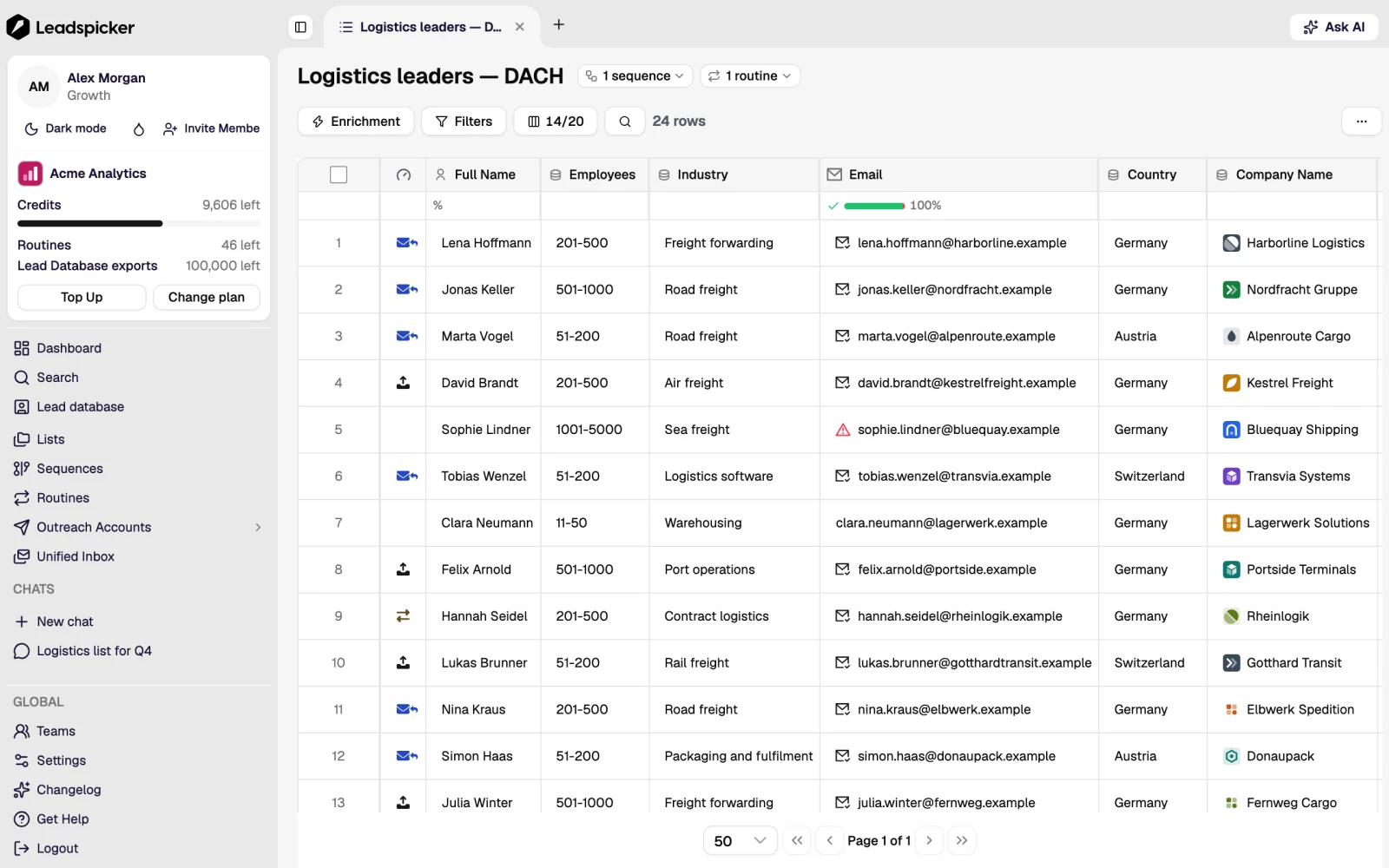
The table
Each row is one contact; each column is one field. Standard fields (name, company, title, email, social profile) come with every contact. Everything else is a column you add: an enrichment column, an AI column, or a plain column you fill in yourself.
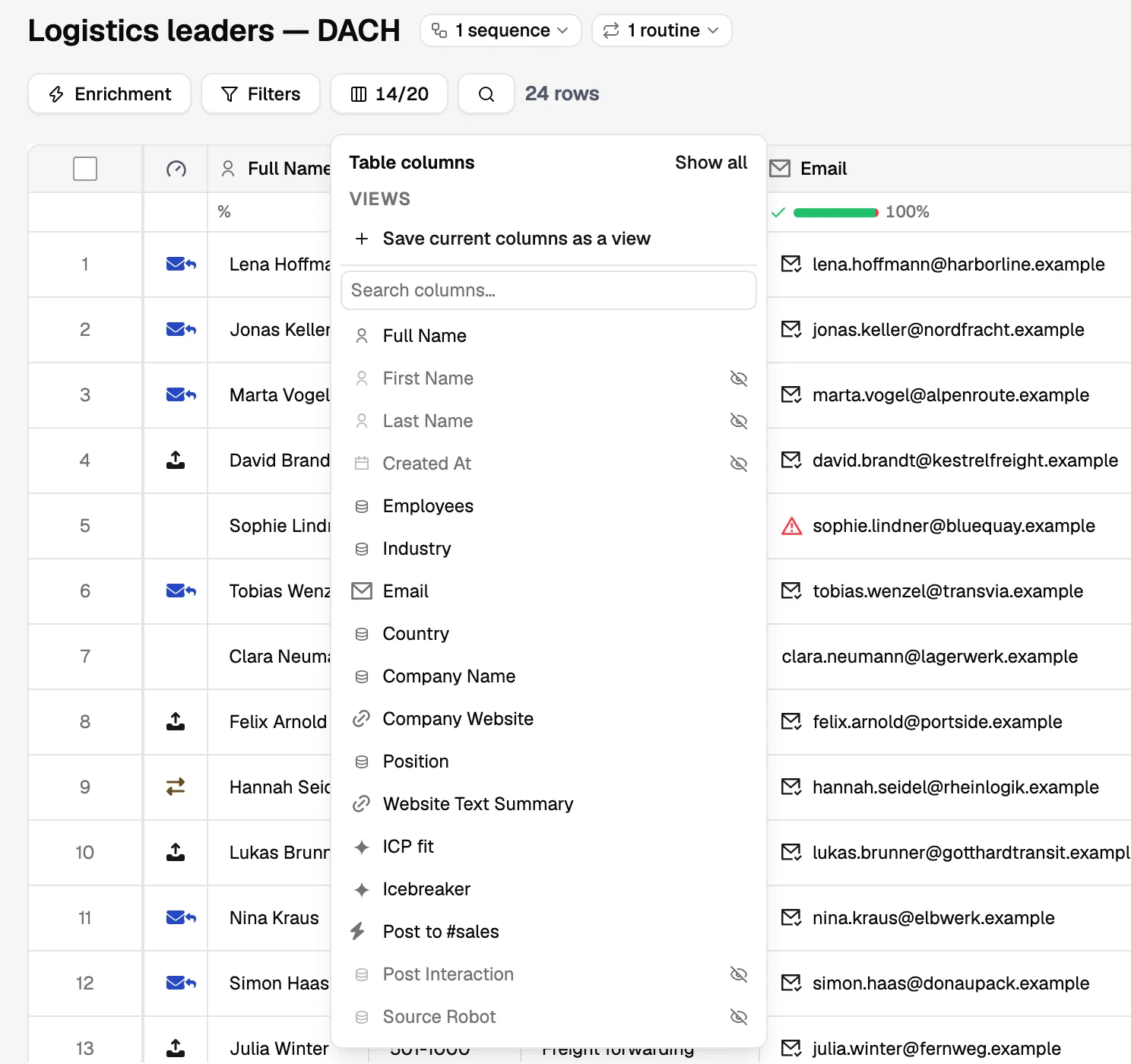
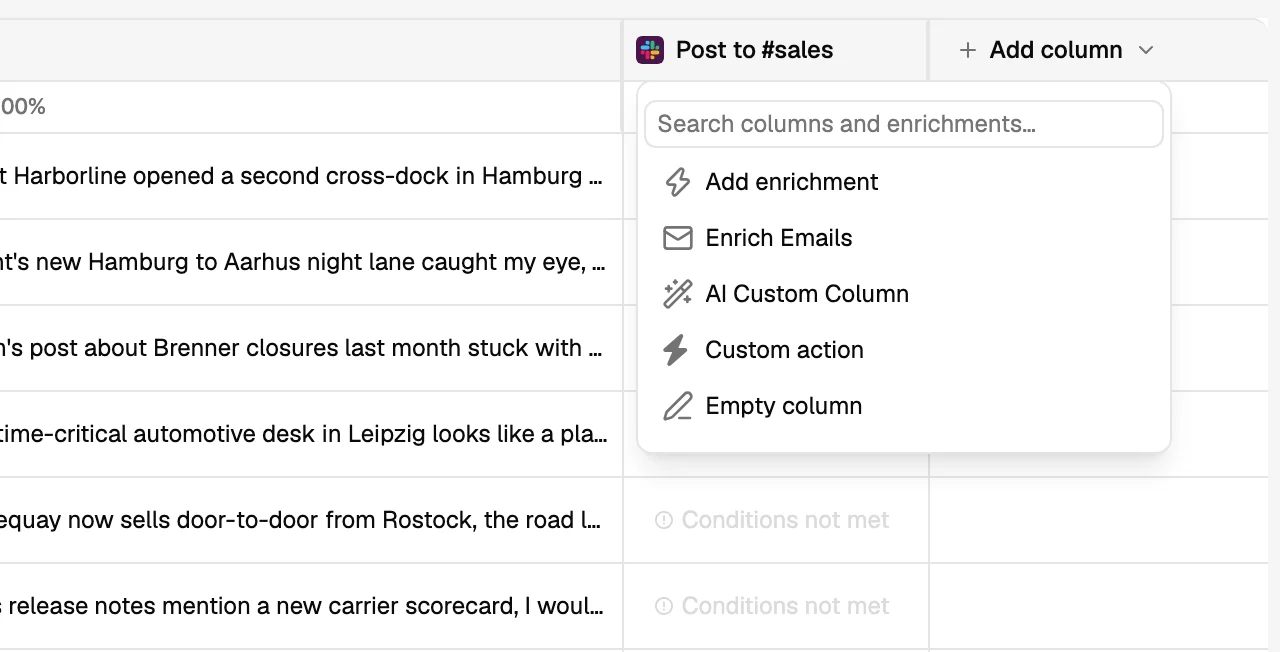
Running a column
- Run a column for the whole list, for the first N rows (the way to test), for the selected rows, or for one cell.
- Run all empty or out-of-date rows in this list limits a re-run to the rows without a value. Changing the column's instruction or restarting it clears the values and bills every row again. Renaming it or switching its model does not.
- Auto-enrich new rows keeps a list filled as routines add contacts to it.
- A running column can be paused; rows already in flight finish, nothing new starts.
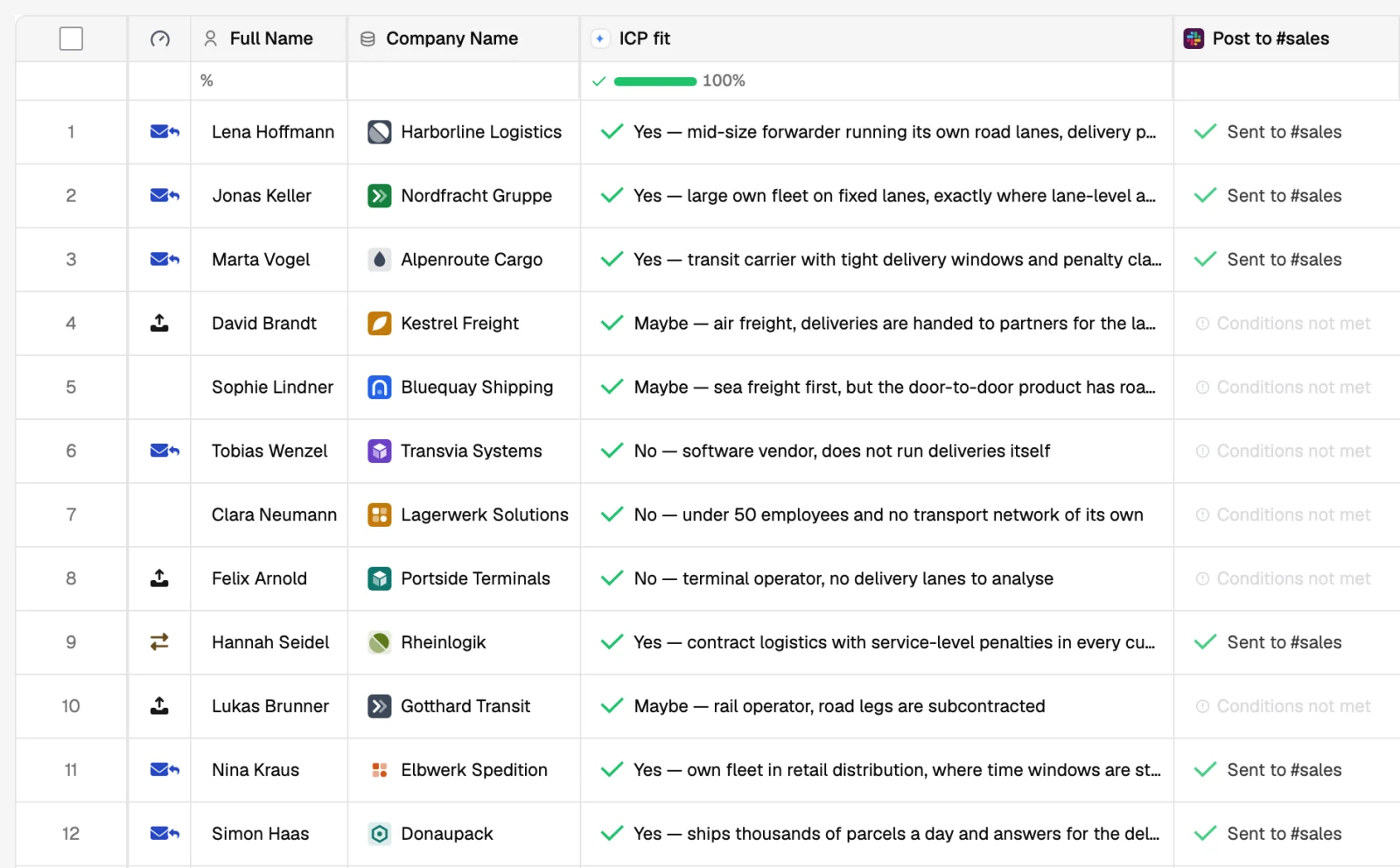
Filters and labels
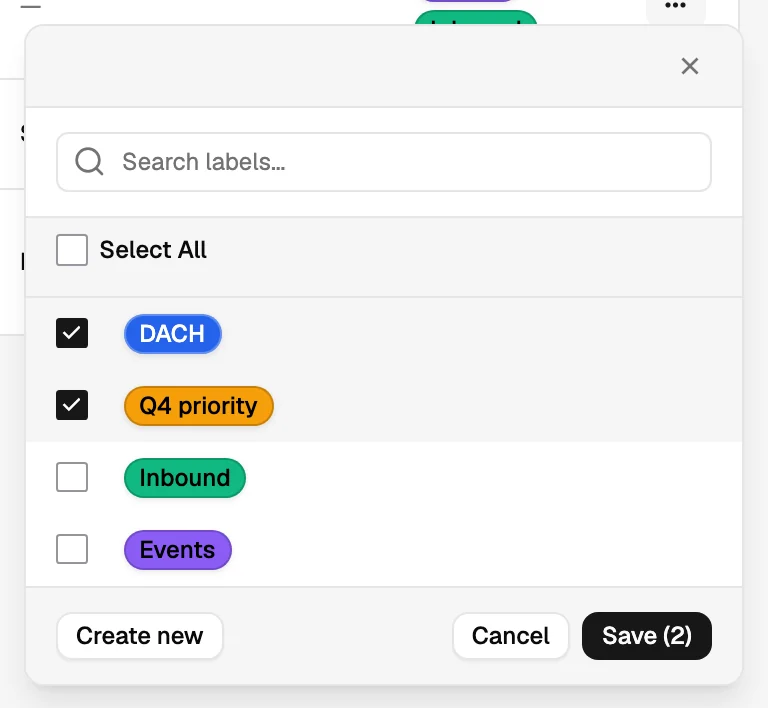
Filters narrow the table by any column: has an email, score is 4 or 5, country is Germany, label is "call first". Labels are tags you put on contacts yourself, which is how most teams split one raw list into the audiences that get different messages.
The contact panel
Opening a row shows one contact: their data and its source, the company behind them, the conversation history across every channel, the sequences they are in, and the notes anyone on the team has written about them.
Getting data in and out
| Action | What it does |
|---|---|
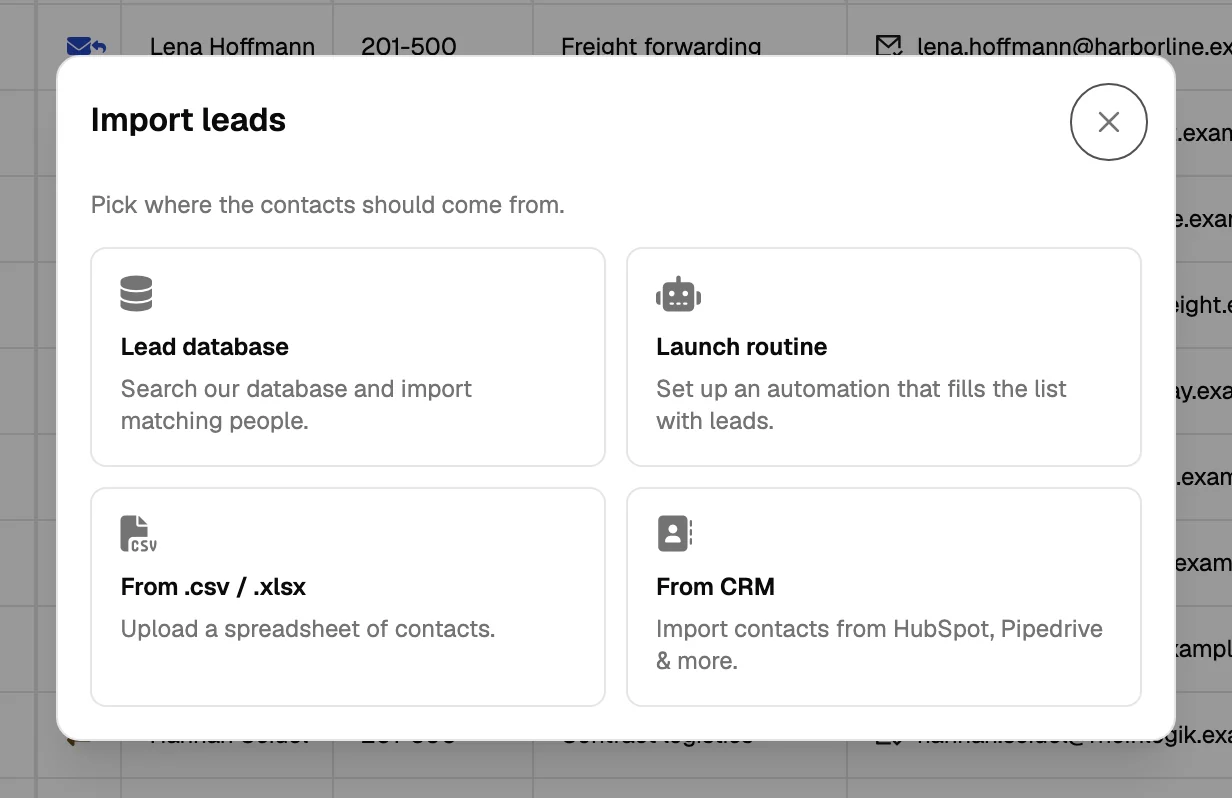
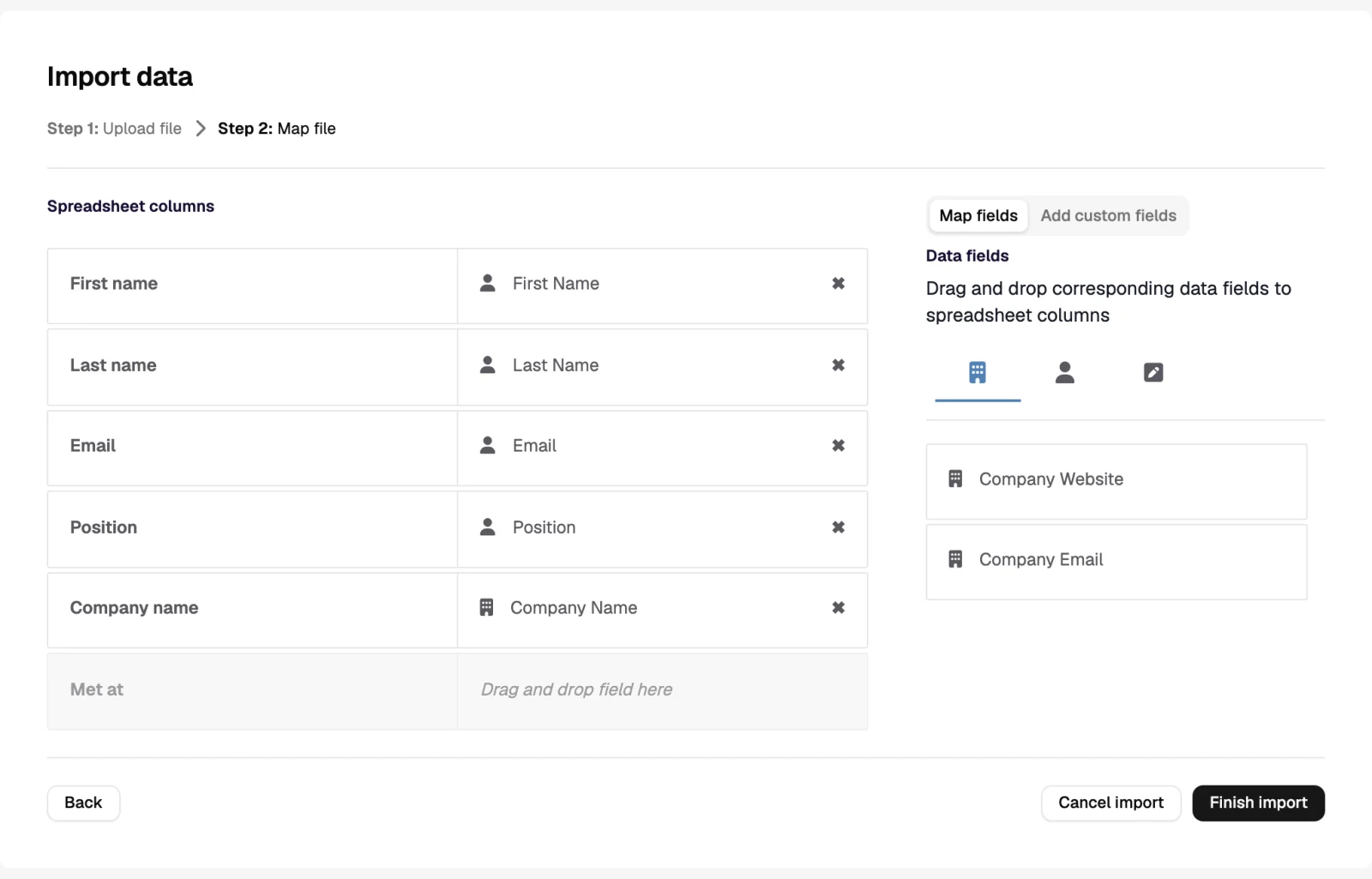
| Import | CSV or Excel upload with column mapping, or records pulled from a connected CRM. |
| Routines | Scheduled collectors that keep adding contacts to this list. |
| Lead database import | The result of a search, added into this list. |
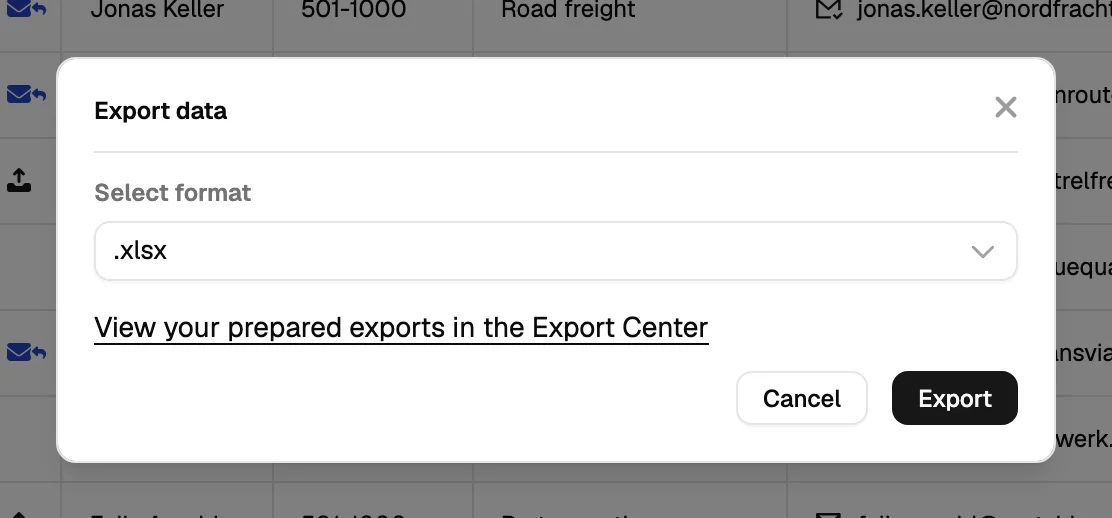
| Export | The current view, with filters applied, as a spreadsheet. |
| CRM sync | Contacts and their outreach outcomes written to the CRM, one way or both. |
Was this page helpful?
Still stuck? Email support@leadspicker.com or use the chat in the app.
Last updated 2026-11-12