How CRM integrations work
All eight CRM integrations follow one model: a single connection for the whole organisation, a sync you scope and map, and rules that turn outreach events into tasks, deals and property updates in the CRM.
One integration for the whole organisation
Each CRM has a card under Settings → Apps, and the card opens that CRM's own page. There is one integration per organisation and CRM, and it applies to every member's lists and sequences that are in scope. Only an owner or admin can connect it or save changes; other members see the settings but cannot change them.
- Open the CRM's card
Go to Settings → Apps and pick your CRM.
- Connect the account
Most CRMs connect by signing in and approving the access. Raynet CRM asks for an API key and Daktela for an access token; the page of each CRM lists the exact steps.
- Set the scope, the triggers and the mapping
Decide what is synced and when on General, then check Field Mapping and User Mapping.
- Switch it on
Turn Enabled on and click Save. Nothing is sent to the CRM before that.
| Tab | What you set there |
|---|---|
| General | The on/off switch, which lists and sequences are synced, which events sync a contact, and what kind of record a contact becomes. |
| Field Mapping | Which Leadspicker column goes to which CRM field, for contacts and for companies, and in which direction. |
| User Mapping | Which CRM user owns the records, tasks and deals that come from each outreach account. |
| Actions | Rules that run something in the CRM when an event happens on a contact. |
| Logs | Every sync and every action, with its result. |
What gets synced, and when
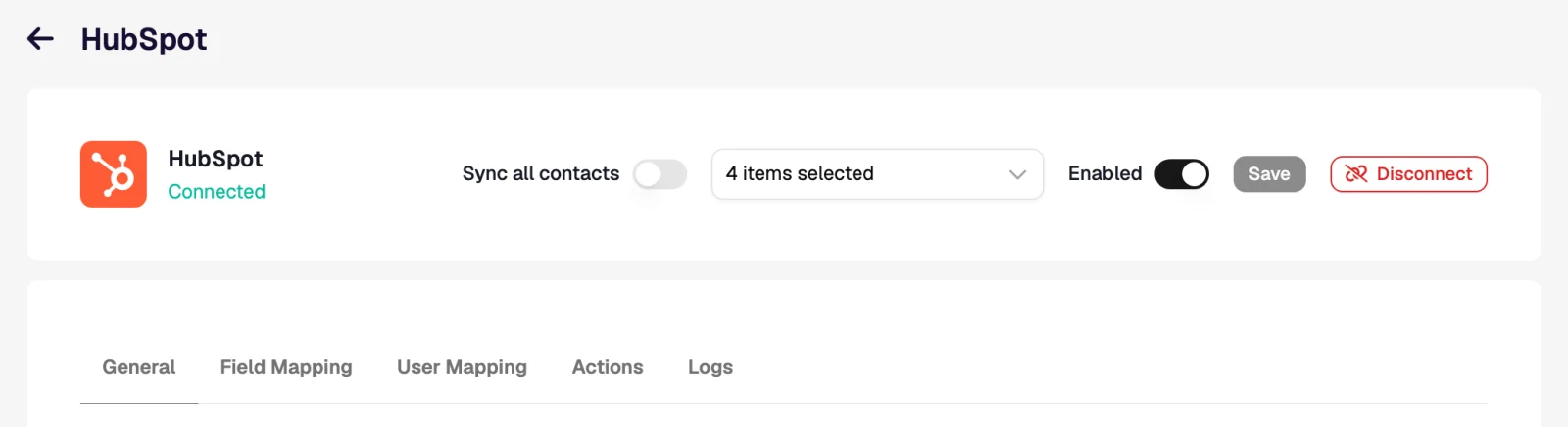
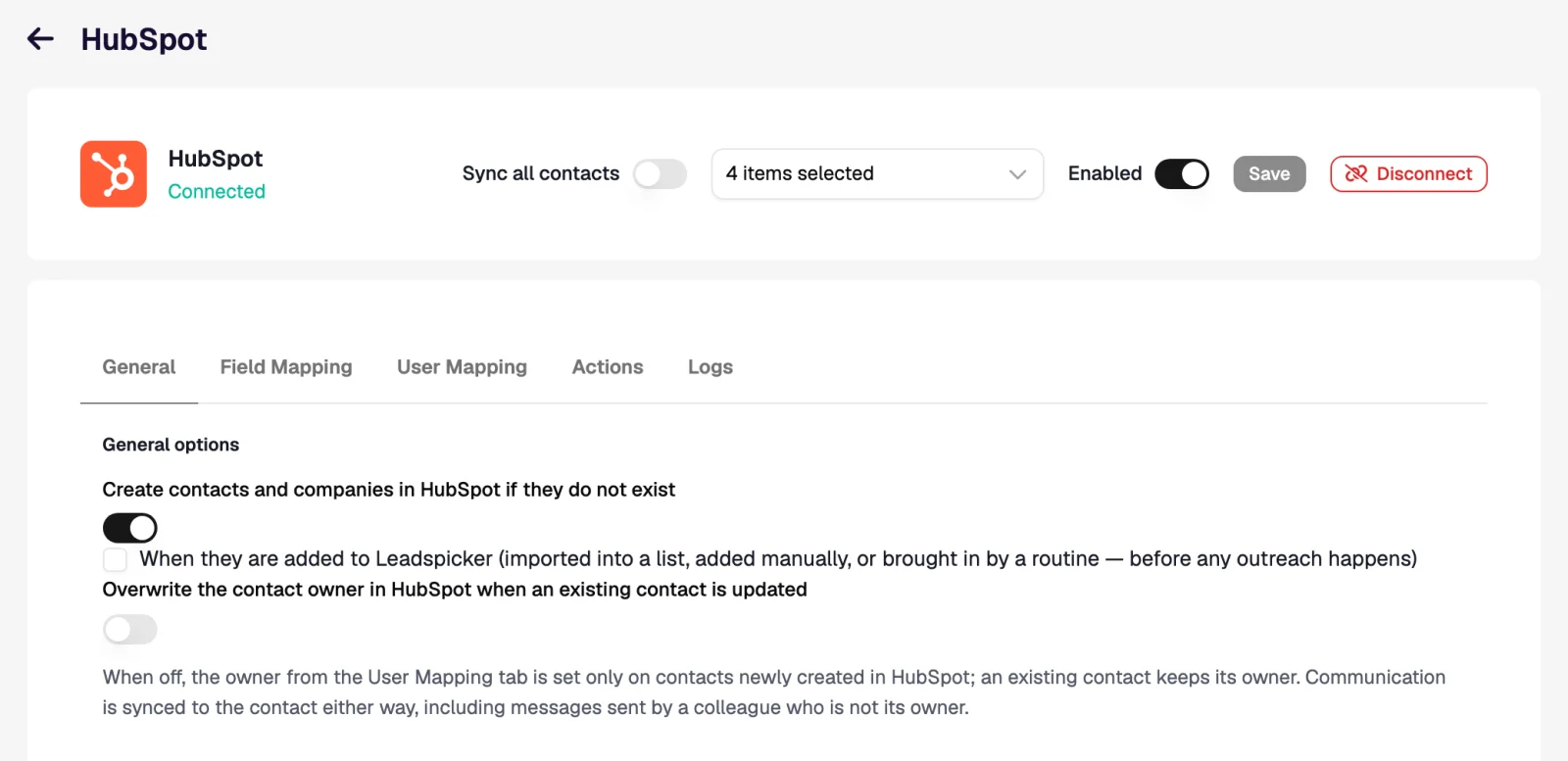
On General you choose the scope: Sync all contacts, or only the Synced lists and sequences you pick. Then you tick the events that should send a contact, and their company, to the CRM:
| Sync trigger | When it fires |
|---|---|
| When they are added to Leadspicker | On import into a list, a manual add or a routine, before any outreach happens. |
| When a message is sent to them | On every send in a sequence, by email or on the social network, including follow-ups and connection requests. |
| When they accept your connection request | When the social connection is made. |
| When you get a reply from them | On an email reply or a message back on the social network. |
- No duplicates. A contact that already exists in the CRM is matched by email or profile URL and only updated. The sync then keeps the communication on that record up to date.
- Create contacts and companies if they do not exist. With this off, Leadspicker only updates records the CRM already has.
- Mandatory properties. Create a record only when the chosen fields are filled in Leadspicker, for example only contacts with an email.
- Default values. Fixed values written to every record Leadspicker creates, such as a lead source.
- Record type. Salesforce, Zoho CRM, Dynamics 365 and Raynet CRM let you choose between Leads and Contacts & Accounts; Pipedrive can also file contacts into its Leads Inbox; Daktela asks which CRM database to write into.
Every sync also leaves an event on the contact's timeline in Leadspicker, so you can see from the contact when it reached the CRM.
Field mapping and owners
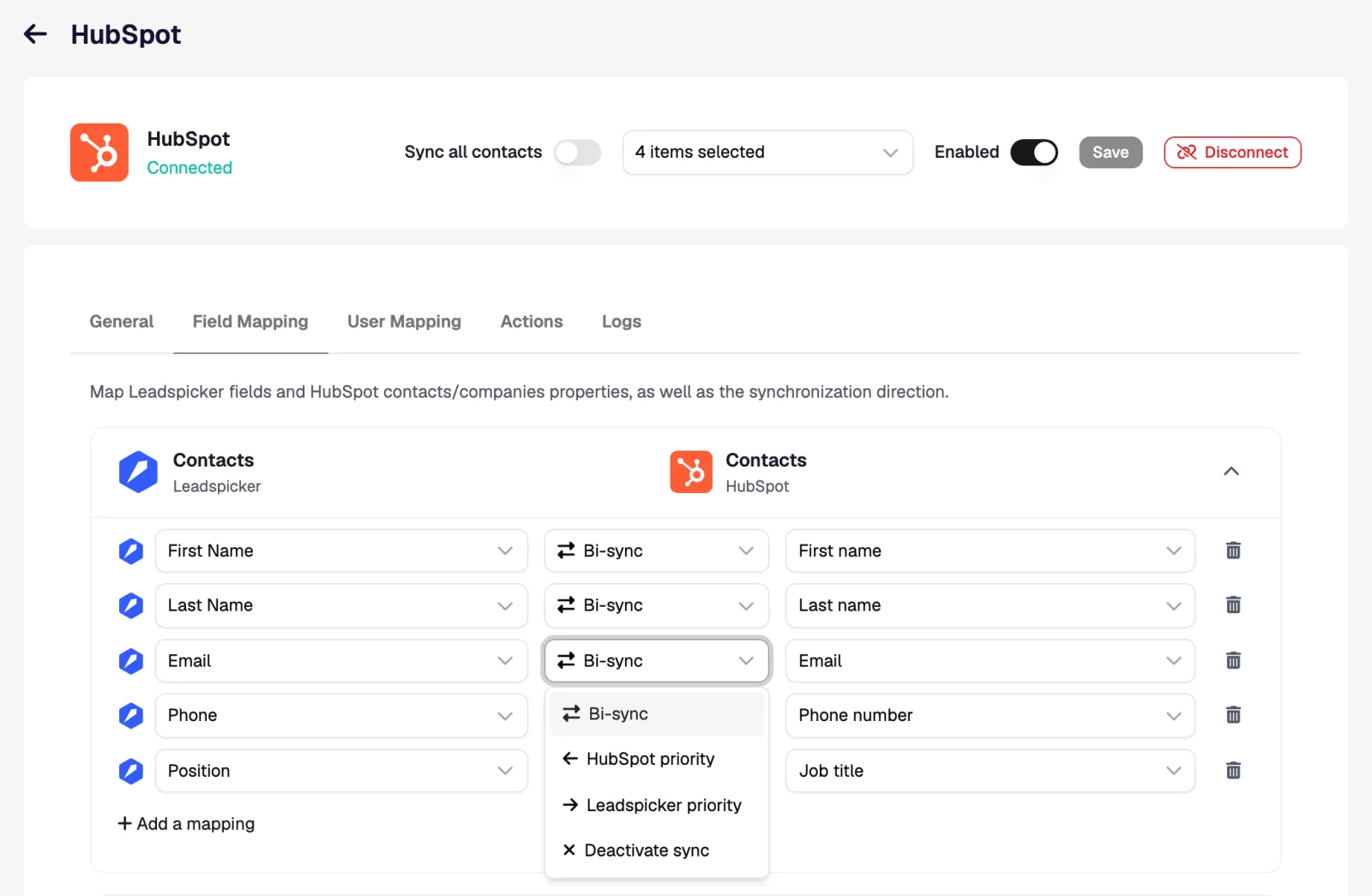
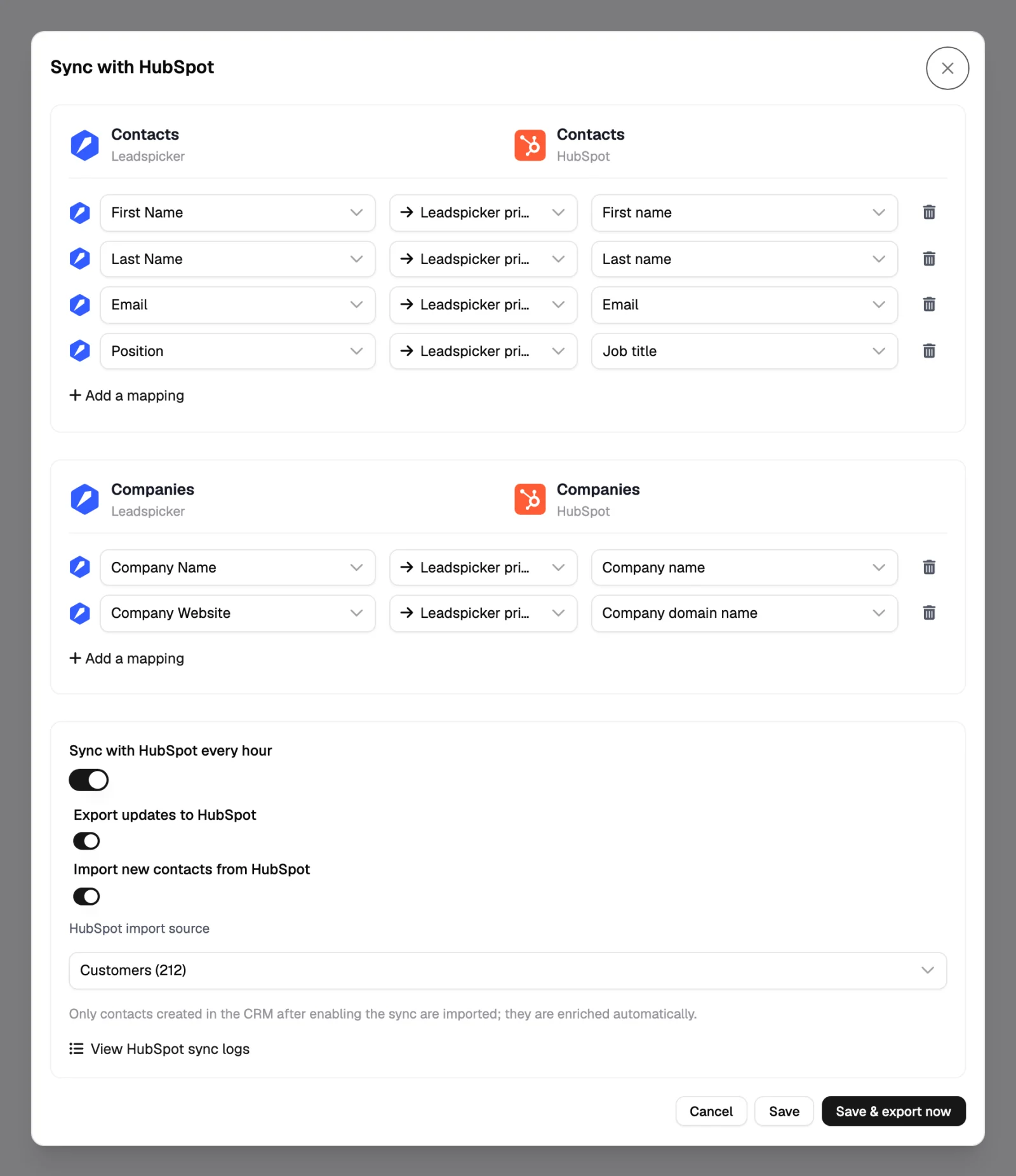
Field Mapping pairs Leadspicker columns with CRM fields, separately for contacts and companies. Each row has a direction:
| Direction | What it does |
|---|---|
| Bi-sync | The value travels both ways; a change on either side reaches the other. |
| Leadspicker priority | Leadspicker writes the value when the record is created and again on every update. |
| CRM priority (for example HubSpot priority) | Leadspicker fills the field only when it creates the record and never overwrites what the CRM already holds. |
| Deactivate sync | The row stays in the mapping but is skipped. |
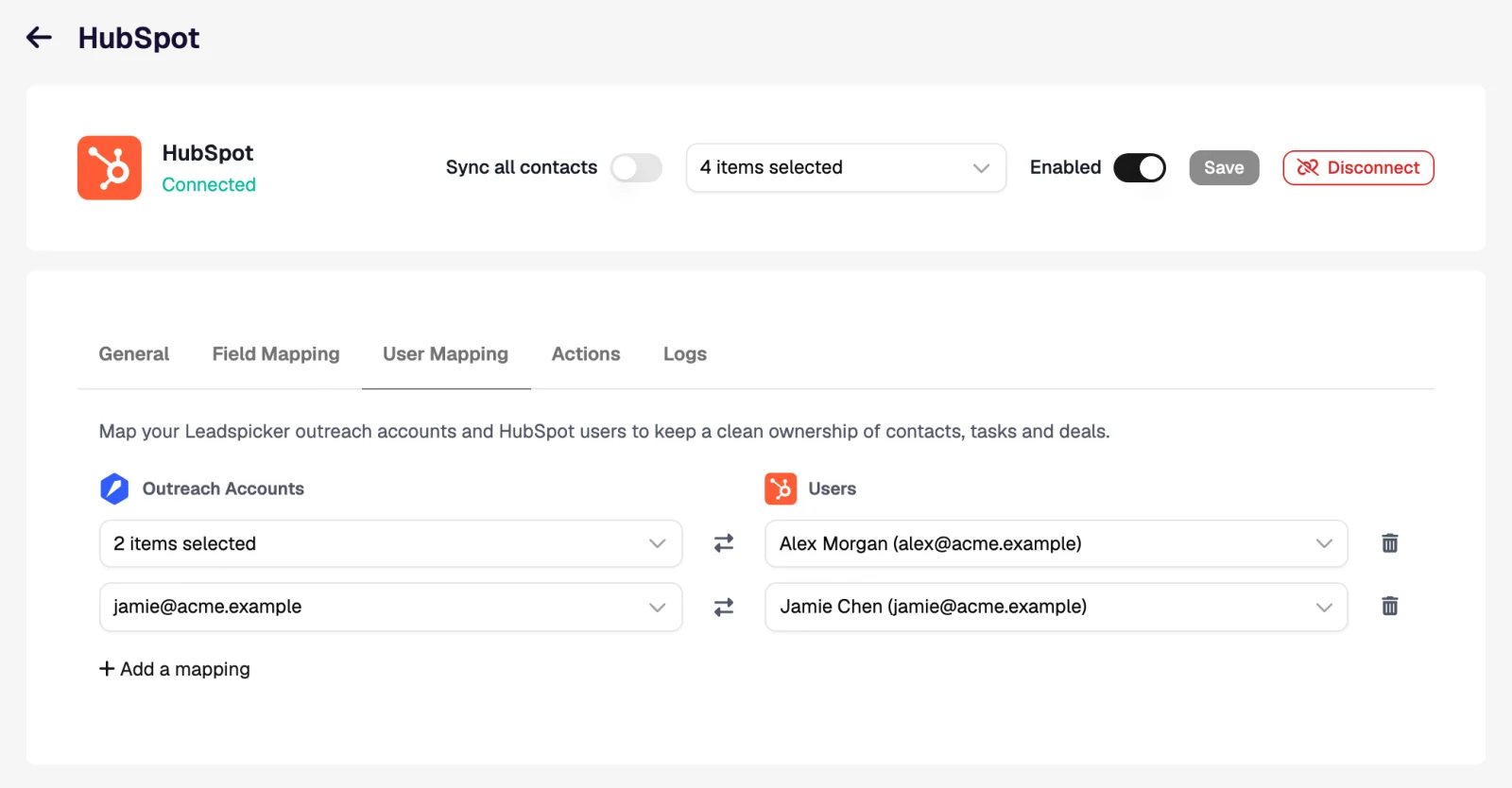
User Mapping pairs your outreach accounts, the mailboxes and social accounts that send, with CRM users. The mapped user becomes the owner of contacts Leadspicker creates and the assignee of tasks and deals, so a reply to Jana's mailbox becomes Jana's task.
Actions: a workflow inside your CRM
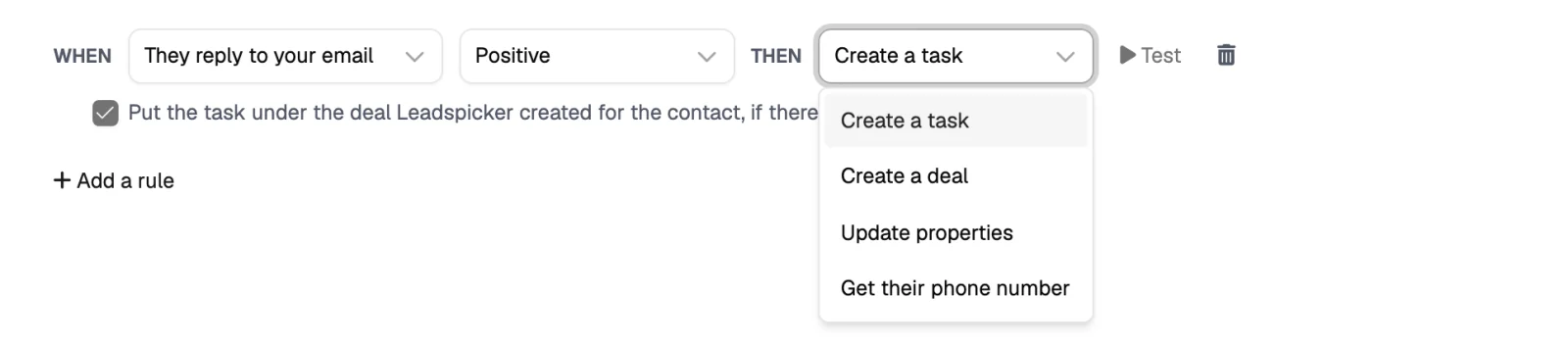
The sync keeps records in step. Actions make something happen. A rule reads When [event] [sentiment] then [action], and it runs on top of the contact sync for the same event. This is what replaces a manual step such as read the reply, open the CRM, create the deal, set a reminder.
Events and sentiment
- Events: they are added to Leadspicker; an email is sent to them; a social message is sent to them; they accept your connection request; they reply to your email; they reply on the social network.
- Sentiment, on the two reply events: Any sentiment, Positive, Maybe, Not interested or Negative. Leadspicker classifies every reply itself; Negative also covers requests to be removed.
The four actions
| Action | What it does in the CRM |
|---|---|
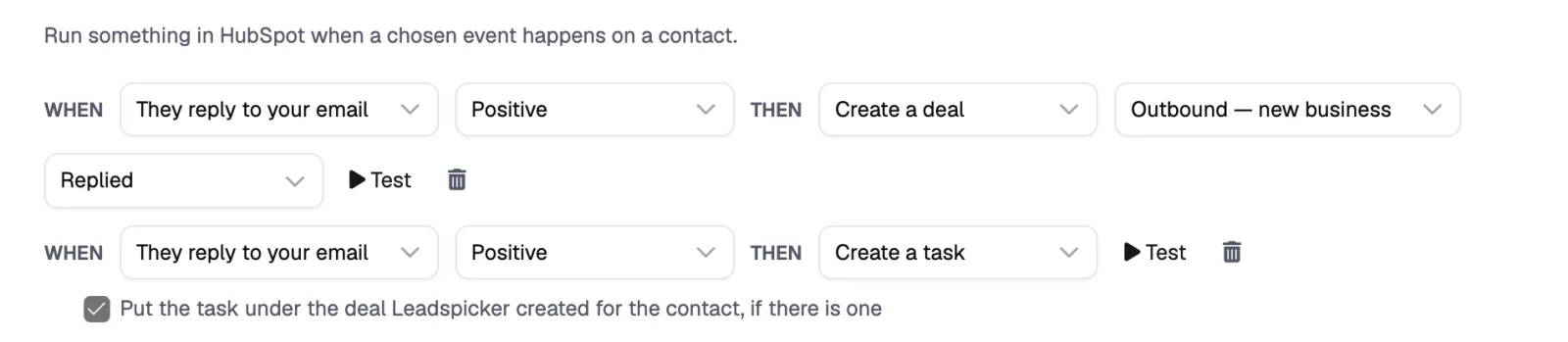
| Create a task | A task on the contact, assigned to the mapped owner. On a reply the subject reads Reply from Jana Nováková (Positive) and the body carries the reply text. With Put the task under the deal Leadspicker created for the contact, if there is one switched on, it is filed under that deal as well. |
| Create a deal | A deal in the pipeline and stage you choose, linked to the contact and the company. A repeated event never creates a second one. |
| Update properties | Fixed values written onto the Contact or the Company: a lifecycle stage, a status, a source. |
| Get their phone number | On reply events, for accounts with the feature switched on. It looks for the number in the reply, then in data sources, and can add the company's phone number. It needs the Phone and Company Phone columns mapped, never overwrites a number the CRM already has, and uses credits only when a number is found. |
Test and Save
Rules take effect only after Save. Then click Test on a rule: Leadspicker creates a dummy contact in your CRM with your saved mapping and default values, and runs the action against it. The records are real, so you can open them in the CRM, check the pipeline, stage, owner and fields, and delete them afterwards.
Workflow recipes
Rules people actually run. Several rules can share an event; deal rules run before task rules.
| When | Then | What the rep sees in the CRM |
|---|---|---|
| They reply to your email, Positive | Create a deal in New business, stage Qualified, and Create a task under the deal | A new deal with the contact and company attached, and a task under it with the reply text, assigned to the owner of the mailbox. |
| They reply, Maybe | Create a task | A task Reply from … (Maybe) on the contact, so the owner decides when to come back; no deal is opened yet. |
| They accept your connection request | Update properties on the Contact | A field such as Outreach status changes to Connected, which a view or report in the CRM can pick up. |
| They reply, Any sentiment | Get their phone number | The phone field on the contact filled in, ready for a call, unless the CRM already had a number. |
| They reply, Negative | Update properties on the Contact | The lifecycle or status field set to your value for do not pursue, so the contact leaves the active views. |
| They are added to Leadspicker | Update properties on the Company | A source field stamped with Leadspicker outreach, so marketing and sales see where the account came from. |
Logs
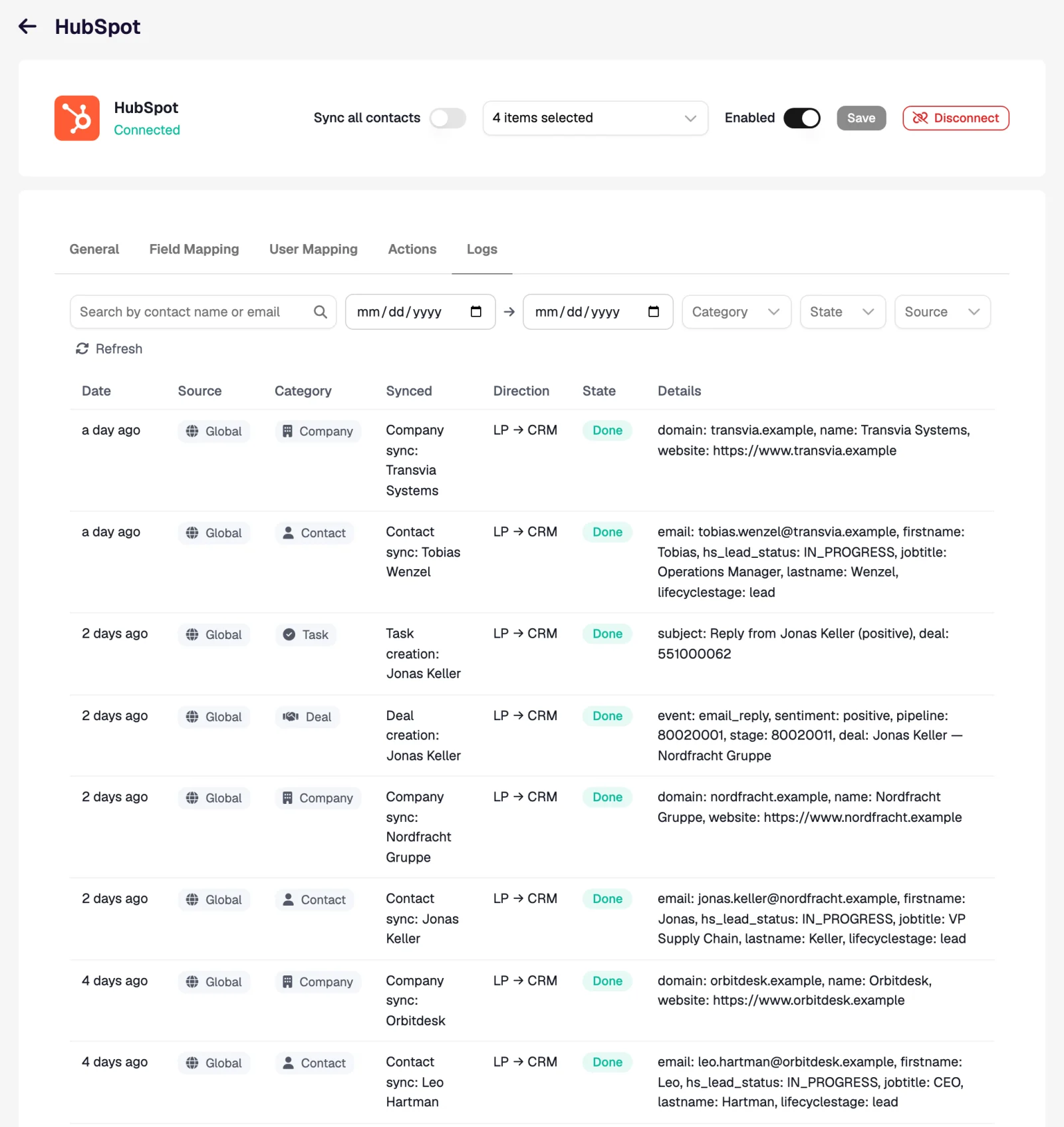
Logs is where you look when a record did not appear. Each row has a category (Contact, Company, Task, Deal, Property update, Phone number or Sync run), a direction, a state (Done, Aborted or Error) and details that name the cause, for example a contact with no mapped identity field. Filter by source, Global for the organisation-wide sync or List / sequence for a per-list sync, and search by a contact's name or email.
More ways to use the CRM
| Feature | What it does | Where |
|---|---|---|
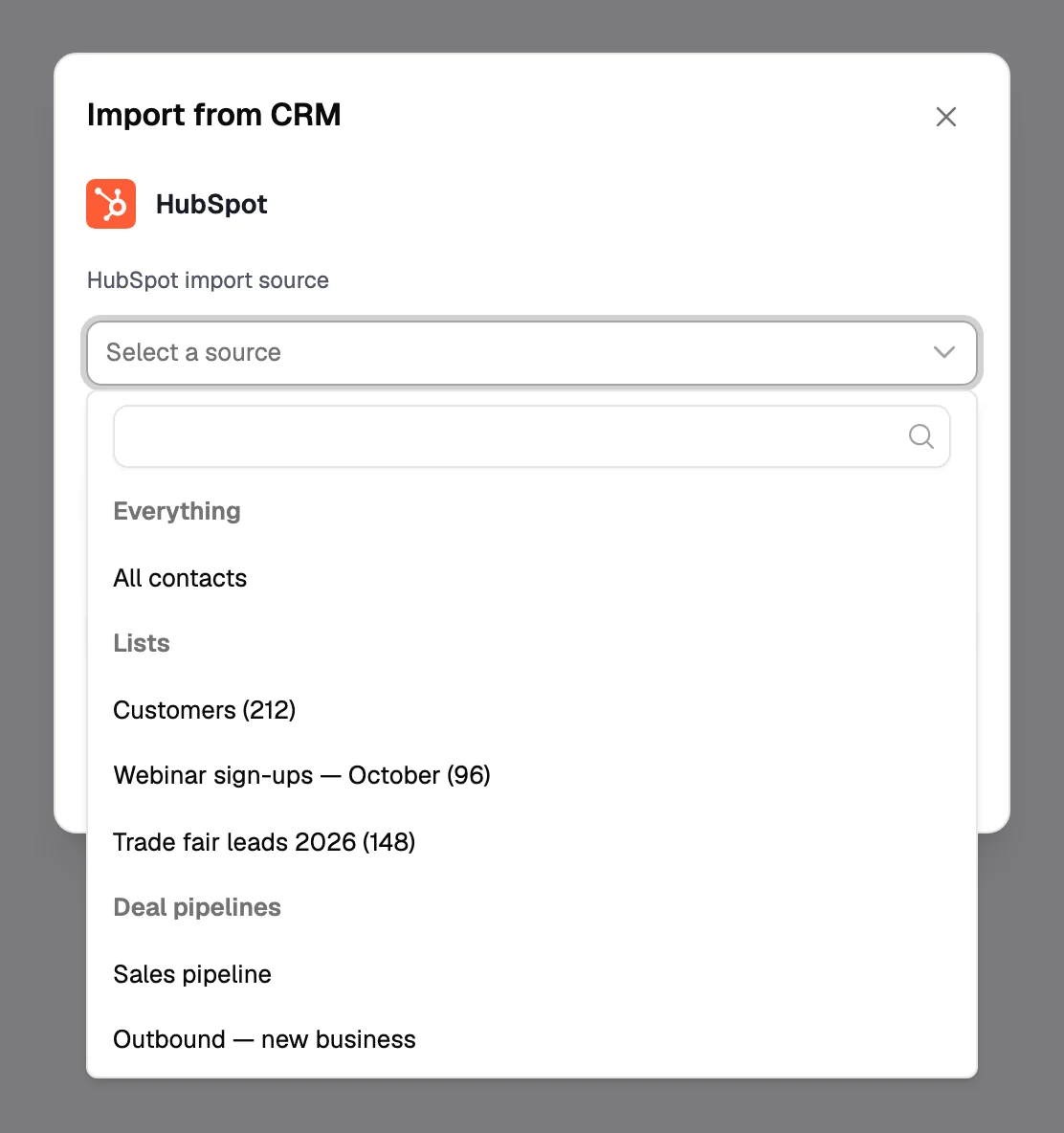
| Import from the CRM | Pulls CRM contacts into a list: everything, or one list, saved filter or pipeline where the CRM has them. You review the field mapping first, and can keep importing new CRM contacts every hour. | On a list: Import → From CRM |
| Per-list sync | Exports the contacts of one list with its own mapping, and can export updates and import newly created CRM contacts every hour. | On a list: Sync with and the name of the CRM |
| Exclusion lists fed from the CRM | Skips people who are already in the CRM: all of it, selected lists or pipelines, matched by email and by company domain. Refreshes every hour. | Exclusion lists |
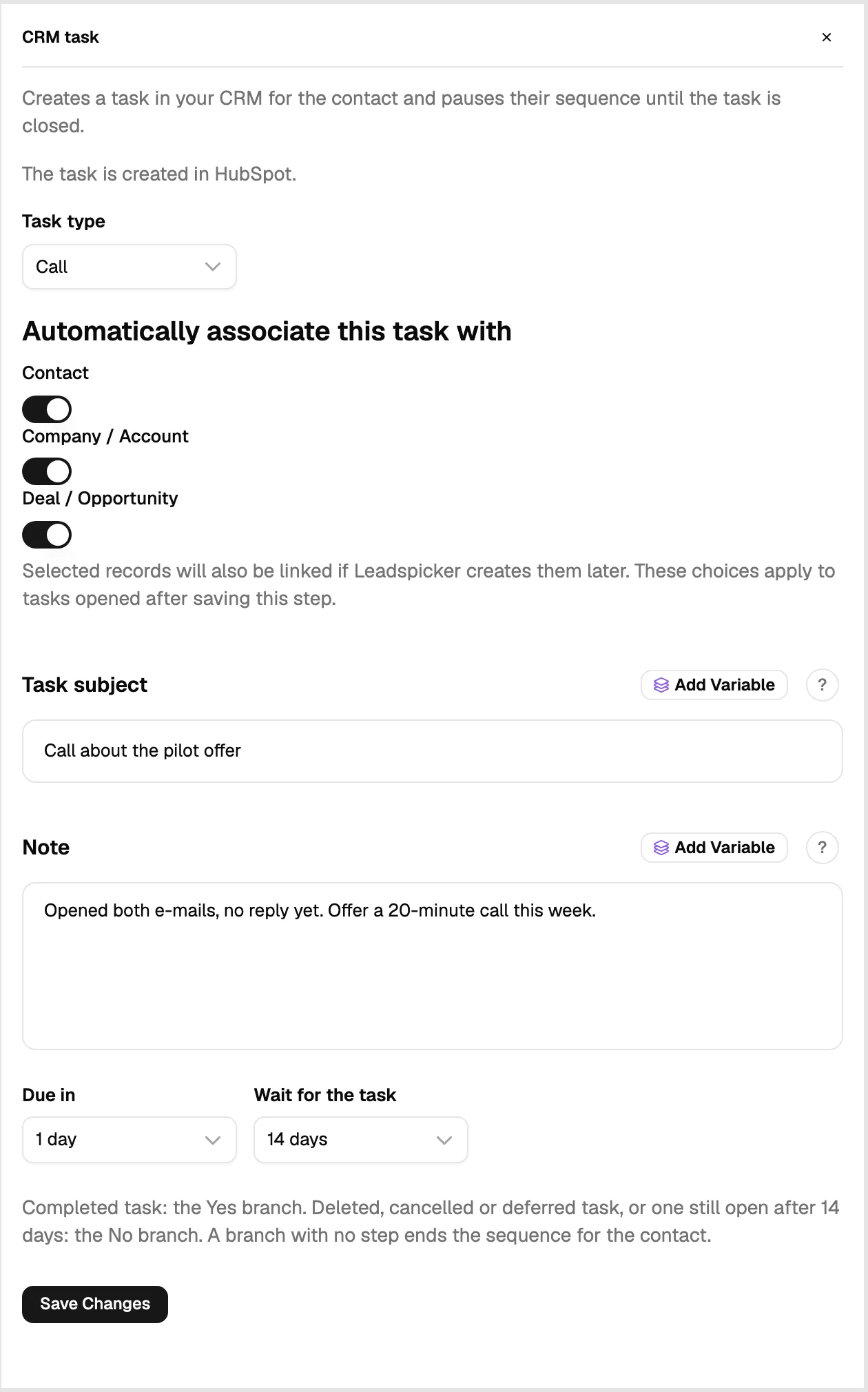
| The CRM task step | A sequence step that opens a task in the CRM and pauses the contact until the task is closed. A completed task continues down the Yes branch; a deleted, deferred or overdue one takes the No branch. | In a sequence: add step → CRM task |
| Custom action columns | A list column that creates a CRM task, or posts to a chat channel, for every contact that meets its rules, for example fit score is high. | In a list: add column → Custom action |
Will the sync overwrite data in my CRM?
Only where you allow it. A field set to the CRM's priority is filled when the record is created and never overwritten; choose Leadspicker priority or Bi-sync only for fields Leadspicker should keep current.
A contact did not reach the CRM. Where do I look?
Search the Logs tab for the contact's name or email. The row's details say what happened: the list was out of scope, a mandatory property was empty, or the CRM refused the record.
What happens when I disconnect?
Syncing stops and the stored credentials are removed. Your configuration, field mapping and sync history are kept, so you can reconnect later without creating duplicates.
Is this the same as the CRM connector in the assistant?
No. A connector lets the assistant read and edit CRM records during a chat. The sync, Actions and CRM-fed exclusion lists are always the native integration described here.
Was this page helpful?
Still stuck? Email support@leadspicker.com or use the chat in the app.
Last updated 2026-11-12