Slack, Teams and chat tool integrations
The assistant and your notifications can live where the team already talks: Slack, Google Chat, Microsoft Teams, Telegram and WhatsApp.
What each tool does
| Tool | Assistant in chat | Notifications | Lead capture |
|---|---|---|---|
| Slack | Yes: direct messages, @mentions and replies in notification threads | Yes, to channels | Yes |
| Google Chat | Yes: a direct message or an @mention in a space | Yes, to spaces | No |
| Microsoft Teams | Yes | Yes, to channels; being rolled out | No |
| Telegram | Yes | Yes, to a person's own chat | No |
| Yes, with files and photos both ways | No | No |
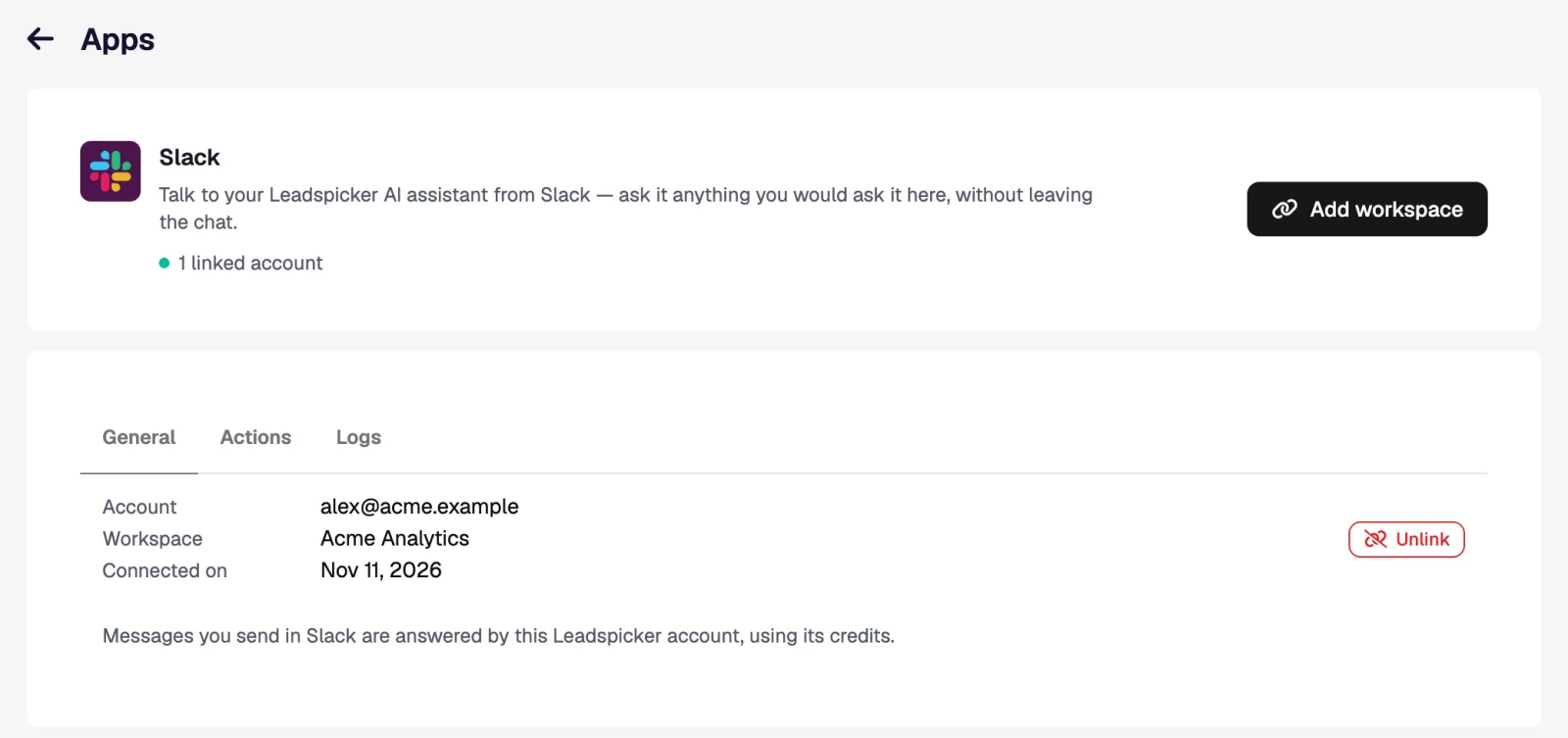
All of them are set up under Settings → Apps. A workspace is connected once by an owner or admin; after that each person links their own account.
Link your account
- Find the Leadspicker app
Open your chat tool and find the Leadspicker app in it.
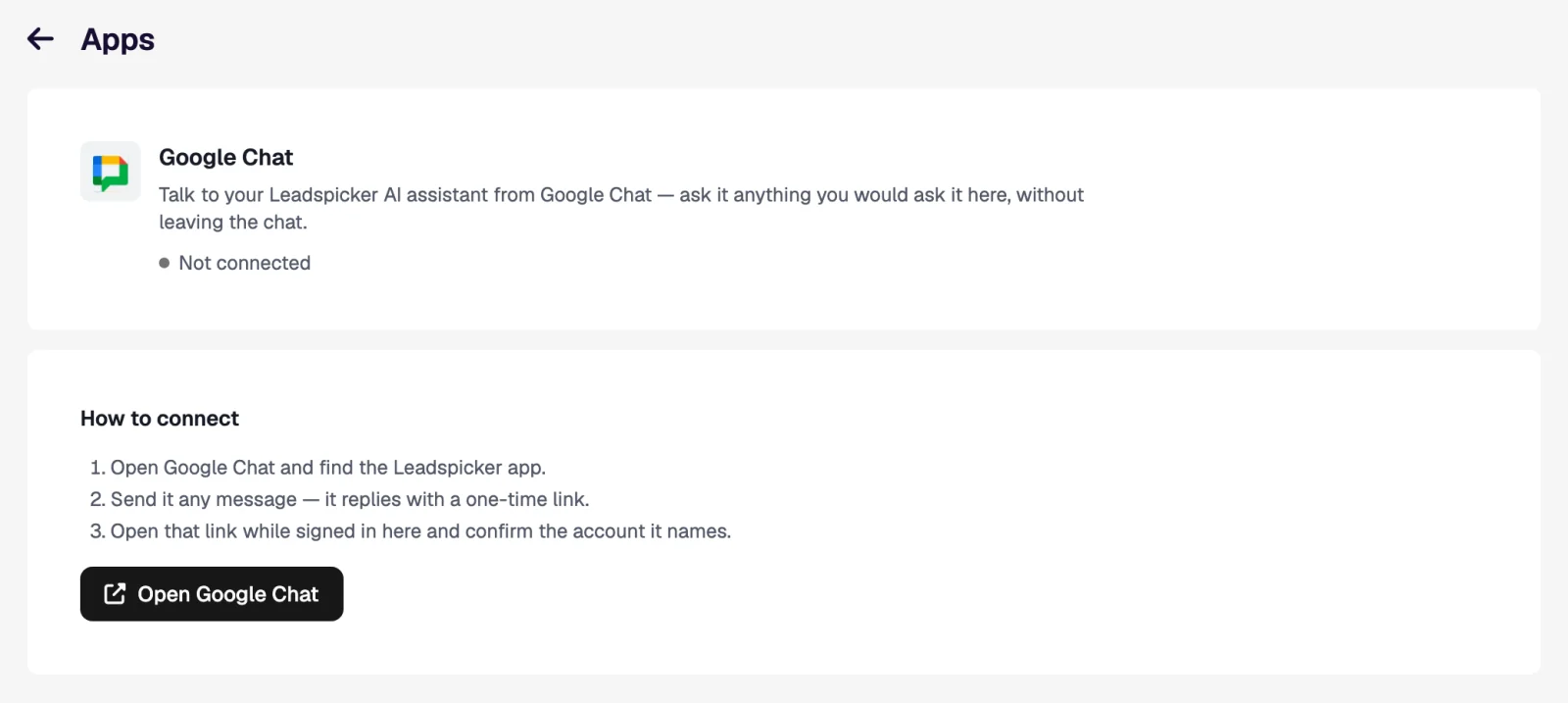
- Send it any message
It answers with a one-time link.
- Confirm the account
Open the link while you are signed in to Leadspicker and confirm the account it names. From then on the assistant answers you in that chat.
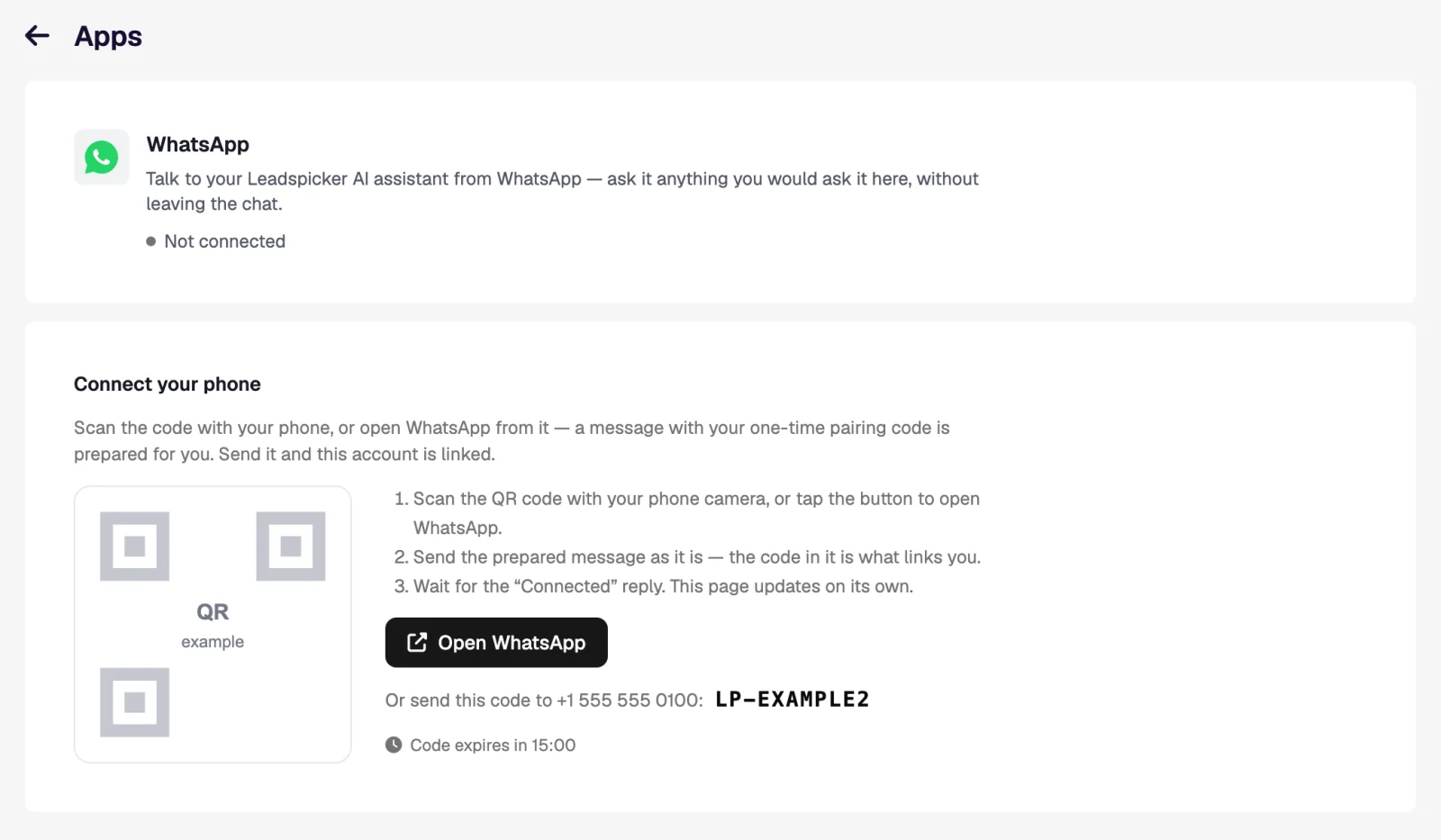
WhatsApp is paired from the other side. Its page under Settings → Apps shows a QR code: scan it with your phone, send the prepared message with its one-time code exactly as it is, and wait for the reply that says you are connected.
The assistant outside the app
It is the same assistant as in Leadspicker, not a reduced one.
- Your account, your credits. Messages you send are answered as your Leadspicker account, with its data, its permissions and its credits.
- Files both ways. Send it a spreadsheet of contacts or a photo of a business card; it can send an export back.
- Results come back to the chat. Long jobs, scheduled tasks and reminders post their result into the conversation they were started from.
- One history. Conversations from chat tools appear in the assistant's history in the app.
Notification rules
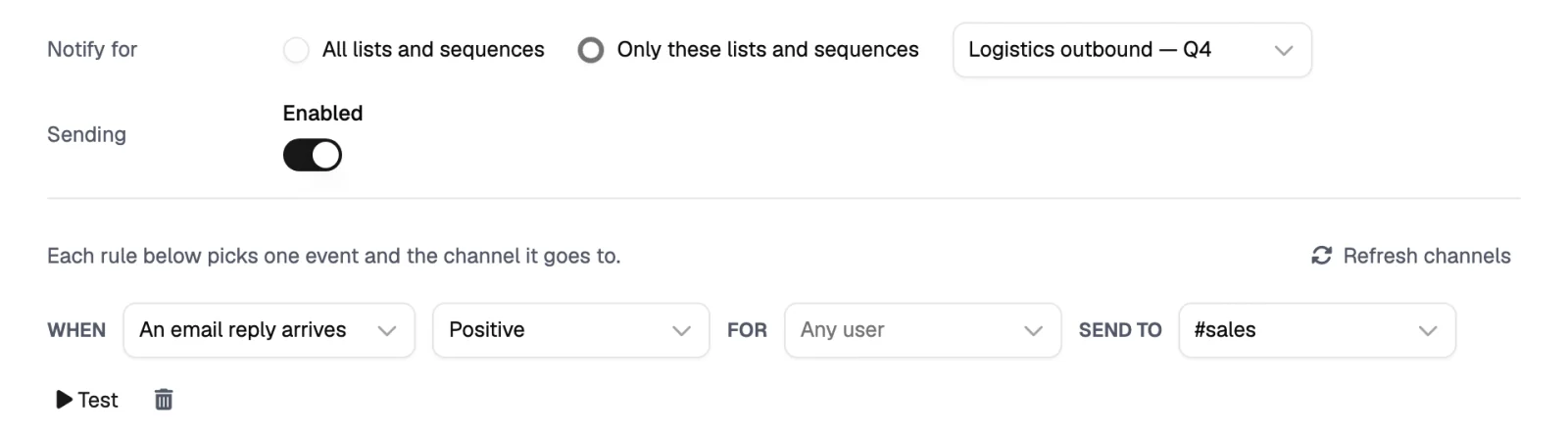
Notifications are rules on the tool's page under Settings → Apps, on the Rules tab (Actions where notifications share a page with the assistant). Each rule reads When [event] send to [channel, space or chat], and can be limited to one team member.
| Event | Typical use |
|---|---|
| An email reply arrives; a social reply arrives | Post positive replies to the sales channel. These two events can be filtered by sentiment. |
| A connection request is accepted | Tell the owner that the next step can go out. |
| A contact is added; an email is sent; a social message is sent | Keep an eye on a new routine or a newly launched sequence. |
| An outreach account disconnects | Alert whoever looks after mailboxes and social accounts before sending stalls. |
| An AI reply needs review | Bring a draft from the Reply Agent to a person for approval. |
| A custom action column runs | Follow what your list columns are doing. |
- Scope. Notify for All lists and sequences or Only these lists and sequences.
- Test. Posts a real message with example contact data to the destination, so you see exactly what the team will get.
- Channels. Invite the Leadspicker app to the channel or space first, then refresh the list of destinations.
- Logs. Every notification sent, with its event, destination and state.
In Slack, a reply in the thread under a notification goes straight to the assistant, so draft an answer to this works right there.
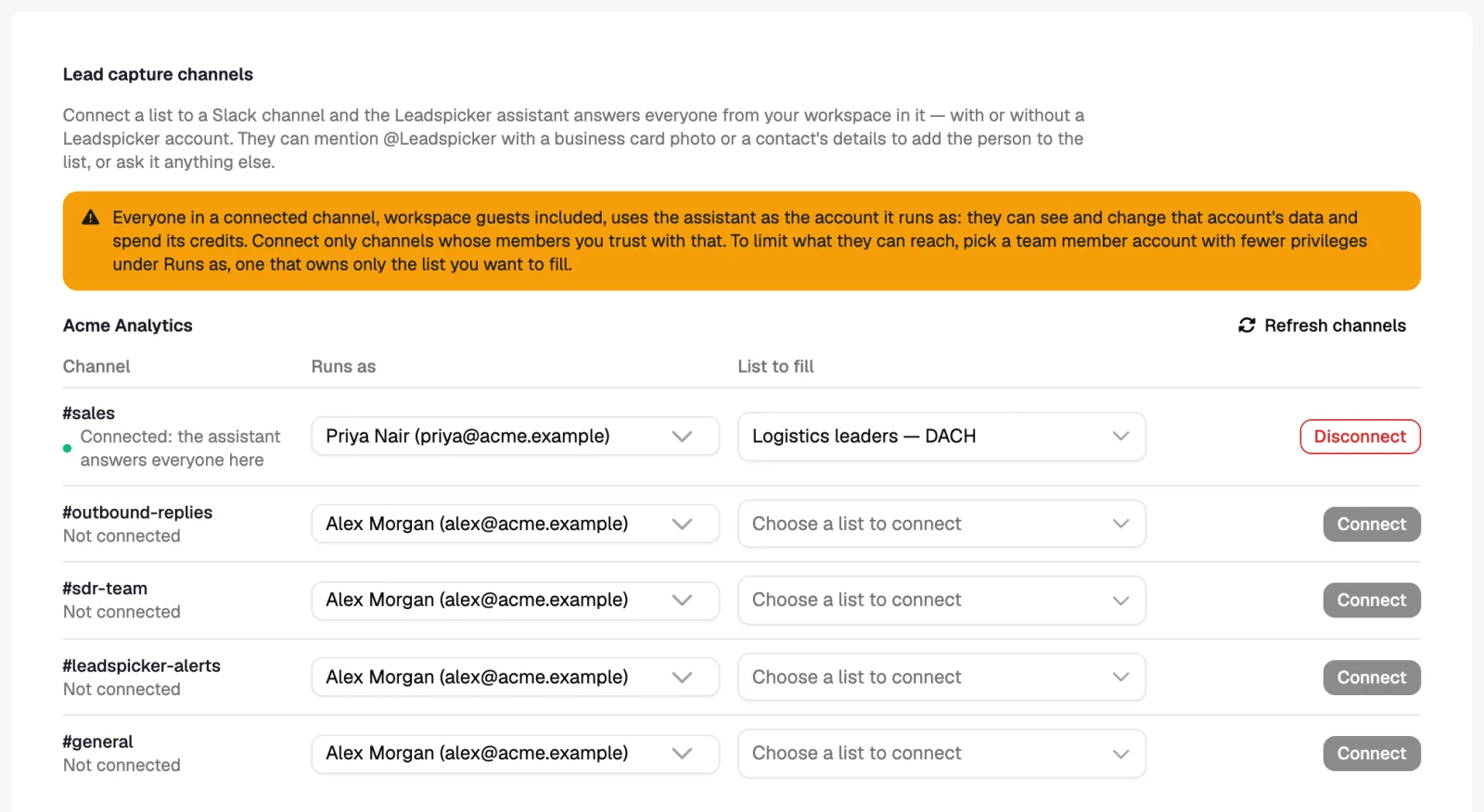
Lead capture channels in Slack
Connect a list to a Slack channel and anyone in that channel can mention @Leadspicker with a photo of a business card or a contact's details. The person lands in the list, where a connected sequence or enrichment picks them up. It suits event teams and anyone who collects contacts on the go.
Custom action columns
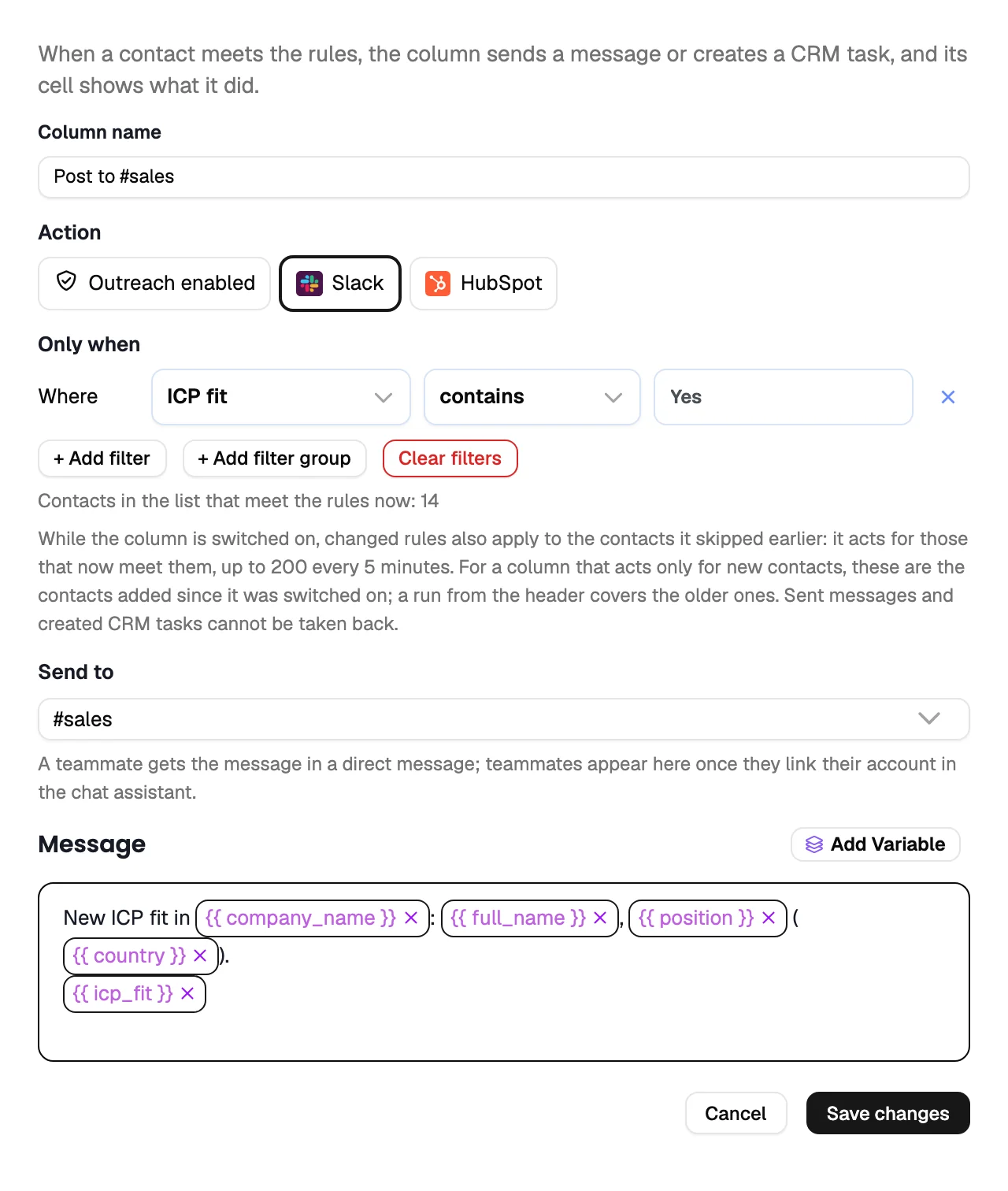
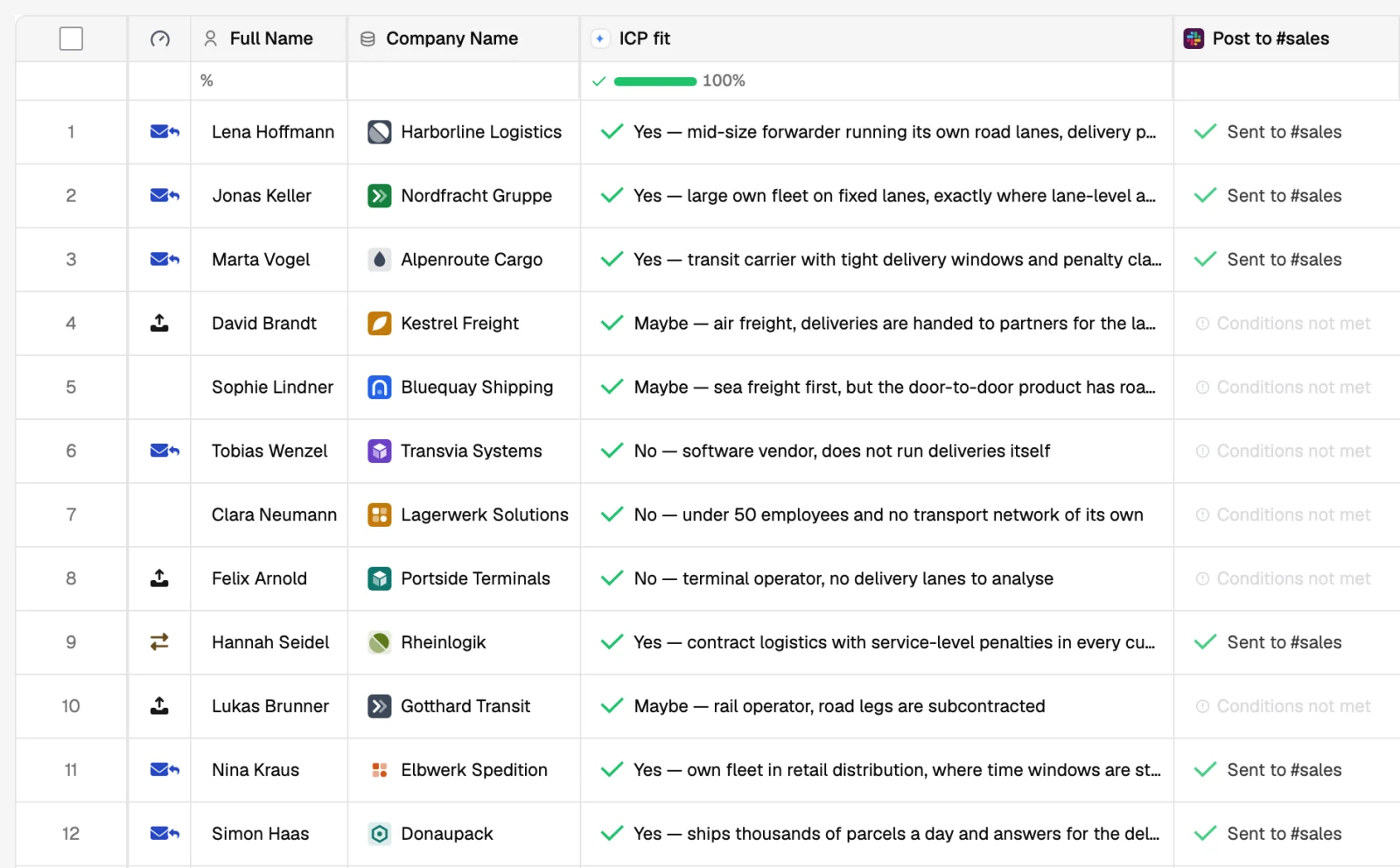
Notification rules react to outreach events. When the trigger is a value in a list, such as the AI column says this company is a fit, add a Custom action column to the list. For every contact that meets its rules it posts your message to a channel or to a teammate's direct messages in Slack, Google Chat, Microsoft Teams or Telegram, and the cell shows what it did, for example Sent to #sales. The same column type can create a CRM task instead; see How CRM integrations work.
Does the assistant in chat use credits?
It uses the credits of the account it answers as, in the same way as the assistant in the app.
Can a colleague without a Leadspicker account use it?
Only in a lead capture channel in Slack, where the assistant answers everyone in the channel as the account you chose.
Why is my channel not offered as a destination?
The Leadspicker app is not in it yet. Invite the app to the channel and refresh the destinations.
Can I send a notification to one person only?
Yes. Telegram rules go to a person's own chat, and a custom action column can message a teammate directly once they have linked their account.
Was this page helpful?
Still stuck? Email support@leadspicker.com or use the chat in the app.
Last updated 2026-11-12