Salesforce integration
Leadspicker writes your outreach into Salesforce as Leads or as Contacts and Accounts, and turns replies into opportunities and tasks for the right user.
What you get
- Leads, or Contacts linked to Accounts. You choose which one a Leadspicker contact becomes.
- Opportunities at the stage you choose; Salesforce has one list of stages, so there is a single pipeline.
- Tasks assigned to the Salesforce user mapped to the sender.
- Campaigns, list views and opportunities as sources for imports and exclusion lists.
For the tabs and options every CRM shares, see How CRM integrations work.
Connect Salesforce
- Have a Salesforce admin install the app
On Settings → Apps → Salesforce, the button Install Leadspicker in Salesforce opens the installation. A Salesforce administrator does this once per Salesforce organisation.
- Come back and connect
Return to the Salesforce page in Leadspicker and connect your account with the Salesforce sign-in, as an owner or admin of the Leadspicker organisation.
- Choose the record type
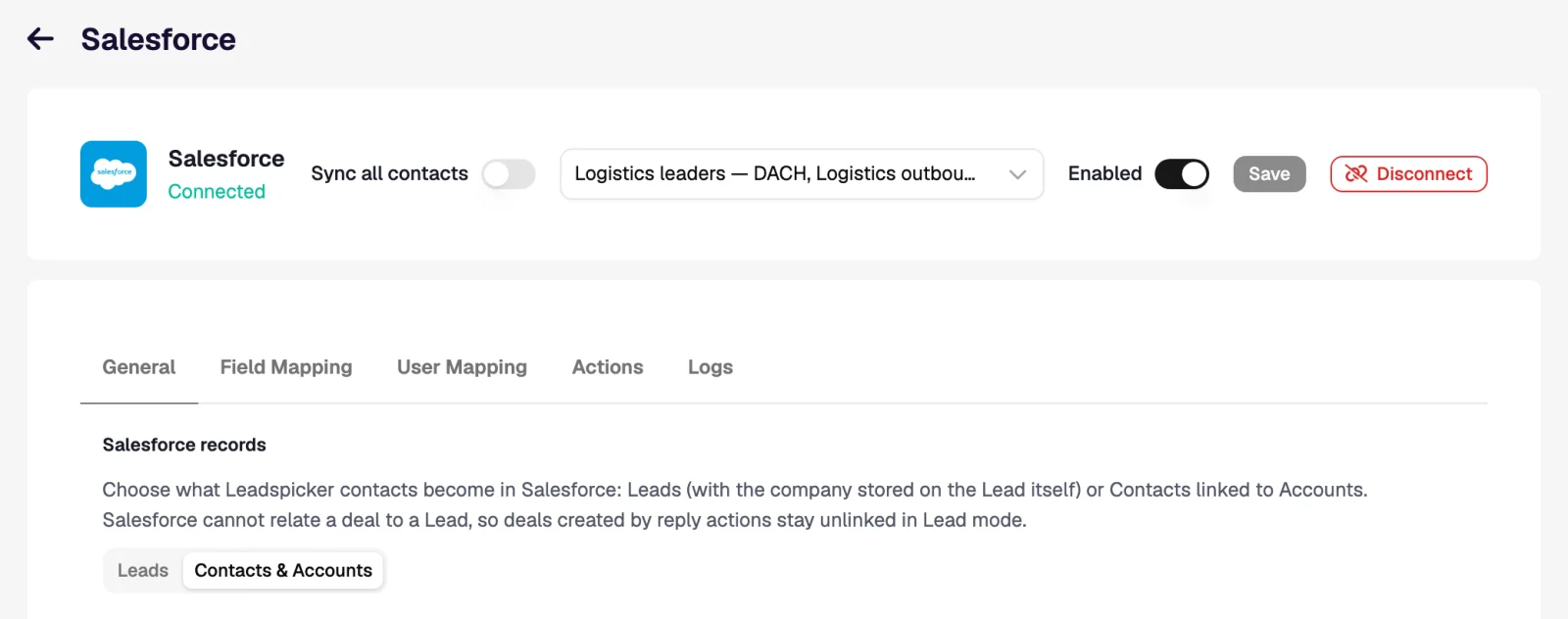
On General, under Salesforce records, pick Leads or Contacts & Accounts before you touch the field mapping.
- Map, switch on, save
Set the scope and triggers, check Field Mapping and User Mapping, turn Enabled on and Save.
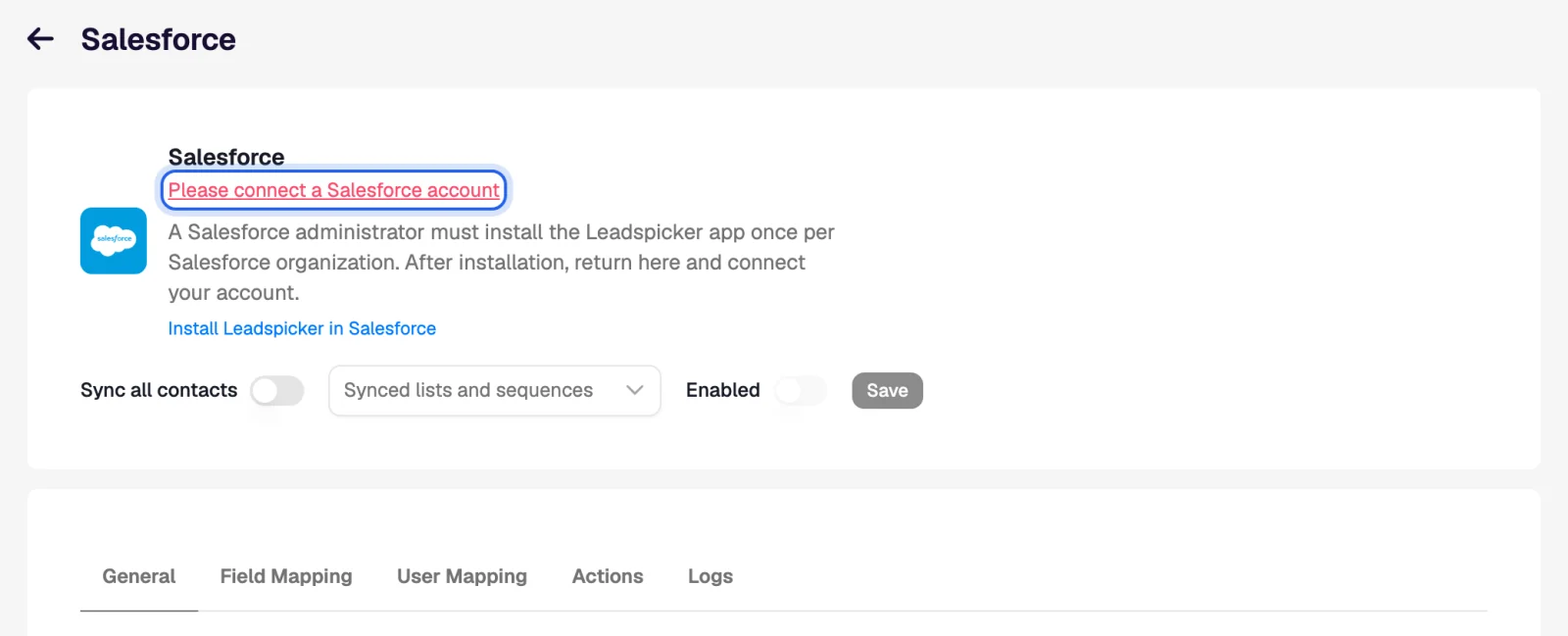
Leads, or Contacts & Accounts
| Mode | What is created | Opportunities and tasks |
|---|---|---|
| Leads (default) | One Lead per contact, with the company stored on the Lead itself. | Salesforce cannot relate an opportunity to a Lead, so an opportunity created by a rule stays unlinked and a task stays on the Lead. |
| Contacts & Accounts | A Contact linked to its Account. | The opportunity belongs to the Account, and a task can be filed under the opportunity. |
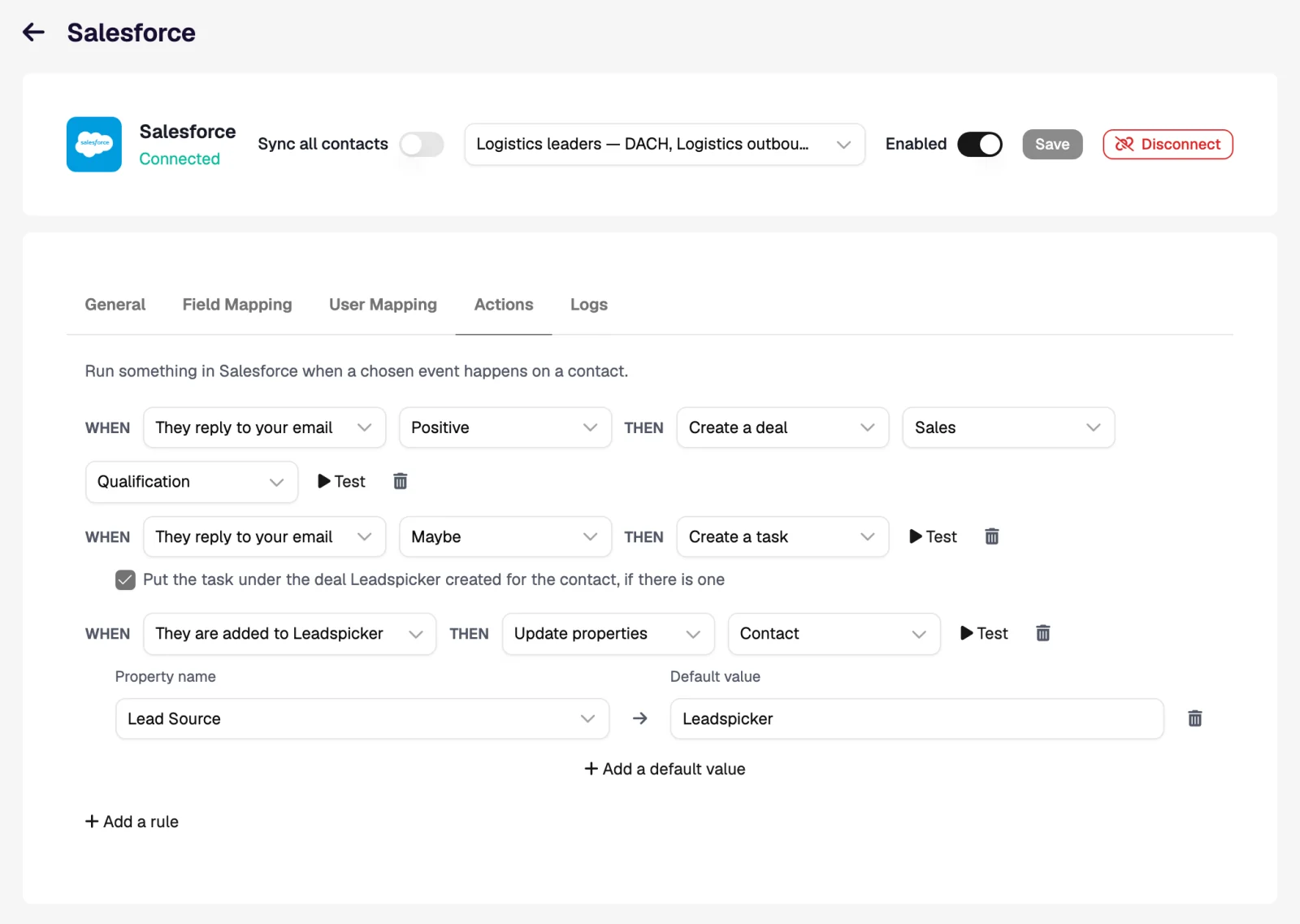
Workflows inside Salesforce
Which rules make sense depends on the mode.
| When | Then | What the rep sees in Salesforce |
|---|---|---|
| They reply to your email, Positive (Contacts & Accounts) | Create a deal at stage Qualification, plus Create a task | An opportunity on the Account, and under it a task Reply from … (Positive) with the reply text, owned by the mapped user. |
| They reply, Positive (Leads) | Create a task | A task on the Lead with the reply. The rep converts the Lead as usual and the opportunity comes from that conversion. |
| They accept your connection request | Update properties: lead status → Working - Contacted | The Lead moves to the status your list views and reports already use. |
Import from Salesforce and exclusions
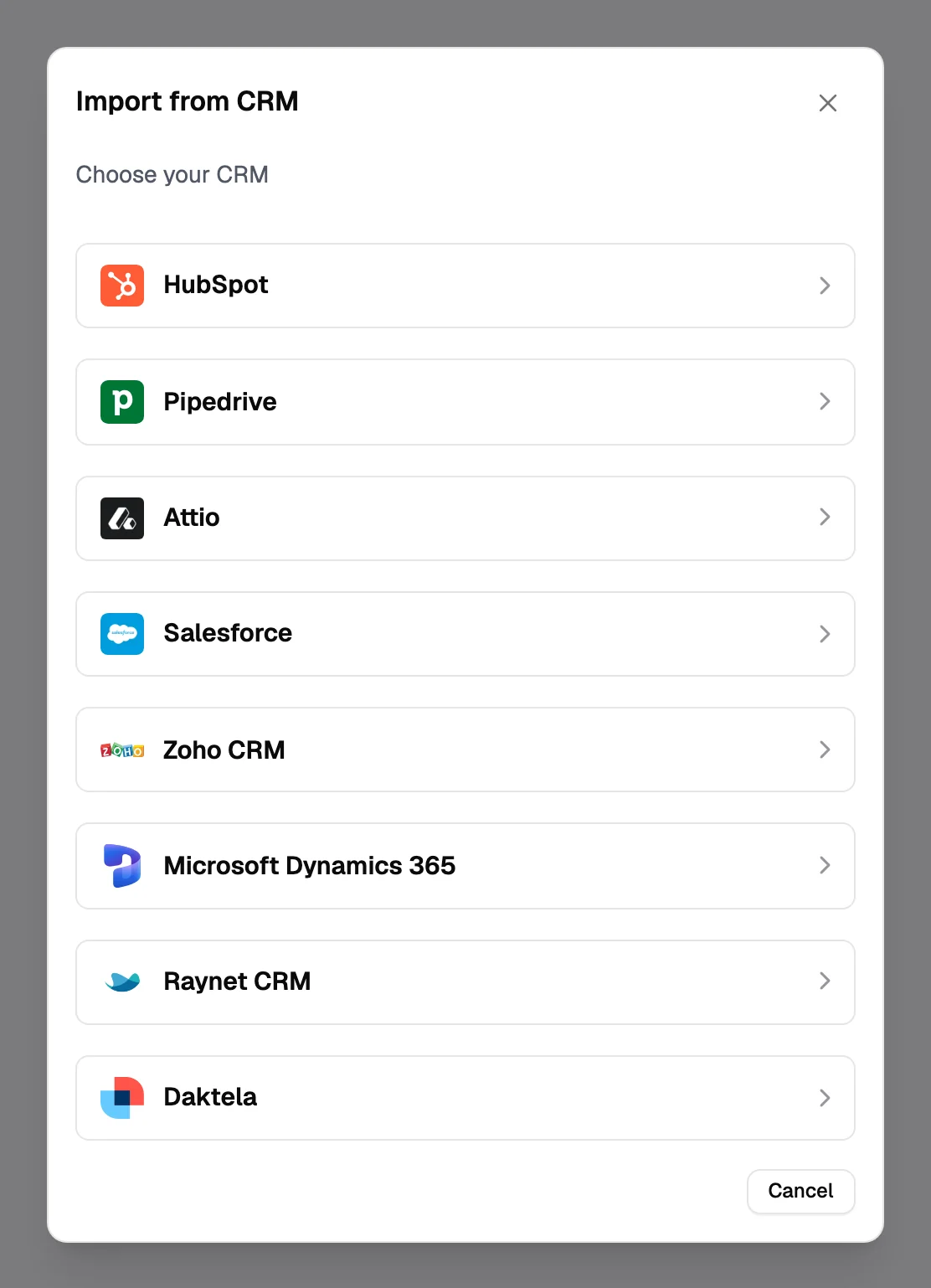
- Import. Import → From CRM on a list brings in Leads or Contacts & Accounts: everything, one campaign or one list view, hourly if you want. In Contacts & Accounts mode you can also import the contacts on opportunities.
- Exclusions. Exclude all contacts, all companies, selected campaigns and list views, or the people on opportunities at chosen stages.
Do I have to be a Salesforce administrator?
Only for the one-time installation. After that a Leadspicker owner or admin connects with an ordinary Salesforce user.
Leads or Contacts & Accounts?
Leads if your team qualifies in the Lead object and converts by hand. Contacts & Accounts if rules should create opportunities linked to the account.
Was this page helpful?
Still stuck? Email support@leadspicker.com or use the chat in the app.
Last updated 2026-11-12