Integration setup guides
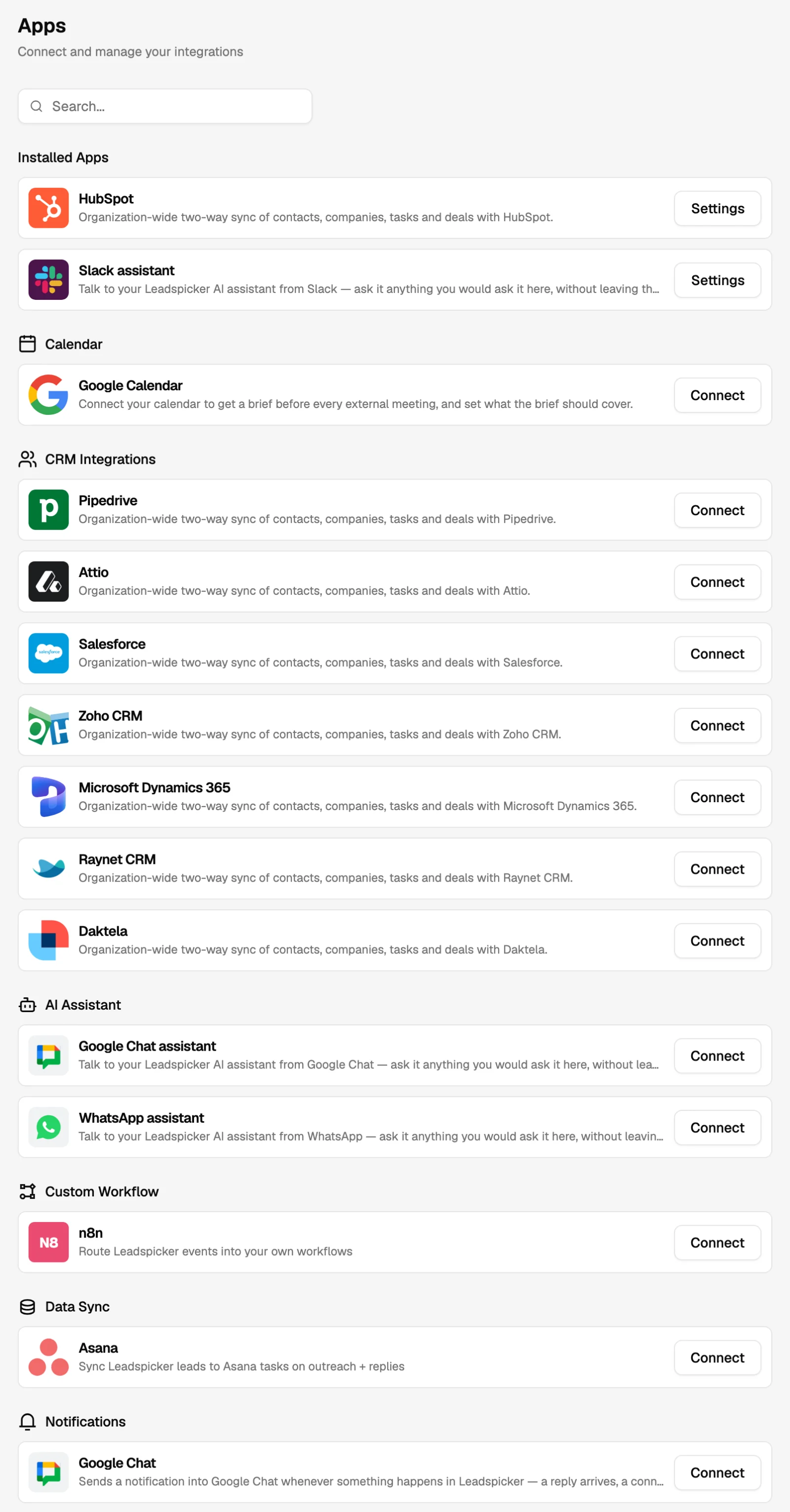
Leadspicker is rarely the only system a sales team works in. This section covers everything it connects to, what each connection is for and where you switch it on.
Almost all of it starts in one place: Settings → Apps. Every app has a card there, and a connected app moves to the top of the page with its status. Webhooks, API keys, MCP, the CLI and custom AI providers have their own items in the same Settings menu.
What each integration is for
| Integration | What it is for | Where |
|---|---|---|
| CRMs: HubSpot, Salesforce, Pipedrive, Zoho CRM, Microsoft Dynamics 365, Attio, Raynet CRM, Daktela | Two-way sync of contacts and companies, plus rules that create a task or a deal, or update a property, when someone is contacted or replies. | Settings → Apps |
| Slack, Google Chat, Microsoft Teams, Telegram | The assistant inside your chat tool, and notifications about replies, accepted connection requests and disconnected outreach accounts. | Settings → Apps |
| The assistant on your phone, with files and photos going both ways. | Settings → Apps | |
| Google Calendar, Outlook Calendar | A brief before every external meeting, the meeting notetaker, and the calendar the assistant books meetings into. | Settings → Apps |
| Webhooks | A POST request to your URL whenever a chosen outreach event happens. | Settings → WebHooks |
| REST API | Read and write lists, sequences and contacts from your own code. | Settings → API Keys |
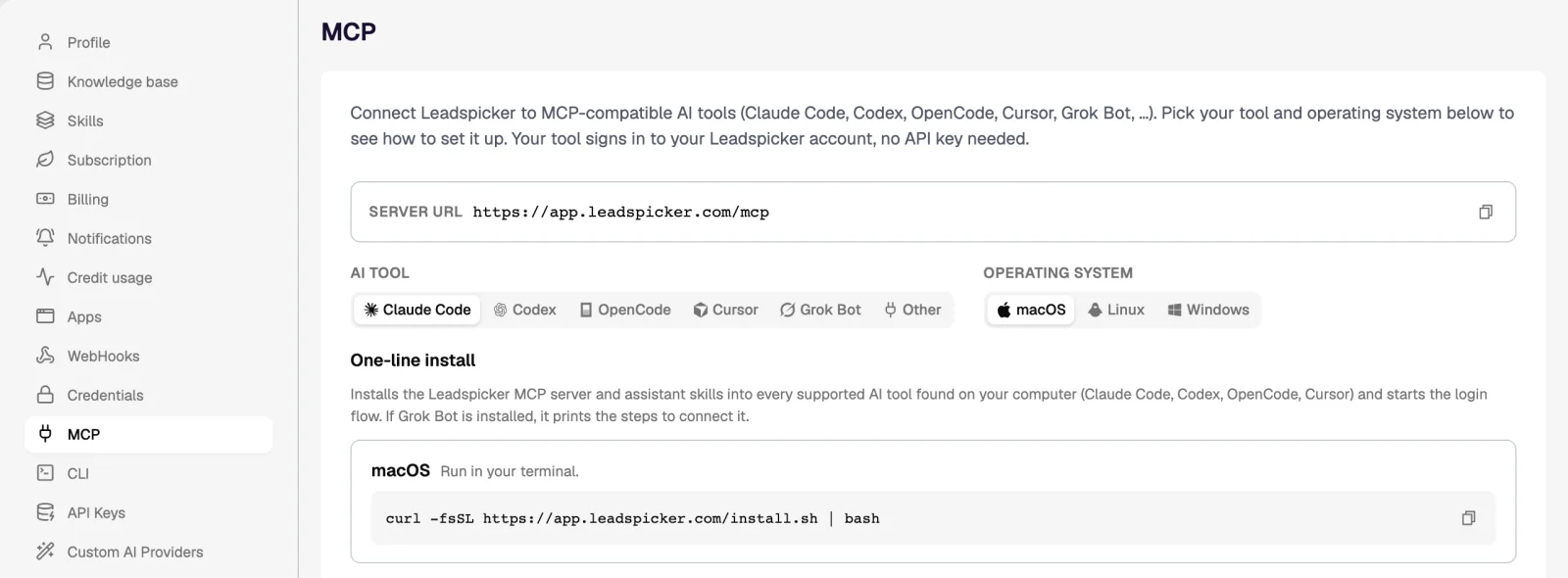
| MCP server and CLI | Let an AI agent or a terminal script work in your Leadspicker account. | Settings → MCP, Settings → CLI |
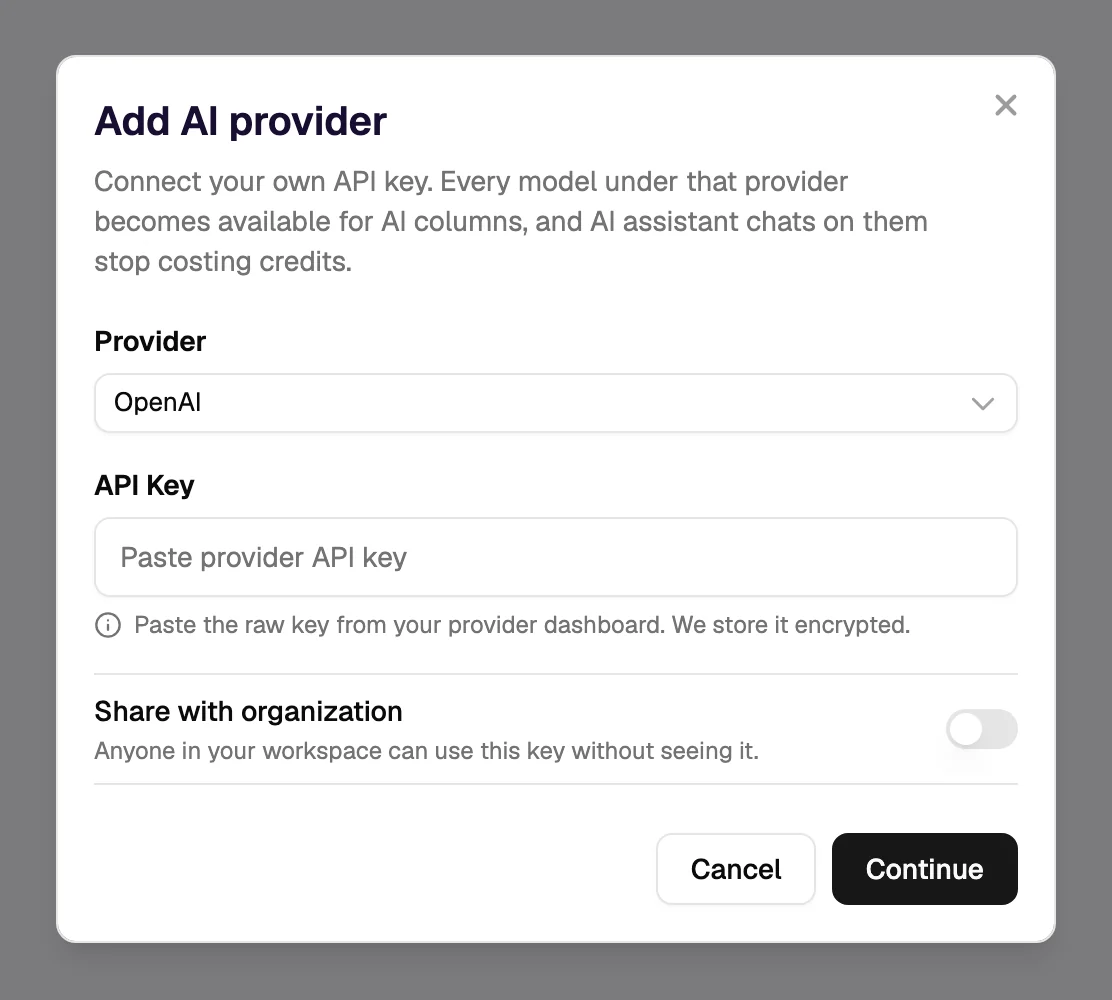
| Custom AI providers | Run AI columns and assistant chats on your own key for a provider such as OpenAI or Anthropic. | Settings → Custom AI Providers |
| Enrichment provider keys | Use your own credentials with enrichment providers. | Settings → Apps, under Enrichments |
| Managed mailboxes and domains | Buy and manage sending domains and Google Workspace or Microsoft mailboxes in one place. | Your outreach accounts |
CRMs
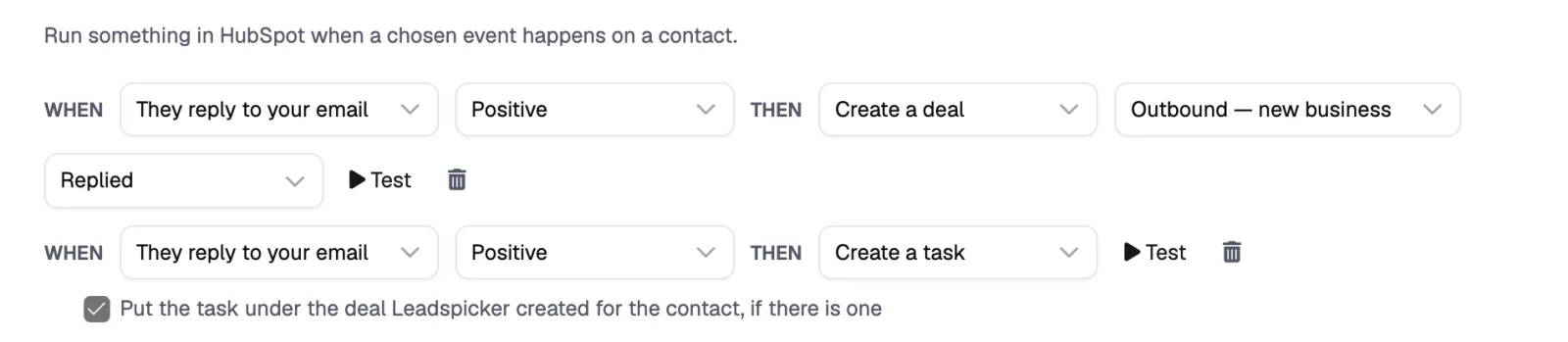
Eight CRMs connect natively, with no middleware in between. There is one integration per organisation and CRM, an owner or admin connects it, and it then covers every member's lists and sequences that are in scope. The part most teams come for is the Actions tab: rules such as when they reply and the reply is positive, create a deal in this pipeline and put a follow-up task under it.
Read How CRM integrations work first; it describes what all eight share. Then open the page of your own CRM for the connection steps and its particulars.
Chat tools
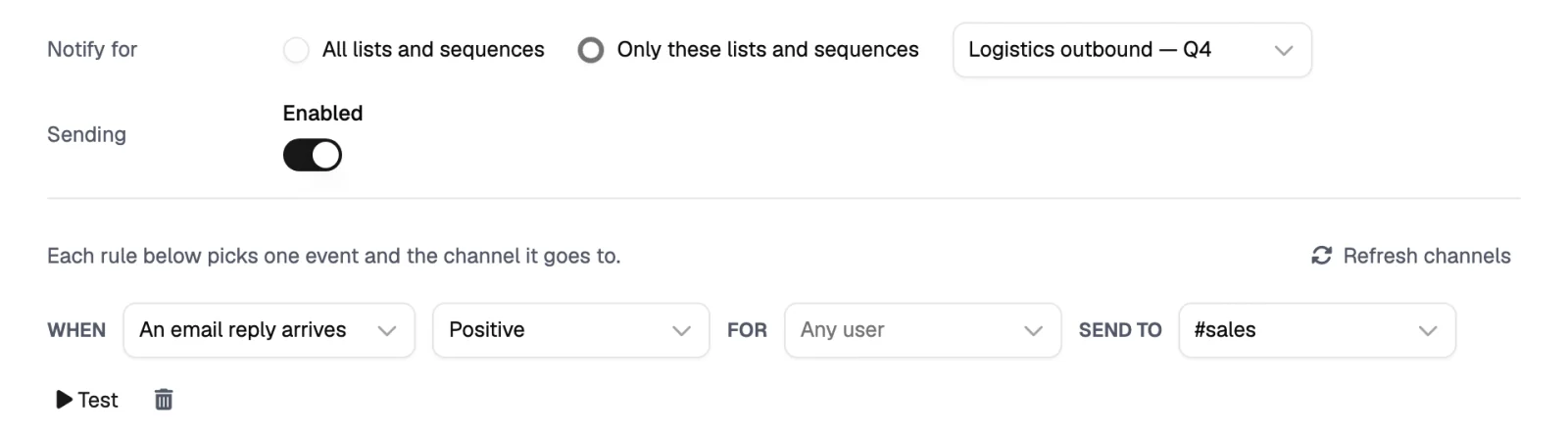
Slack, Google Chat, Microsoft Teams, Telegram and WhatsApp carry the assistant out of the app: you write to it where the team already talks, and it answers as your own account. All of them except WhatsApp can also receive notification rules, so a positive reply lands in the channel of the people who should pick it up. See Chat tools.
Calendars
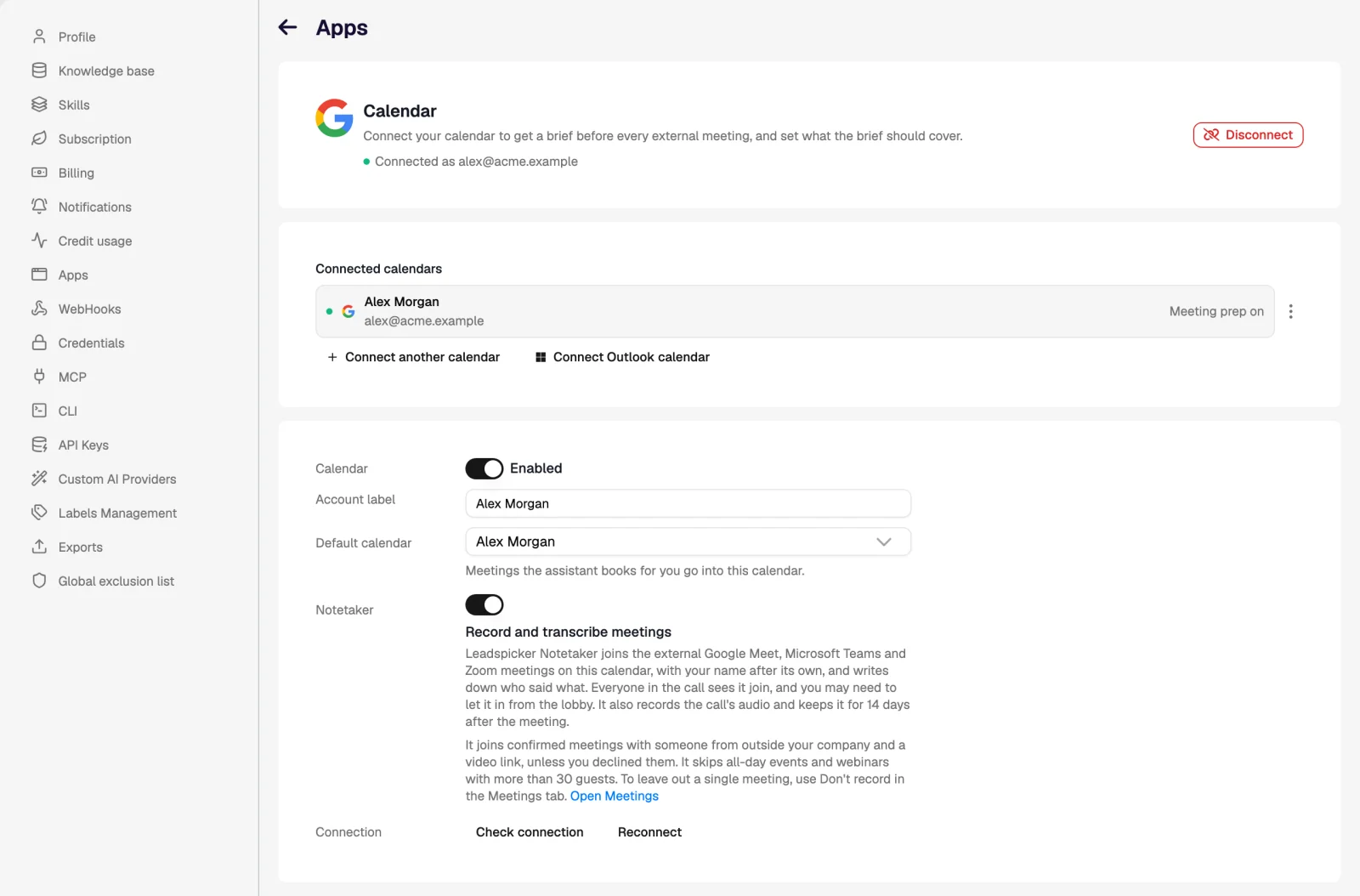
Connecting Google Calendar or Outlook Calendar is what makes meetings work: the morning brief, the notetaker that joins the call, and a default calendar for meetings the assistant books. See Calendar.
Automation and developers
- Webhooks send an event to your URL: a contact added, a message sent, a reply, a bounce.
- The REST API reads and writes the same data the interface does, authorised by an API key.
- n8n and similar tools combine the two: a webhook starts the flow, API calls write back.
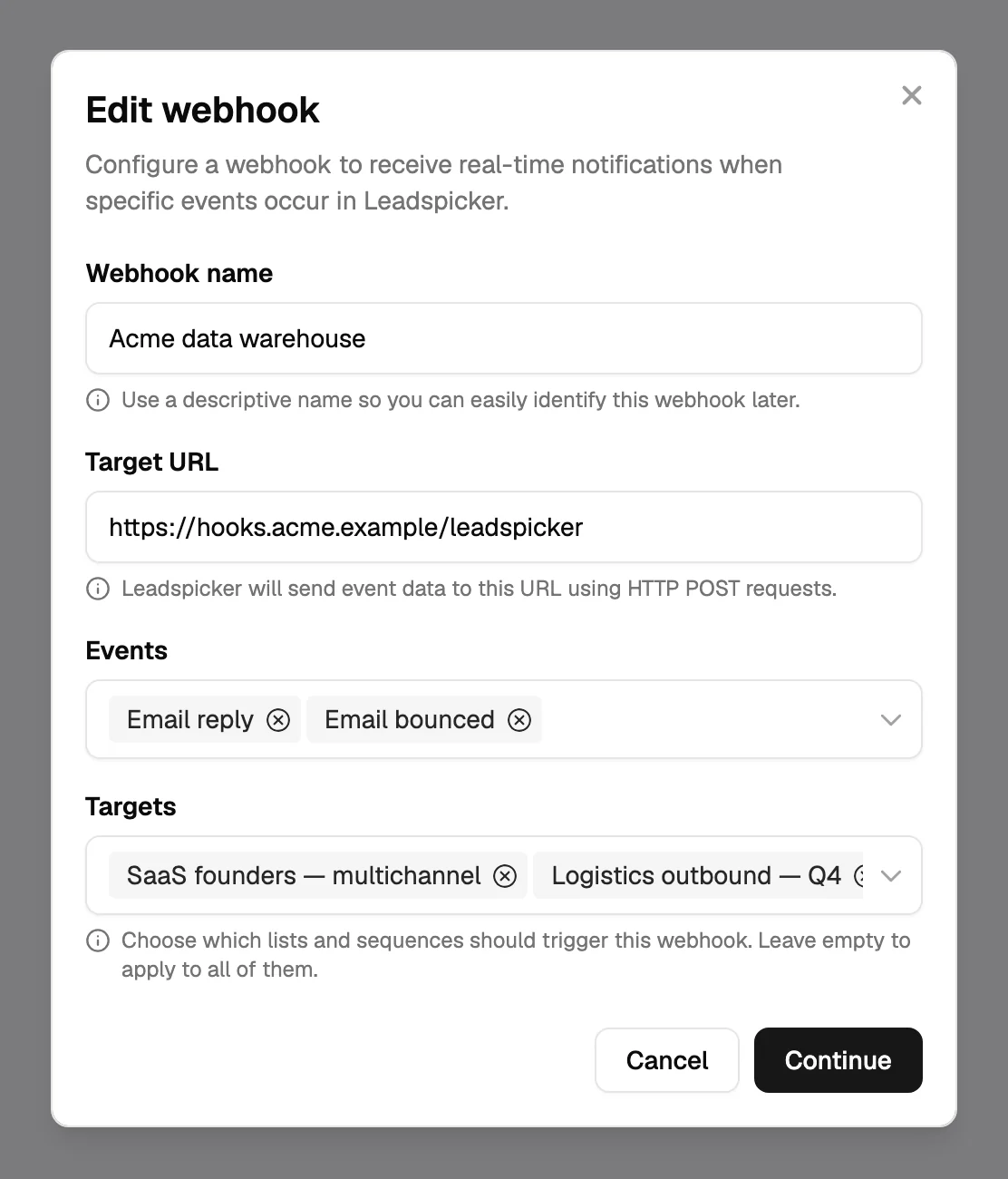
All three are described in Webhooks and API.
AI agents
Claude Code, Cursor, Codex, OpenCode, Grok Bot and other MCP-compatible tools can work directly in your Leadspicker account: build a list, enrich it, draft a sequence. The agent signs in to your account in the browser, so there is no API key to hand over. That has its own section: AI agents, starting with the MCP server and the CLI.
Your own keys, mailboxes and domains
- Custom AI providers. Add your own key for a provider such as OpenAI or Anthropic and every model under that provider becomes available for AI columns; assistant chats on those models stop costing credits.
- Enrichment provider keys. Where you have your own contract with an enrichment provider, save its credentials and the enrichment runs on them.
- Managed mailboxes and domains. Sending domains and mailboxes bought and managed from Leadspicker, for when outreach needs more capacity than your own domain should carry.
Pages in this section
My CRM is not one of the eight. What can I do?
Use a webhook to push outreach events into it and the REST API to read or write contacts. Any system that can receive a POST request or call an API can be wired up this way; see Webhooks and API.
Who can connect an integration?
A CRM and a chat workspace are connected by an owner or admin of the organisation, once for everyone. Each person then links their own chat account and connects their own calendar.
Do I need a developer?
Not for the apps under Settings → Apps: they are connected by signing in and configured by clicking. Webhooks and the API are the parts meant for someone who builds automations.
Was this page helpful?
Still stuck? Email support@leadspicker.com or use the chat in the app.
Last updated 2026-11-12