The Leadspicker interface
The app has one navigation column on the left and whatever you opened on the right. This page is the map: what each sidebar item is for, and which page to open for a given job.
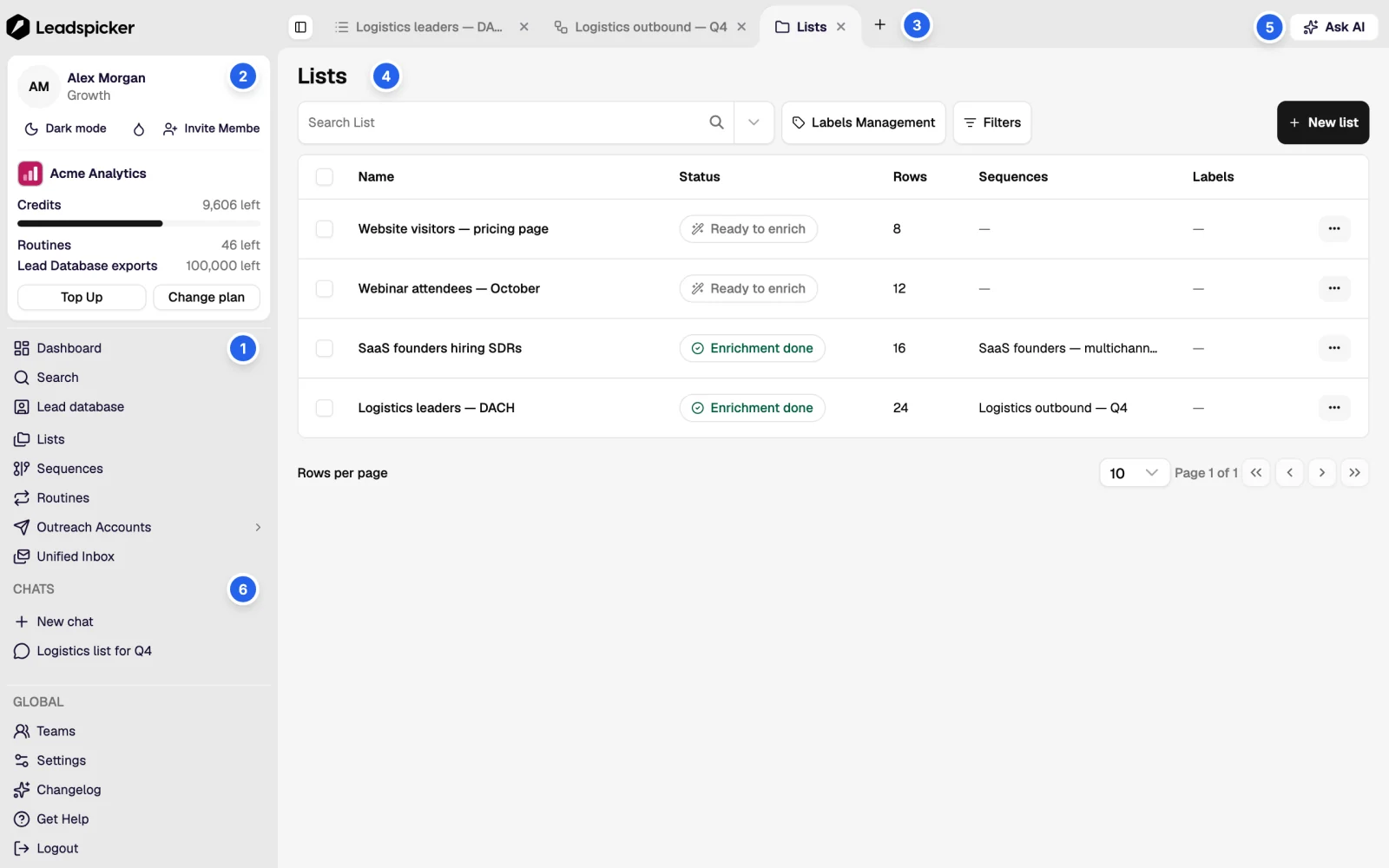
The sidebar
| Item | What it is for |
|---|---|
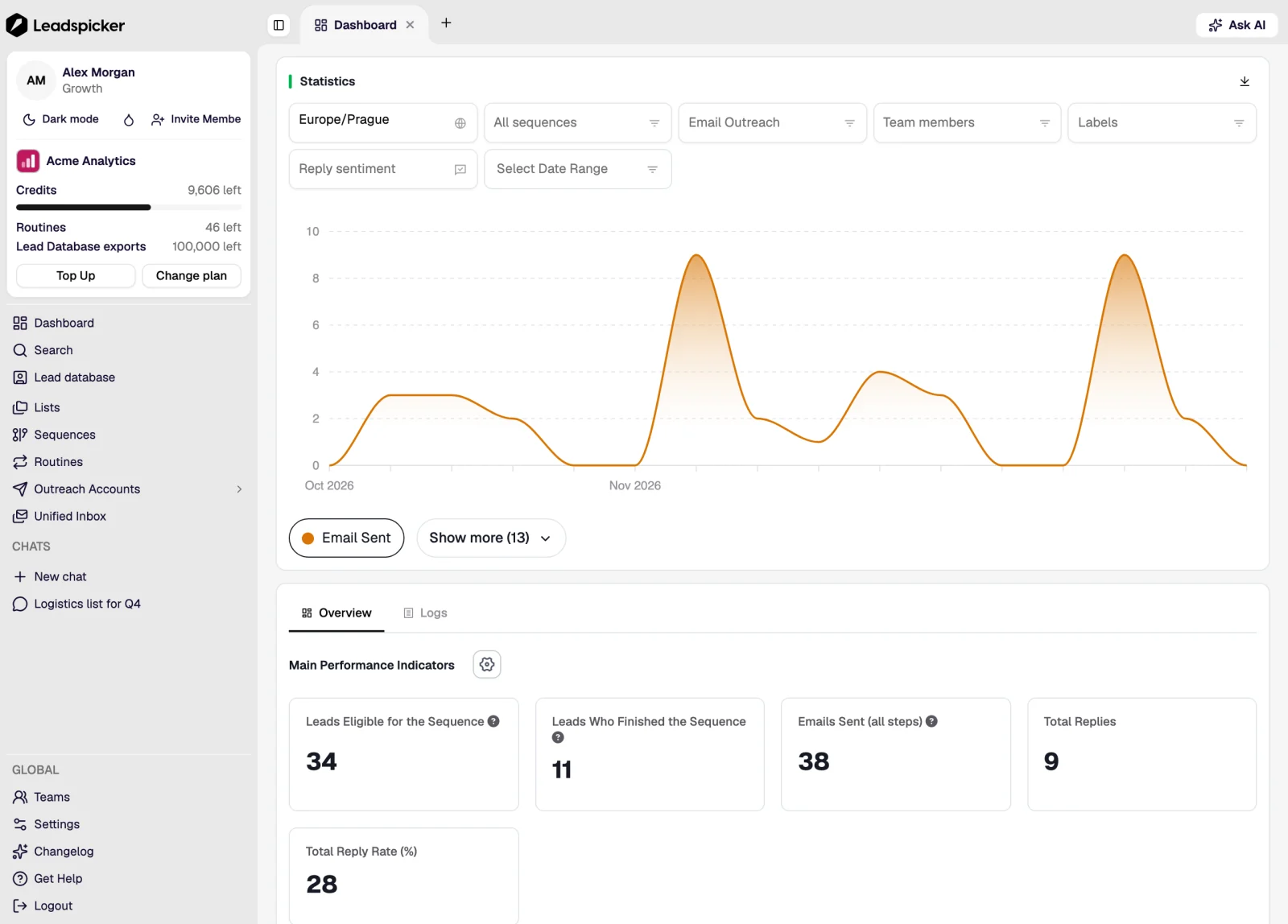
| Dashboard | What happened recently across your lists and sequences: contacts added, messages sent, replies waiting. |
| Lists & sequences | Everything you build. Lists hold contacts; sequences hold outreach steps. See lists and sequences. |
| Lead database | Search companies and people, preview the count, import the result into a list. See the lead database. |
| All contacts (where enabled) | Every contact in the account across all lists, the same person collapsed into one row, with the sequences they are in and their reply state. |
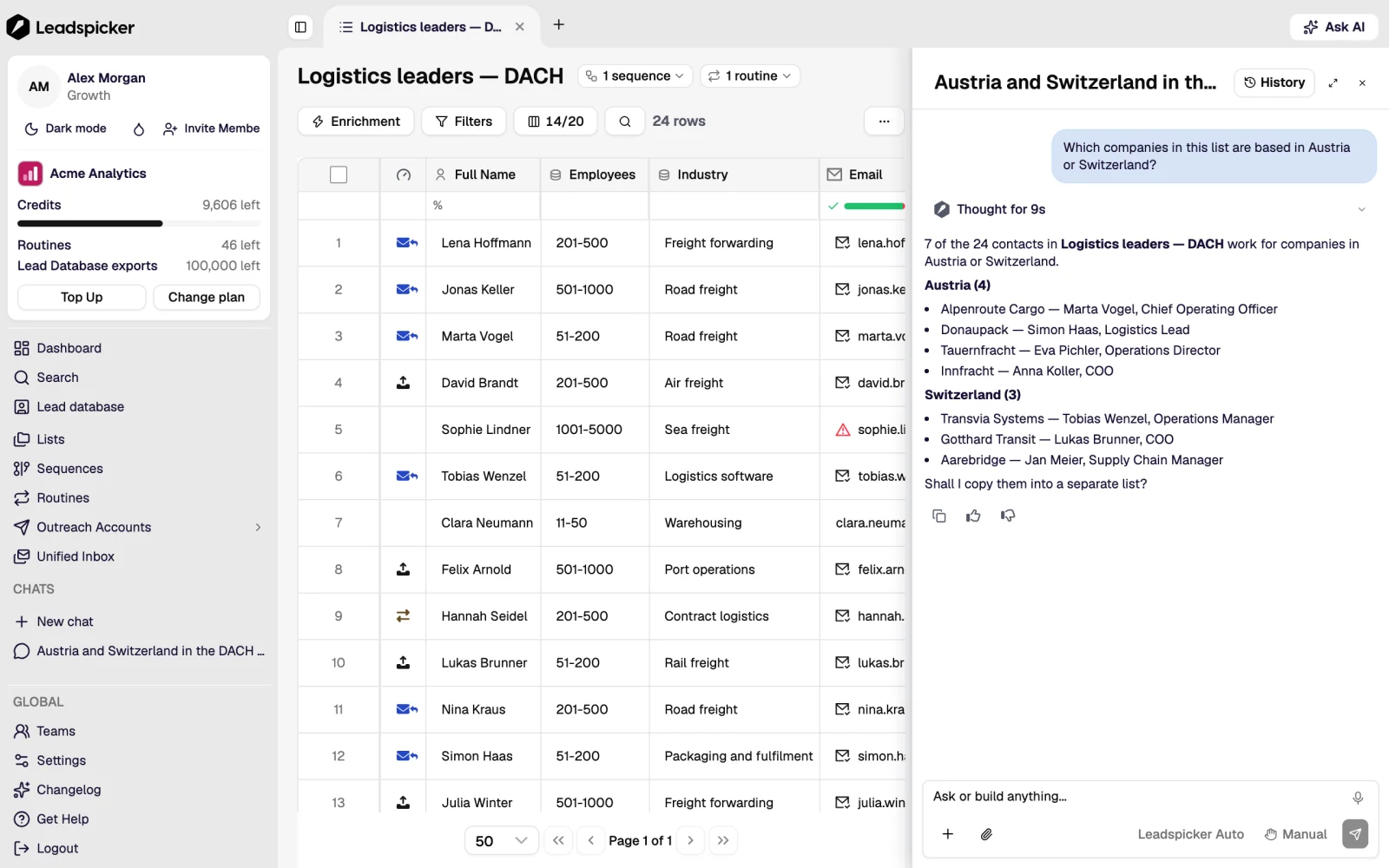
| AI Assistant | The chat that works in your account, in Manual, Plan or Auto mode. See the AI assistant. |
| Unified Inbox | Replies from every connected account, email and social, in one place. See the inbox. |
| Outreach Accounts | The mailboxes and social accounts that send, their daily limits, ramp-up and signatures. See connect your outreach accounts. |
| Global Exclusion list | Contacts, addresses and domains that no sequence may ever reach. See exclusion lists. |
| Teams | Members and their roles, and what the team shares. See teams and roles. |
| Settings | Integrations, billing and the plan, and the referral programme. |
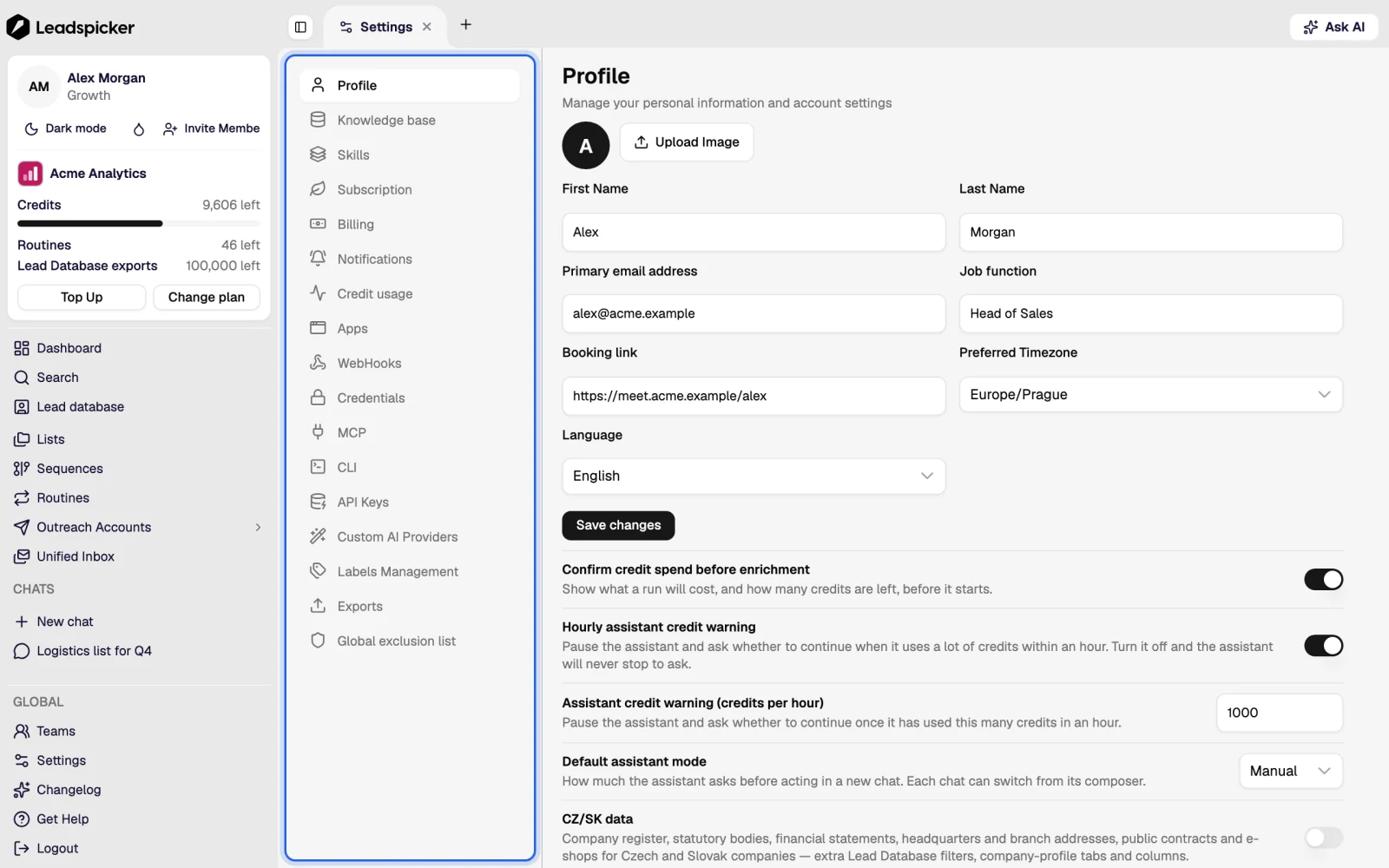
Where to do the common jobs
| Job | Where |
|---|---|
| Find new companies to contact | Lead database, or a routine on a list |
| Add contacts you already have | Import, on the list |
| Find emails and phone numbers | Enrichment columns, on the list |
| Decide who is worth contacting | Filters, labels and an AI column, on the list |
| Write the messages | The steps editor, on the sequence |
| Choose who sends and when | Sequence settings, plus Outreach Accounts |
| Answer a reply | Unified Inbox |
| Stop contacting someone forever | Global Exclusion list |
| See what a campaign achieved | The sequence's statistics, and the dashboard |
Things that are easy to miss
- The assistant can drive the same screens. Anything in this table can be asked for in the chat, and it reports back where it put the result.
- Lists and sequences are filtered separately in the Lists & sequences screen, which is the fastest way to find the one you want.
- The contact panel opens from any row and shows one person's data, their conversation history and the sequences they are in.
- Routines live on a list, not in the sidebar: open a list and its routines are a tab on it. See routines and signals.
- Themes. The app has a light and a dark theme; the switch is in the account menu at the bottom of the sidebar.
Was this page helpful?
Still stuck? Email support@leadspicker.com or use the chat in the app.
Last updated 2026-11-12