Leadspicker in Cursor
Cursor has two routes. The plugin is the quickest and is deliberately limited to finding, saving and drafting. The full server does everything the other tools do.
What you can do from Cursor
These work with the plugin as well as with the full server:
- Show my Leadspicker lists and the first 10 contacts of the newest one.
- Using Leadspicker, find software companies with 51 to 200 employees headquartered in Germany and tell me how many match in total.
- Create a draft sequence named France Sales Intro with one opening email, and show me the saved steps.
With the plugin nothing reaches your prospects. A sequence made this way stays a draft until you connect a list and launch it yourself in Leadspicker.
Choose a route
Pick by what you want the agent to be able to do.
| Plugin | Full server | |
|---|---|---|
| How it installs | The Leadspicker plugin for Cursor | The one-line installer, or an entry in ~/.cursor/mcp.json |
| Address | app.leadspicker.com/cursor/mcp | app.leadspicker.com/mcp |
| Tools | 16 base tools | The full set |
| Skills | Four: inspect workspace, find prospects, import prospects, draft outreach | The full leadspicker-… set, with the installer |
| Sending and activating outreach | No | Yes |
Set it up with the plugin
Recommended when you want prospecting and drafts.
- Open the plugin
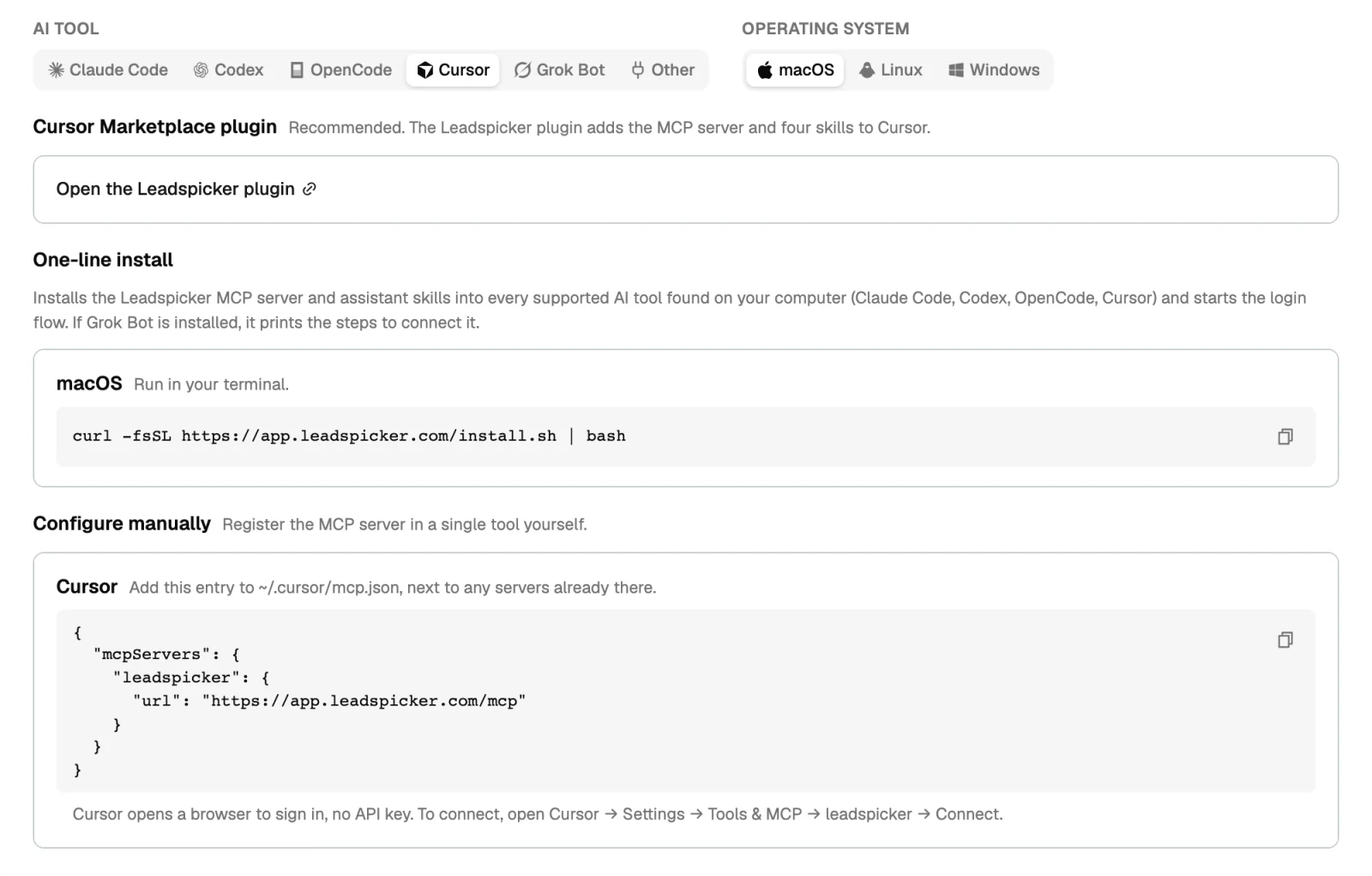
In Leadspicker open Settings → MCP, choose Cursor and follow Open the Leadspicker plugin. Team admins can enable it in the Cursor Team Marketplace.
- Install it
Install the plugin in Cursor. It adds the MCP server and the four skills.
- Sign in on first use
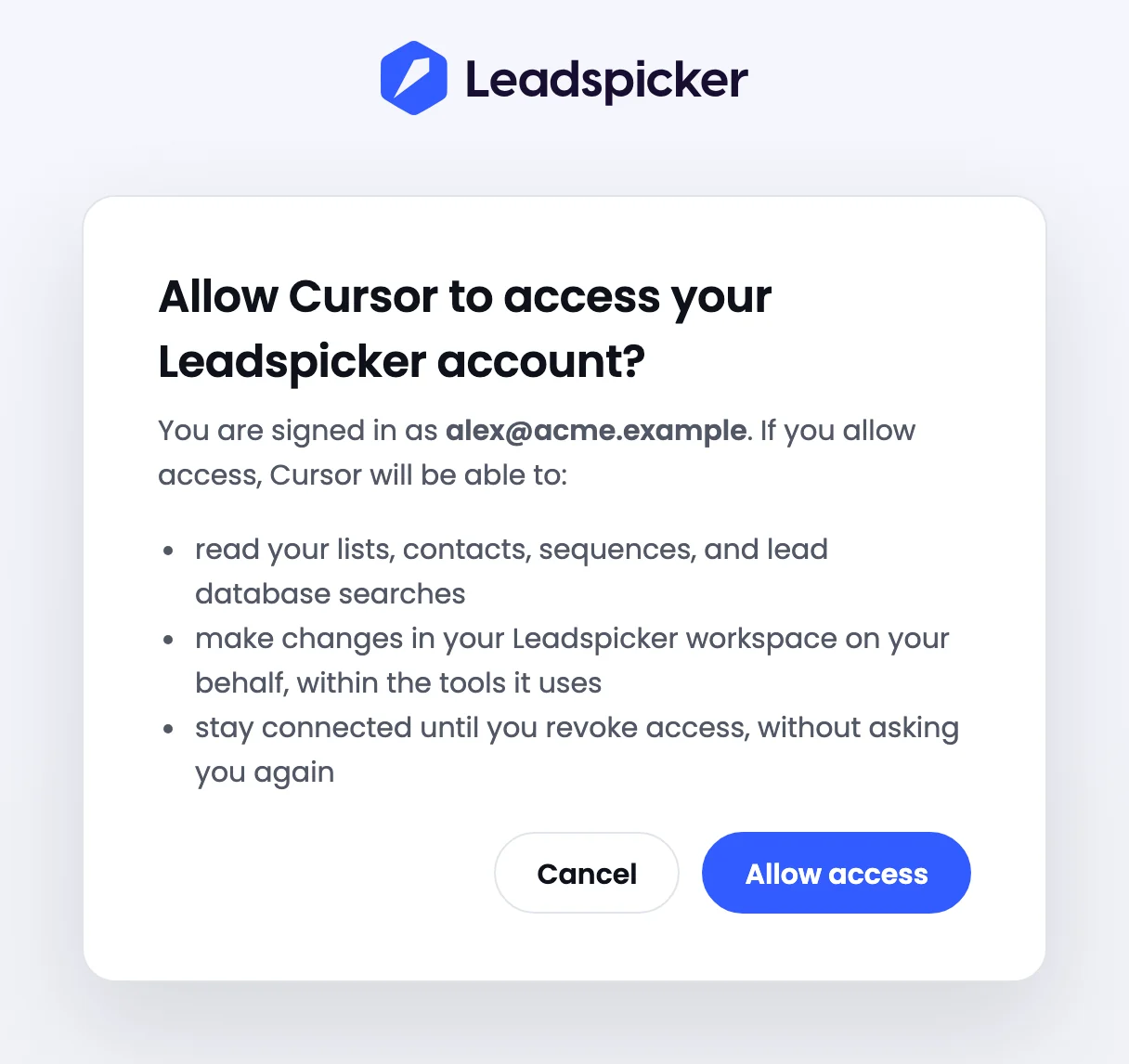
The first time the agent uses a Leadspicker tool, a browser window opens. Sign in to Leadspicker and click Allow access.
Set it up with the full server
For enrichment, routines, replies and sending from Cursor.
- Add the server
Run the one-line installer (
curl -fsSL https://app.leadspicker.com/install.sh | bash, orirm https://app.leadspicker.com/install.ps1 | iexin PowerShell), or add this entry to~/.cursor/mcp.json, next to any servers already there:{"mcpServers":{"leadspicker":{"url":"https://app.leadspicker.com/mcp"}}}. On Windows the file is%USERPROFILE%\.cursor\mcp.json. - Connect
In Cursor open Settings → Tools & MCP, find leadspicker and click Connect.
- Sign in
Cursor opens a browser. Sign in to Leadspicker; no API key is involved.
Limits
- The plugin cannot send messages, activate outreach, administer the account or configure integrations. That is by design.
- A search preview saves nothing. Importing the results into a list uses your lead database export allowance, as it does in the app.
- Imports run in the background: an accepted import has started, and rows may still be arriving when the agent answers.
- On a company network with an MCP allowlist,
https://app.leadspicker.com/cursor/mcphas to be allowed for the plugin.
Plugin or full server: which one should I pick?
The plugin if you want to find companies and people and prepare drafts. The full server if you also want enrichment, routines, replies or sending from Cursor.
Where do the skills come from?
The plugin brings its four. The installer puts the full set into the skills folders in your home directory, which Cursor reads.
How do I disconnect?
Remove the plugin or its connection in Cursor.
Was this page helpful?
Still stuck? Email support@leadspicker.com or use the chat in the app.
Last updated 2026-11-12