Zoho CRM integration
Leadspicker syncs your outreach into Zoho CRM as Leads or as Contacts and Accounts, and creates deals and tasks from the replies that matter.
What you get
- Leads, or Contacts linked to Accounts, depending on where your team qualifies.
- Deals in the pipeline and stage you choose.
- Tasks for the Zoho user mapped to the sender.
- Field updates on the Lead, the Contact or the Account, for example the lead status.
- Custom views as sources for imports and exclusion lists, and deal pipelines for exclusions.
The shared settings are explained in How CRM integrations work.
Connect Zoho CRM
- Open the Zoho CRM card
Go to Settings → Apps and open Zoho CRM, as an owner or admin of the organisation.
- Sign in to Zoho
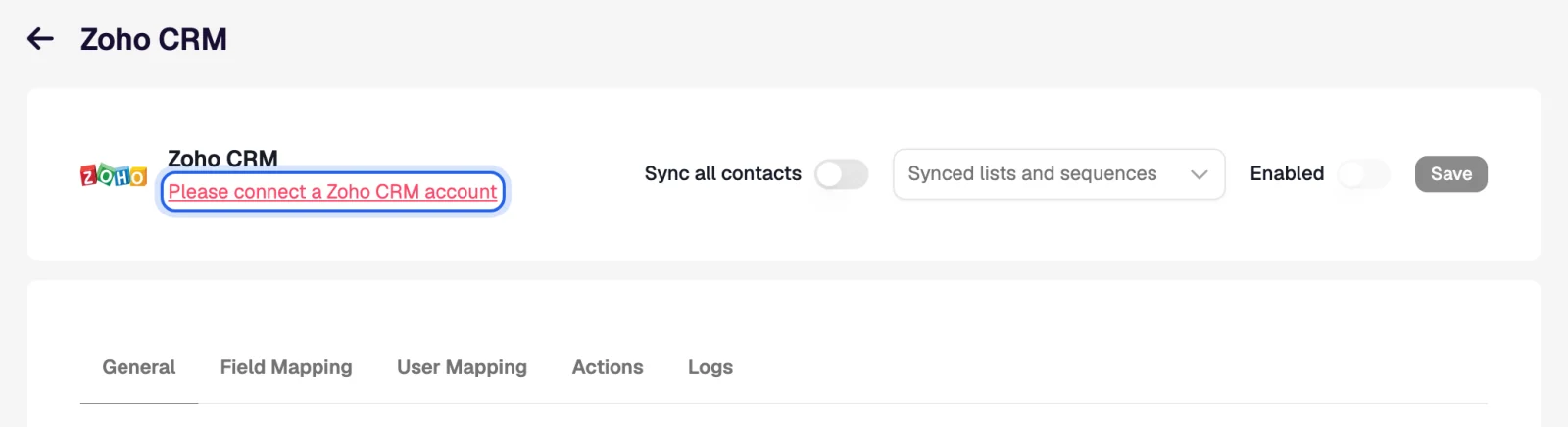
Connect the account, sign in with a Zoho user that can work with the CRM modules you sync, and accept the access request.
- Choose the record type
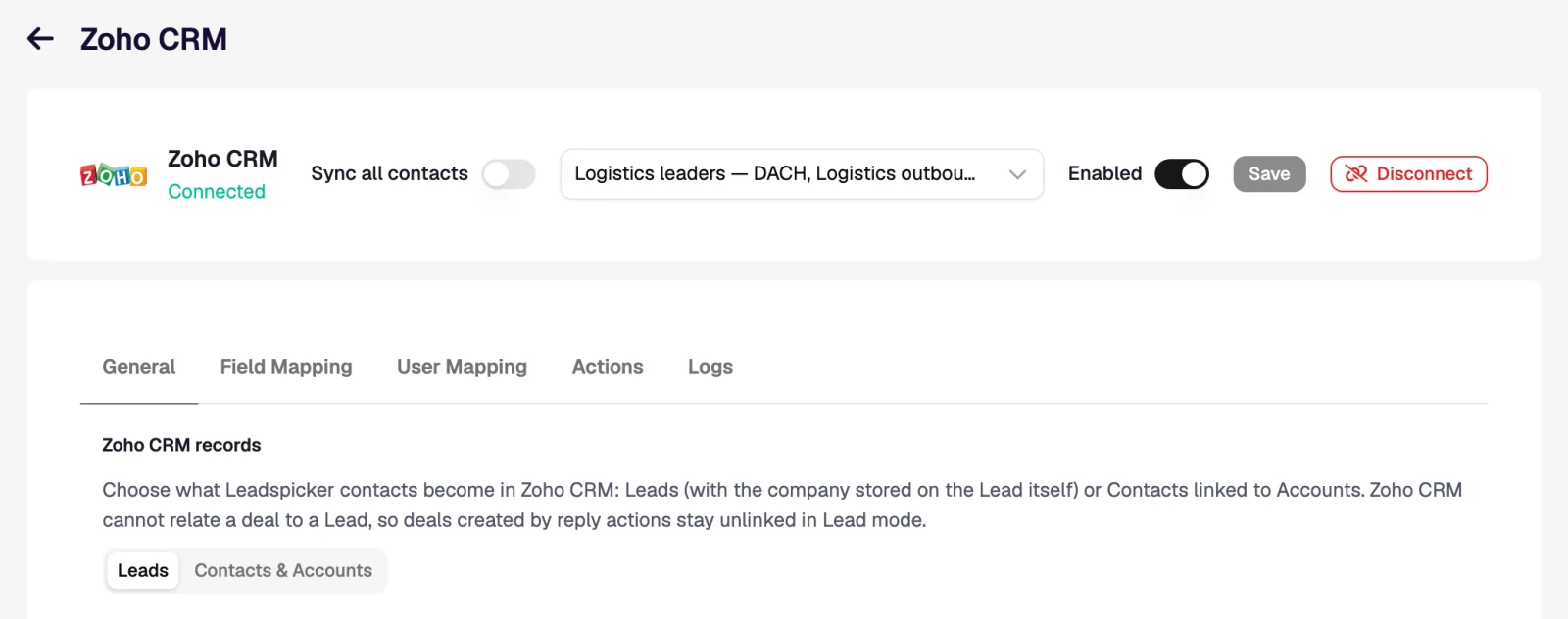
On General, under Zoho CRM records, pick Leads or Contacts & Accounts.
- Map, switch on, save
Set the scope and triggers, check Field Mapping and User Mapping, turn Enabled on and Save.
Settings specific to Zoho CRM
- Leads (default). One Lead with the company on it. Zoho relates deals only to Contacts and Accounts, so a deal from a rule is not linked to the Lead and a task stays on the Lead.
- Contacts & Accounts. A Contact with its Account; deals relate to both and a task can sit under the deal.
- Required fields. Give your own mandatory Zoho fields default values on General, so new records are not refused.
- Closing date. Required on every deal; set 30 days ahead unless a default value provides it.
- Phone field. It holds one number, so the phone action skips a record that already has one.
Workflows inside Zoho CRM
| When | Then | What the rep sees in Zoho CRM |
|---|---|---|
| They reply to your email, Positive (Contacts & Accounts) | Create a deal in your pipeline, stage Qualification, plus Create a task | A deal related to the Contact and the Account, with a task Reply from … (Positive) that carries the reply. |
| They accept your connection request (Leads) | Update properties: lead status → Contacted | The Lead moves into the custom view of contacted leads without anyone editing it. |
| They reply, Not interested (Leads) | Update properties: lead status → Lost Lead | The Lead leaves the open views; the reply itself is kept on the record. |
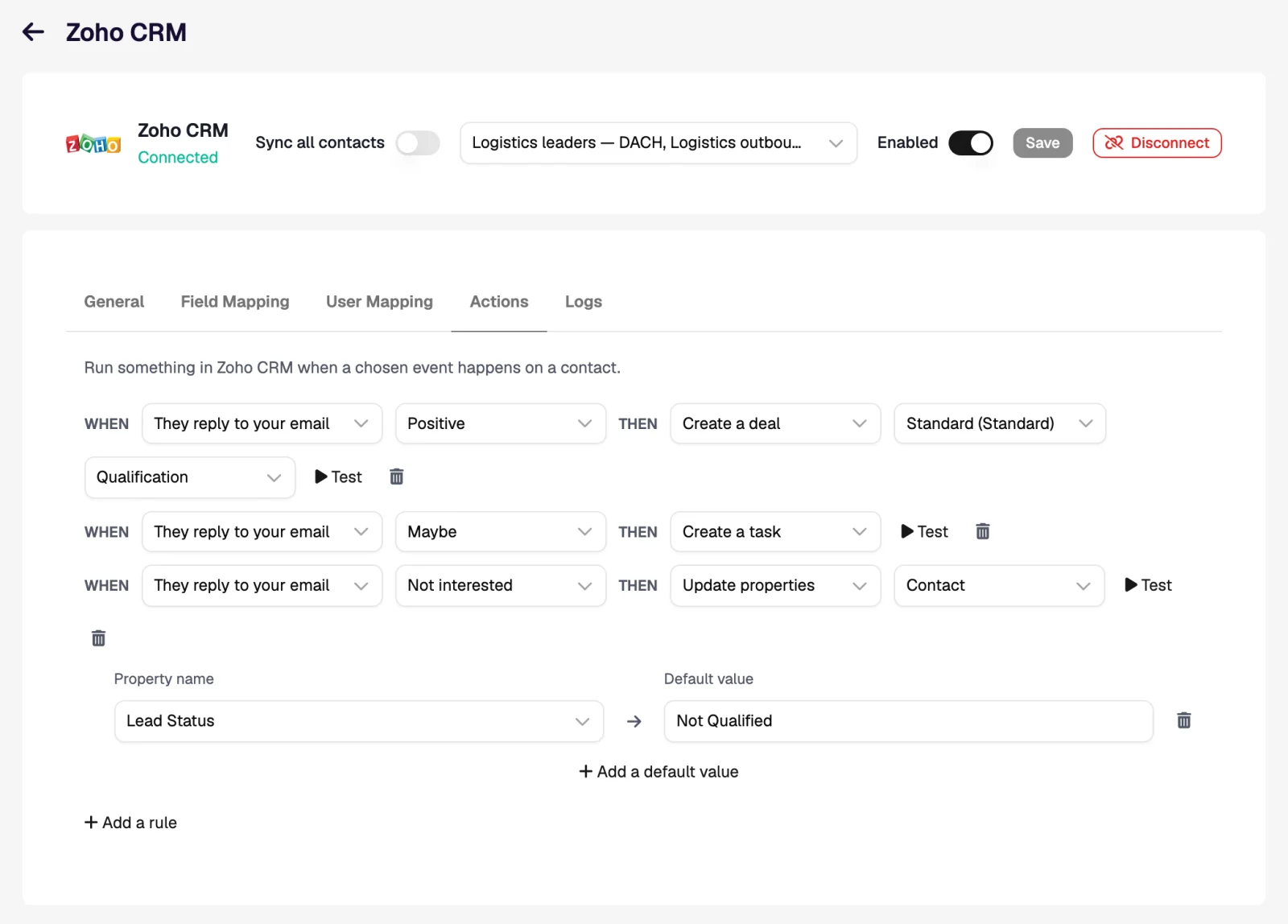
In Leads mode, prefer task and property rules, and open the deal when the rep converts the Lead.
Import from Zoho CRM and exclusions
- Import. Import → From CRM on a list brings in Leads or Contacts: everything, or one custom view, hourly if you want.
- Exclusions. Exclude all contacts, all companies or selected custom views. In Contacts & Accounts mode you can also exclude the people on deals in chosen pipelines and stages.
A record was refused. Why?
Most often a mandatory field in the Zoho module was empty. The Logs tab shows Zoho's reason; add a default value for that field.
Can I segment by a Zoho custom view?
Yes, both ways: import a custom view into a list, or use it as an exclusion source.
Why is my deal not attached to the lead?
Zoho relates deals to Contacts and Accounts only. Switch to Contacts & Accounts if rules should create linked deals.
Was this page helpful?
Still stuck? Email support@leadspicker.com or use the chat in the app.
Last updated 2026-11-12