Using Meetings
Leadspicker briefs you before the call, joins it to record and transcribe, shows you live what you have not asked yet, and coaches you afterwards. Every call makes the next one better.
What the Meetings area is
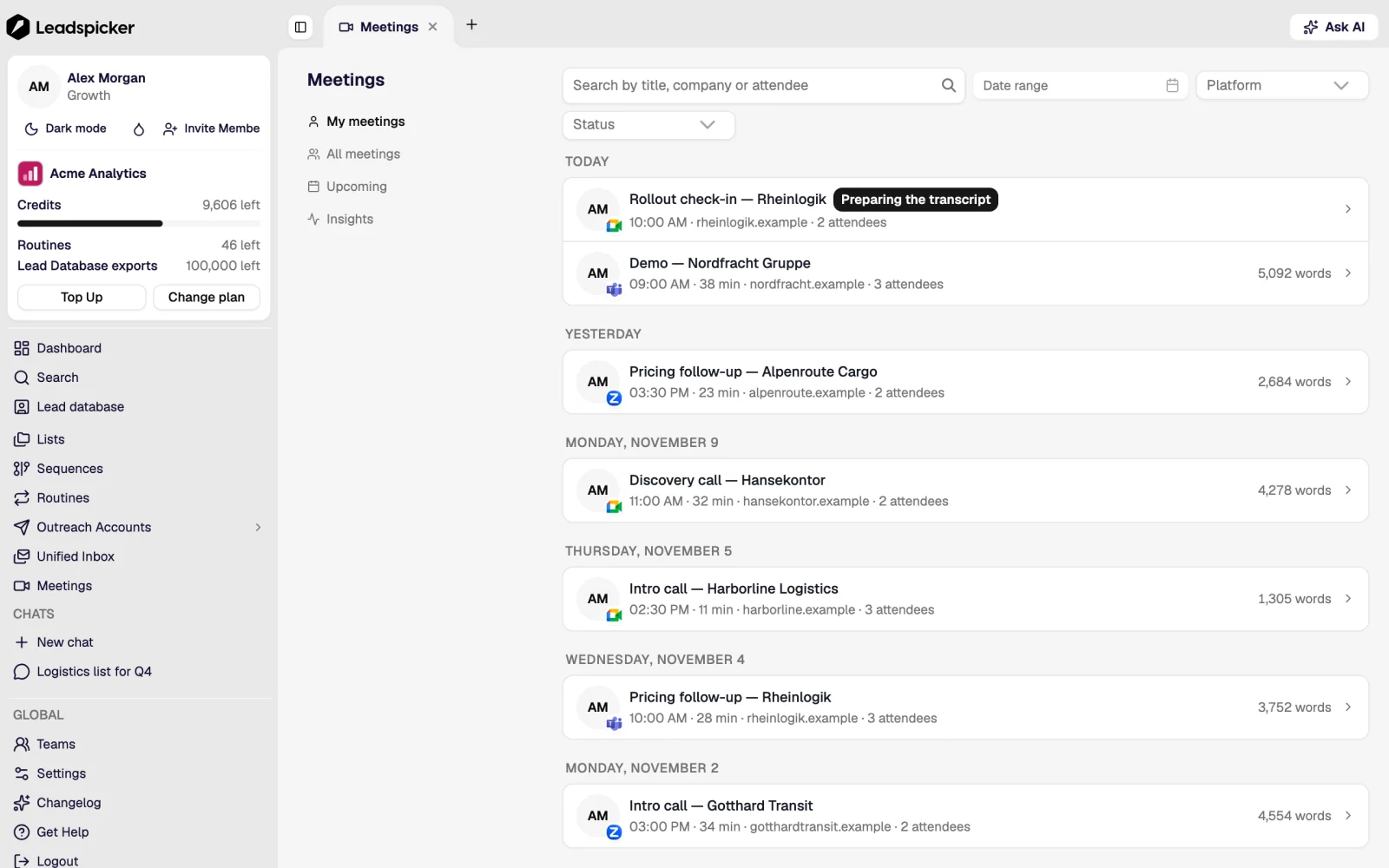
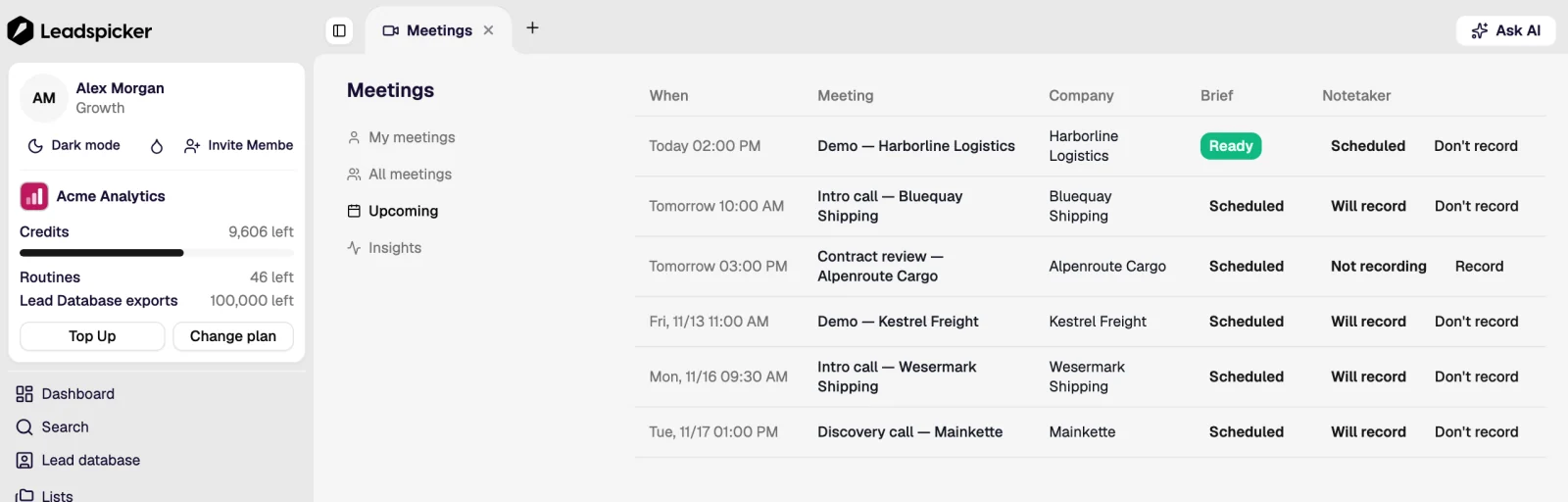
Meetings in the sidebar holds every external call from your connected calendars. Upcoming shows what is ahead and whether a brief is ready, My meetings and All meetings hold the recorded calls with their transcripts and notes, and Insights adds up the numbers for you and the team.
Set it up
Setup takes a few minutes and happens once per calendar.
- Connect a calendar
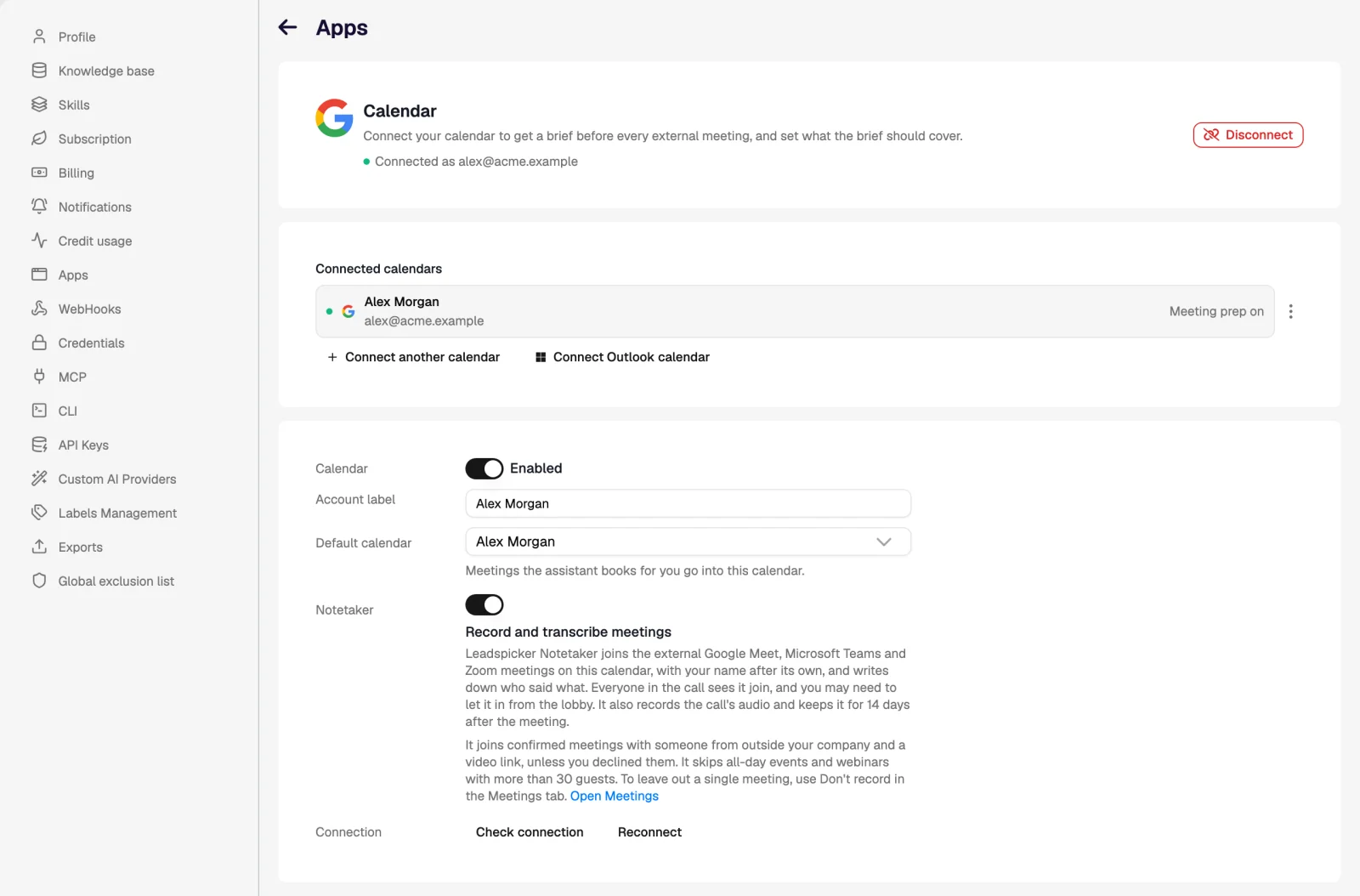
Open Settings → Apps and connect Google Calendar or Outlook Calendar. The details are on the Calendar page.
- Switch on meeting prep
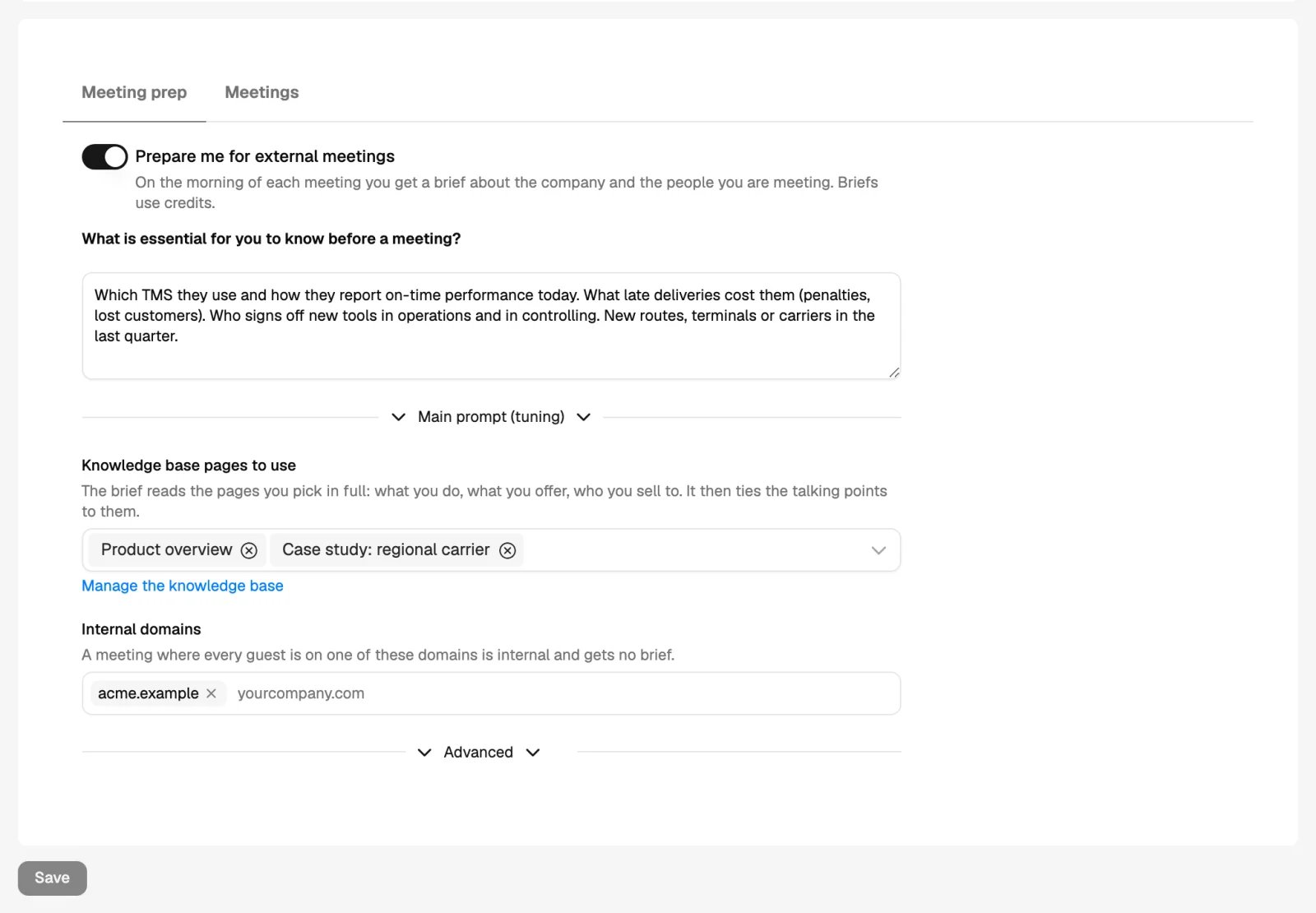
On the Meeting prep tab turn on Prepare me for external meetings. Say what is essential for you to know before a meeting, pick the knowledge base pages the brief should read, and check your internal domains: a meeting where every guest is on one of them gets no brief.
- Switch on recording
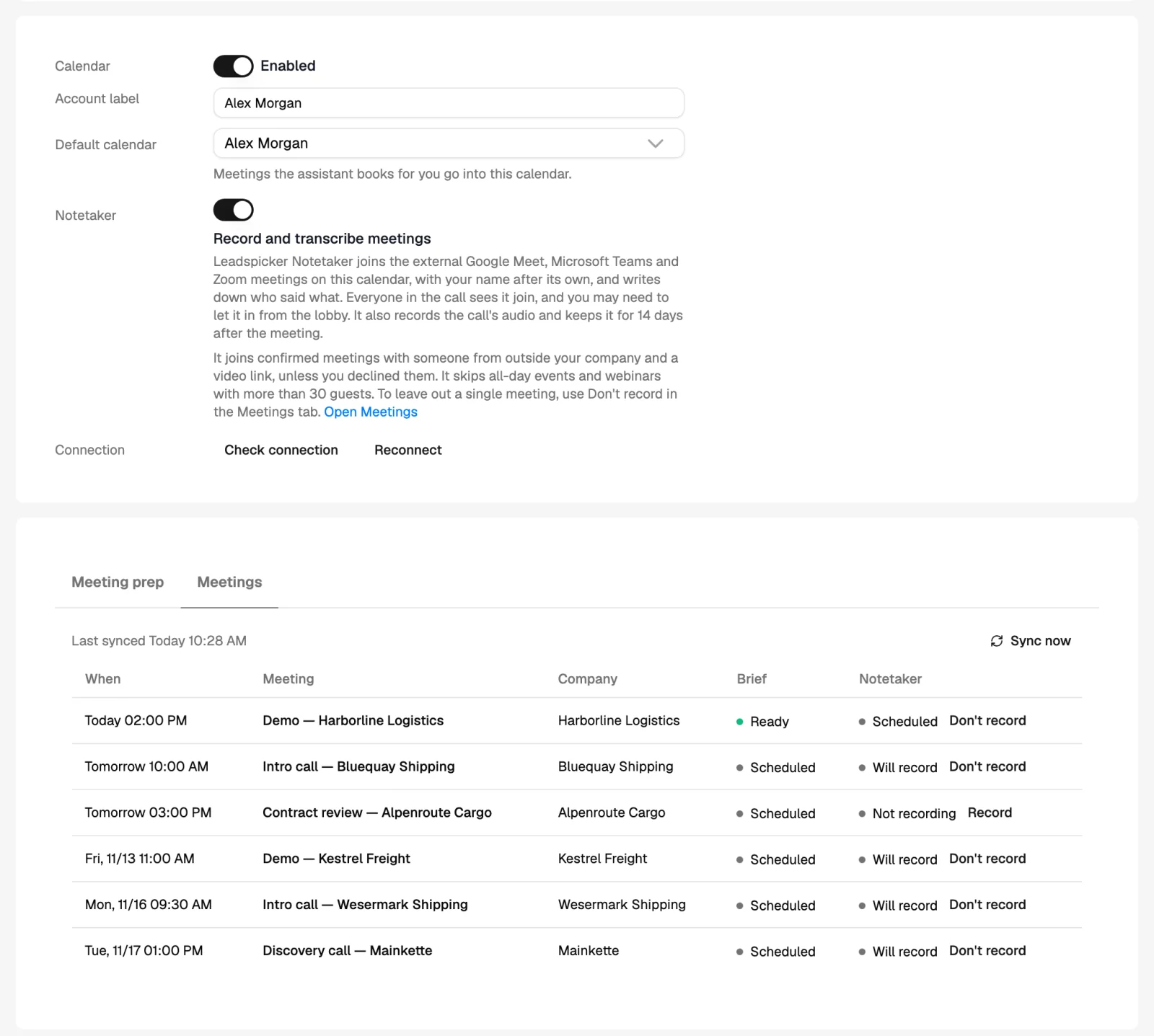
Turn on Record and transcribe meetings for the calendar. From then on the notetaker joins your external calls that have a video link.
- Have your first call
On the morning of the meeting the brief is waiting in Meetings. Admit the notetaker if it waits in the lobby, and a few minutes after the call the transcript and the notes appear in the same place.
Before the call: the prep brief
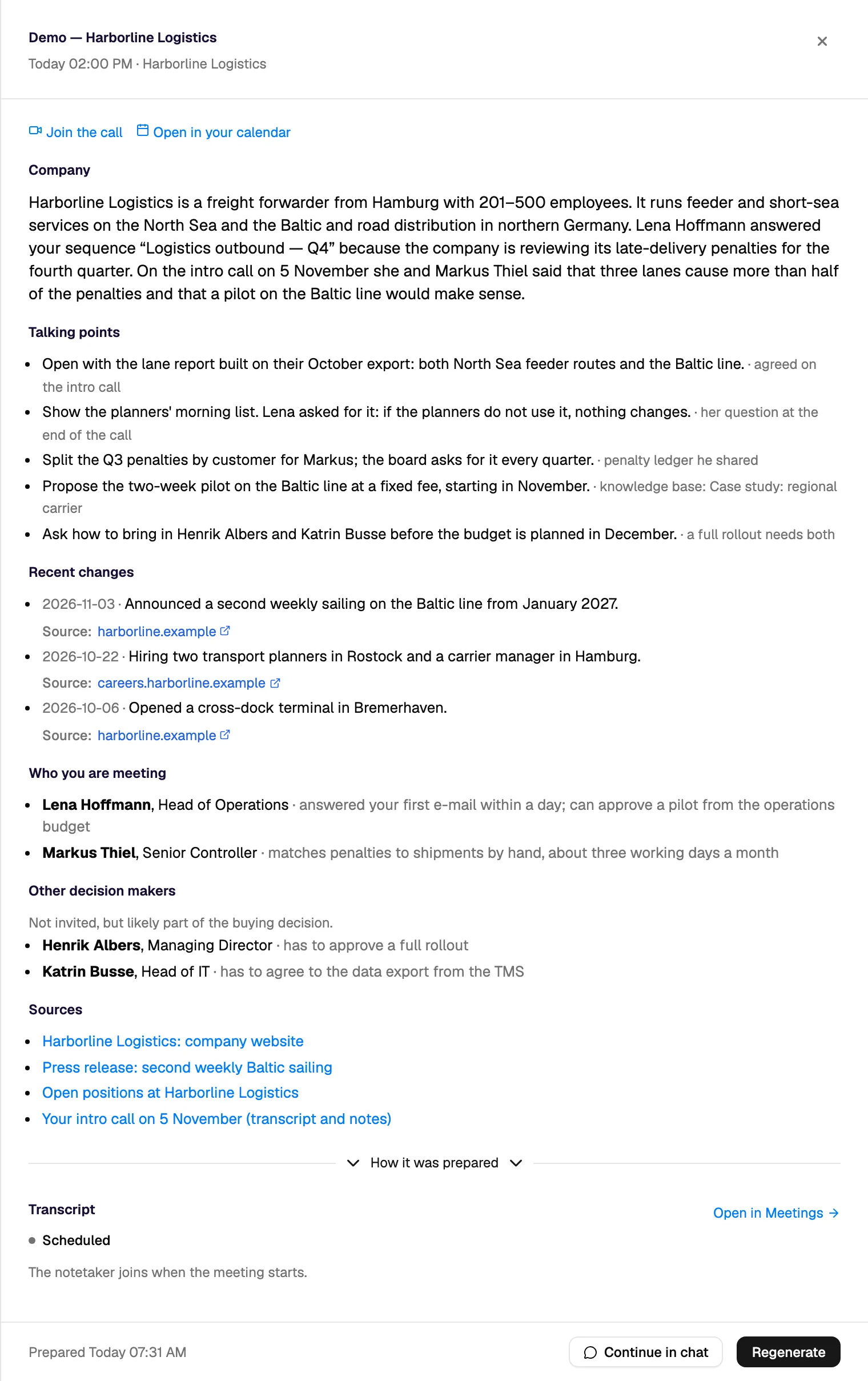
A brief is prepared for each external meeting and is ready on the morning of the call. It answers two questions: who are they, and why now. It has six sections.
| Section | What it holds |
|---|---|
| Company | What the company does, in one view. |
| Talking points | Questions and points worth raising, tied to the knowledge base pages you picked. |
| Recent changes | The signals behind the timing, such as hiring, funding or a change of tools. |
| Who you are meeting | The people on the invite. |
| Other decision makers | People who are not invited but are likely part of the buying decision. |
| Sources | Where each piece of the brief comes from. |
If the guest list changes, Regenerate rebuilds the brief; Prepare now makes one on demand, also for a calendar where automatic briefs are off. Continue in chat opens the brief in the assistant so you can ask follow-up questions. Briefs use credits.
On the call: recording, transcript and live hints
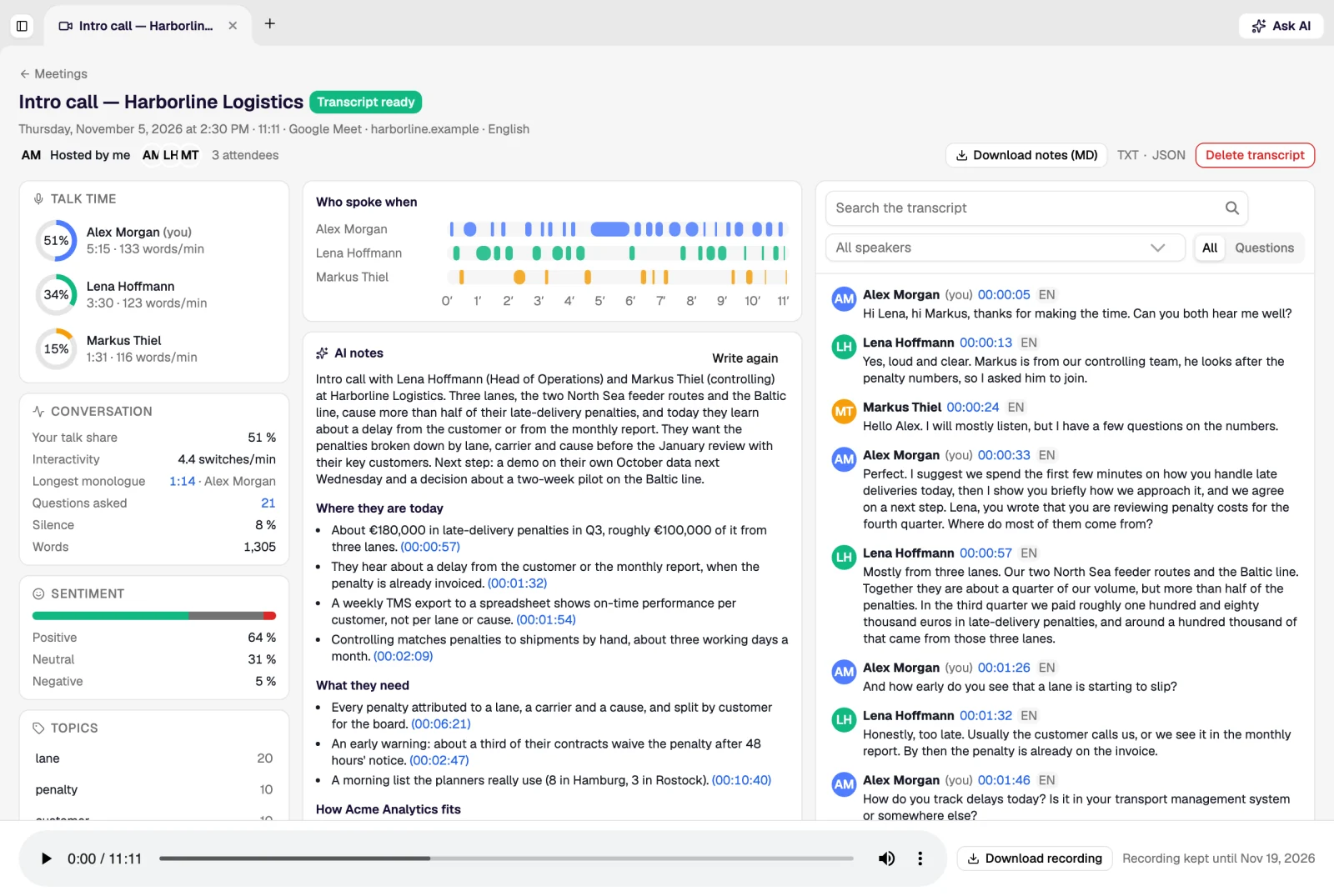
The notetaker joins Google Meet, Microsoft Teams and Zoom calls as a visible participant, with your name after its own, records the call and writes down who said what. You may need to admit it from the lobby.
- Which calls it joins. Confirmed meetings with someone from outside your company and a video link, unless you declined them. It skips all-day events and large webinars.
- Live checklist. Need, budget, authority, timeline, source and next step are ticked off as the answers come up.
- Hints when something is missing. A quiet nudge before you wrap up, never a script to read. The checklist and the hints are for your eyes only.
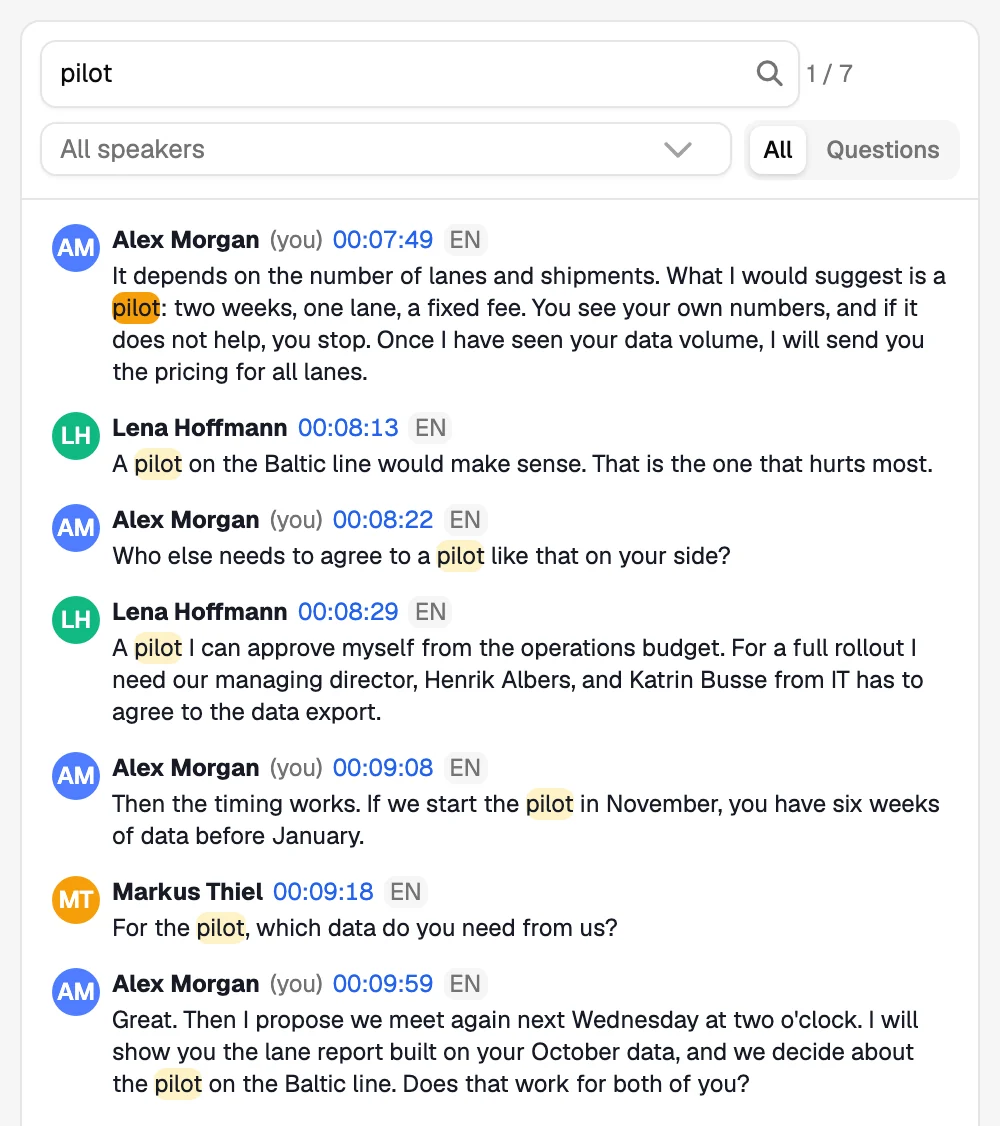
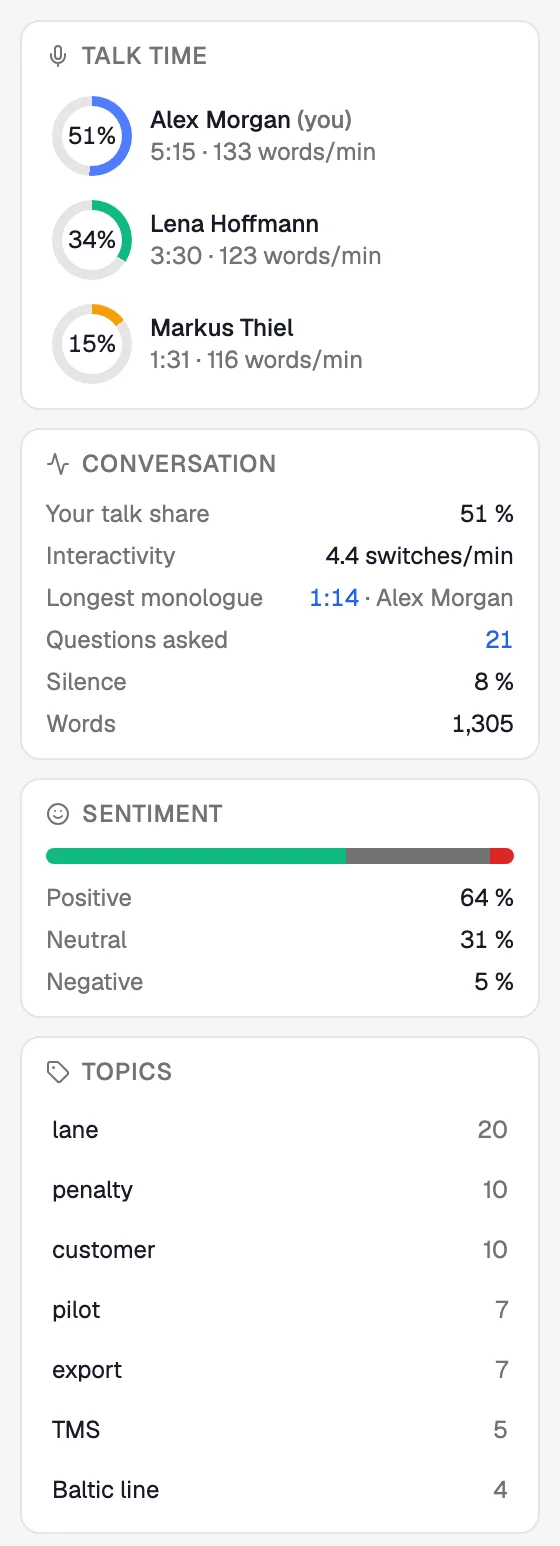
- Transcript. Speakers with their talk share and words per minute, search, a filter for questions and a timeline of who spoke when.
- Conversation metrics. Your talk share, interactivity, the longest monologue, questions asked and silence.
After the call: notes, follow-up and coaching
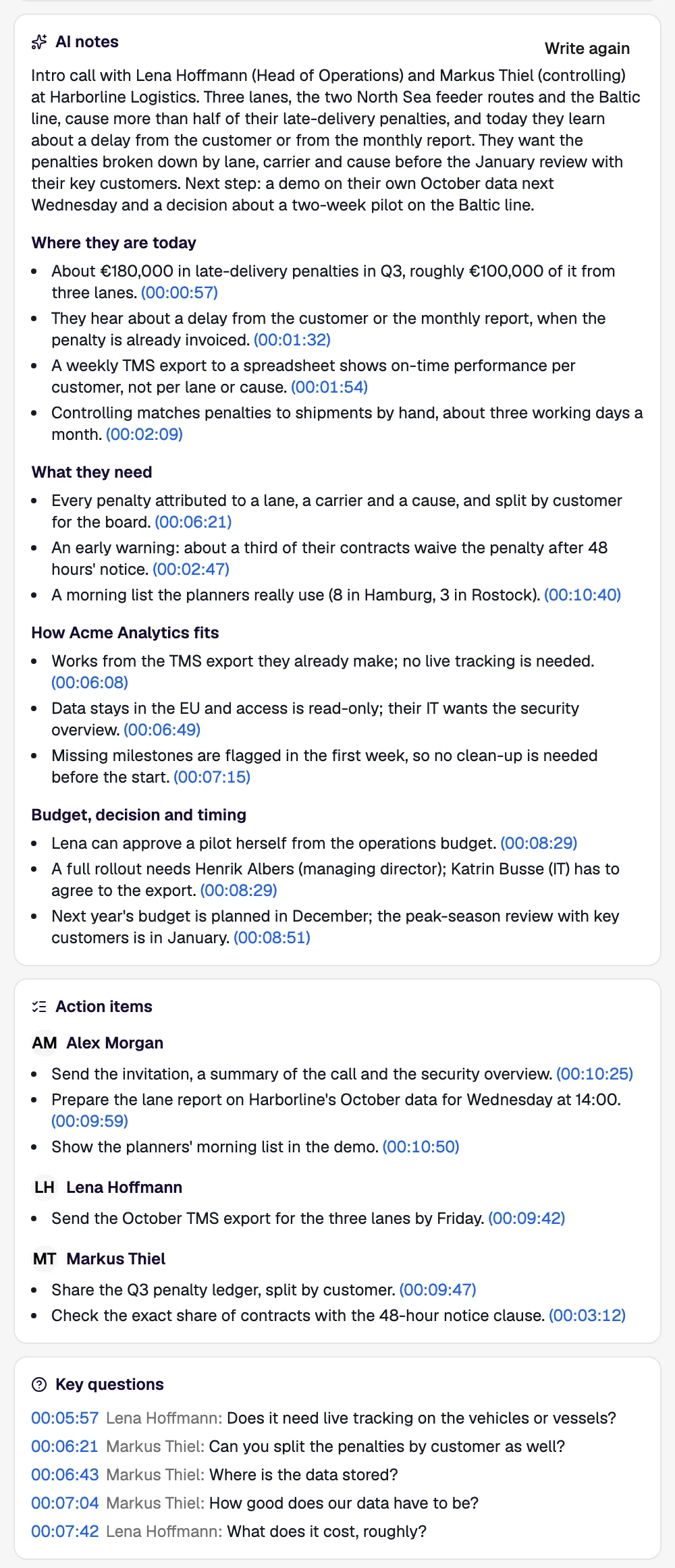
Within minutes of hanging up the call is written up, and the next step is drafted.
- AI notes. An overview, a sectioned summary with timestamps, action items by person, key questions, sentiment and topics. They are written automatically once you allow AI processing.
- Follow-up. The summary, the agreed next step and a follow-up email drafted in your tone.
- Coaching. Three or four concrete tips after each call instead of a score, with progress across calls. The tips are compared with the calls that turned into deals.
- Downloads. The transcript as TXT or JSON, the notes as Markdown, and the audio.
BANT and MEDDIC
Every recorded call is scored against the framework you sell with. BANT and MEDDIC are both supported, and you can switch per team or per deal stage. A timeline shows the minute each box was ticked, next to where the lead found you, how they buy and whether a next step is booked. Gaps are carried into the next brief.
Insights for the team
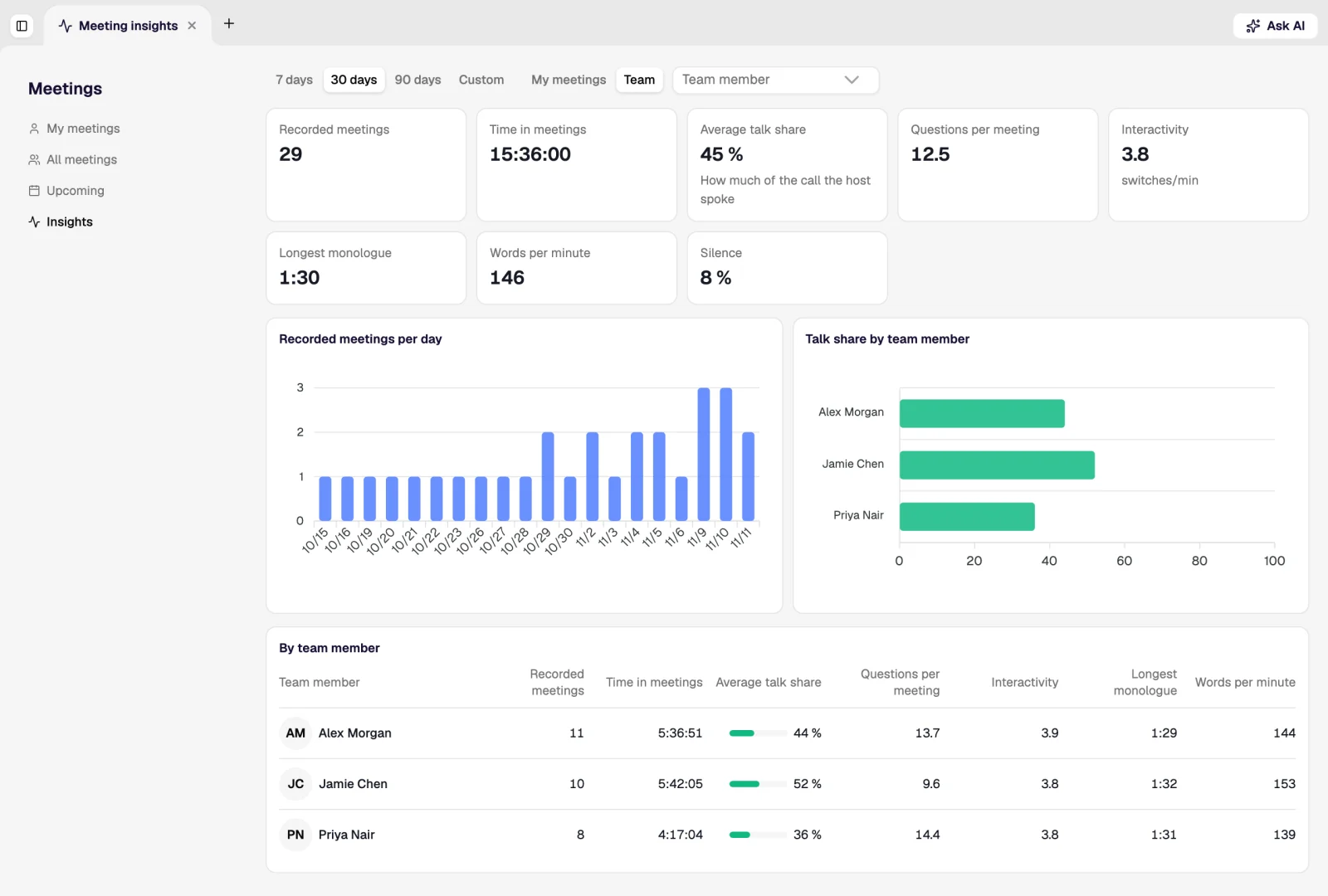
Insights covers the last 7, 30 or 90 days, or a range you choose, for your own calls or the whole team: recorded meetings, time in meetings, average talk share, questions per meeting, a chart of recorded meetings per day and talk share by team member. It also counts the calls that were not recorded and links to them, and each of those shows why.
Where the notes go
The summary, the BANT or MEDDIC fields, the next step and the follow-up draft land in your CRM, so nobody types them in again. Leadspicker works with HubSpot, Pipedrive, Salesforce, Attio and other CRMs; see integrations.
Privacy controls
- A visible participant. Everyone on the call sees the notetaker join, so everyone can see the call is recorded.
- Don't record. Leave a single meeting out with Don't record on the calendar's Meetings tab, or switch recording off for the whole calendar.
- Audio is kept for 14 days. After that the recording is deleted; the transcript and the notes stay.
- Delete at any time. Deleting a transcript removes it for good, and if the notetaker is still in the call, it leaves.
Does everyone on the call know it is being recorded?
Yes. The notetaker joins as a visible participant, so everyone can see the call is recorded. You decide which meetings it joins.
Can the other side see the hints?
No. The hints and the live checklist are visible only to you. The agent suggests, you lead the conversation.
Why was my meeting not recorded?
Most often nobody admitted the notetaker from the lobby, or the meeting link did not let guests in. The meeting itself shows the reason, and Insights links to every call that was not recorded.
Which sales frameworks does it support?
BANT and MEDDIC. Next to them it tracks where the lead came from, how they buy and whether a next step is booked.
Do briefs and notes cost credits?
Yes, preparing a brief and writing the notes use credits. The current prices are on the rate card in the app.
Was this page helpful?
Still stuck? Email support@leadspicker.com or use the chat in the app.
Last updated 2026-11-12