Google Calendar and Outlook integration
Connect Google Calendar or Outlook Calendar and Leadspicker prepares you for external meetings, sends the notetaker to the call and knows where to put the meetings the assistant books.
What connecting gives you
| Feature | What happens |
|---|---|
| Meeting prep | On the morning of each external meeting you get a brief about the company and the people you are meeting. Briefs use credits. |
| Meeting notetaker | It joins the external Google Meet, Microsoft Teams and Zoom meetings on the calendar and writes down who said what. |
| Default calendar | Meetings the assistant books for you go into the calendar you choose. |
| Attendee info | Optional and free: each guest's role and company added to the description of your calendar events. |
What you do with briefs, transcripts and notes afterwards is described in Meetings.
Connect a calendar
- Open the calendar card
Go to Settings → Apps and open the calendar card.
- Connect the account
Click Connect Google Calendar or Connect Outlook calendar, sign in and grant the calendar access.
- Choose the default calendar
Under Default calendar select a calendar you can write to, then Save.
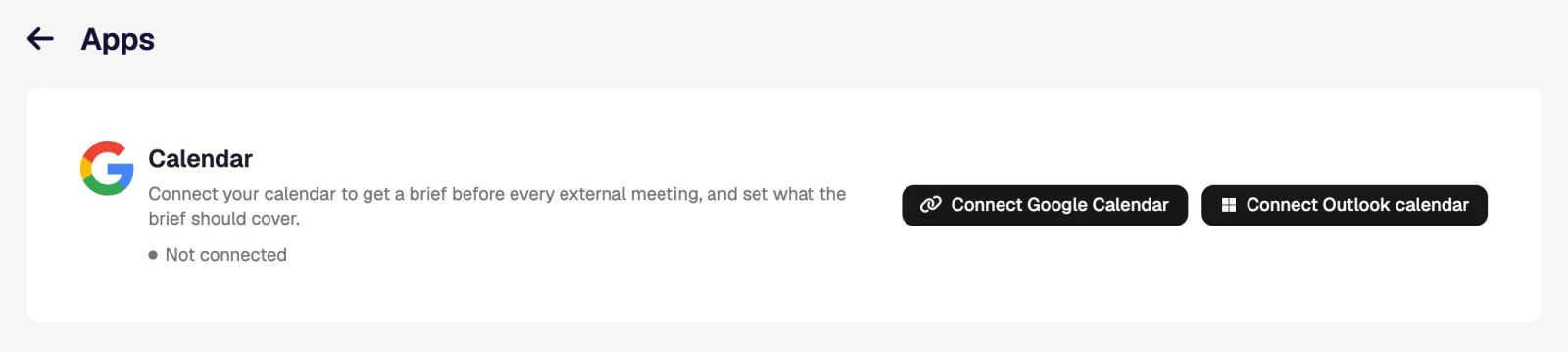
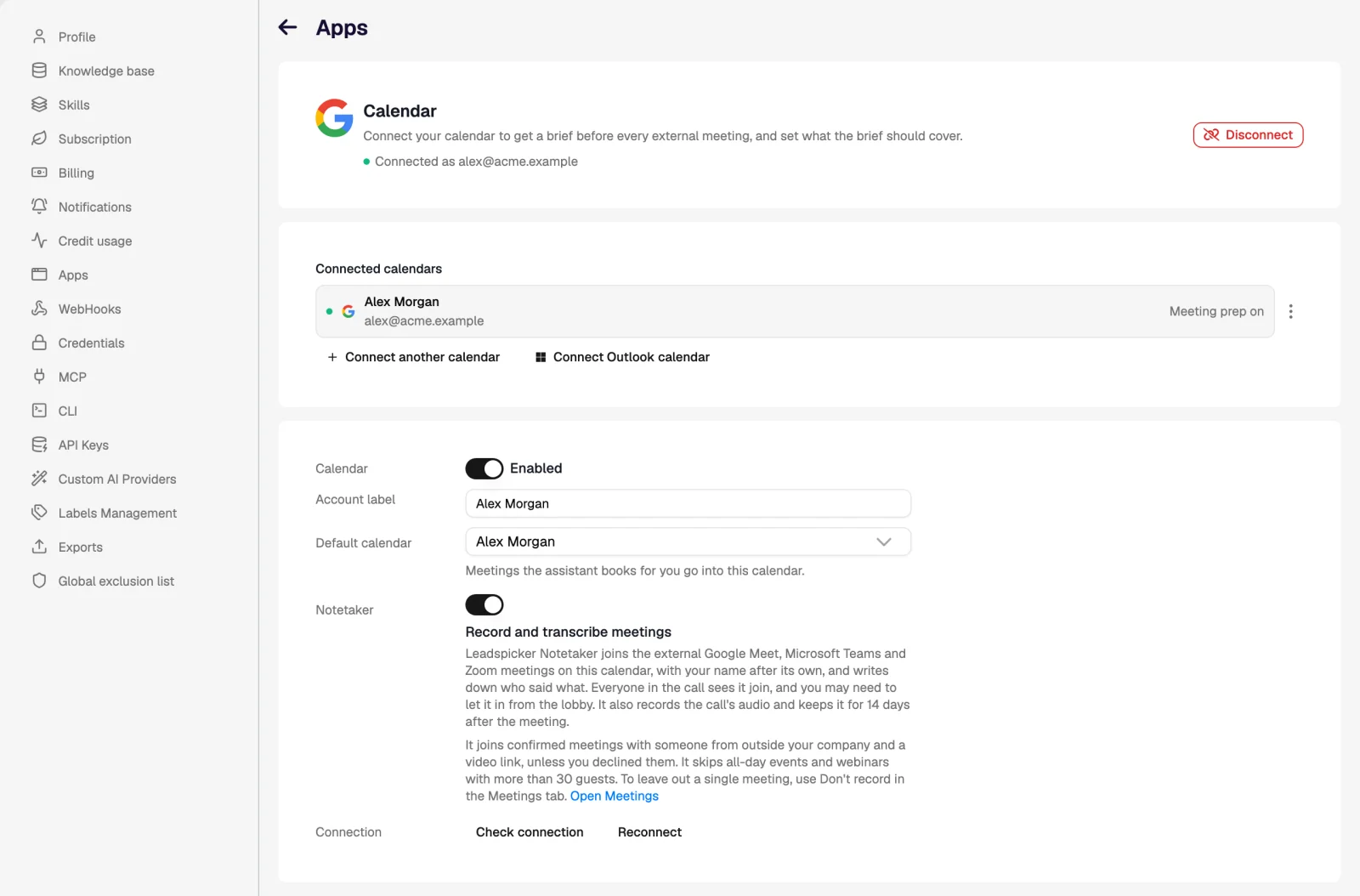
Each person connects their own calendar, and Connect another calendar adds a second account. If an account shows Reconnect required or Permissions missing, use Reconnect; Check connection confirms that it works.
The Meeting prep tab
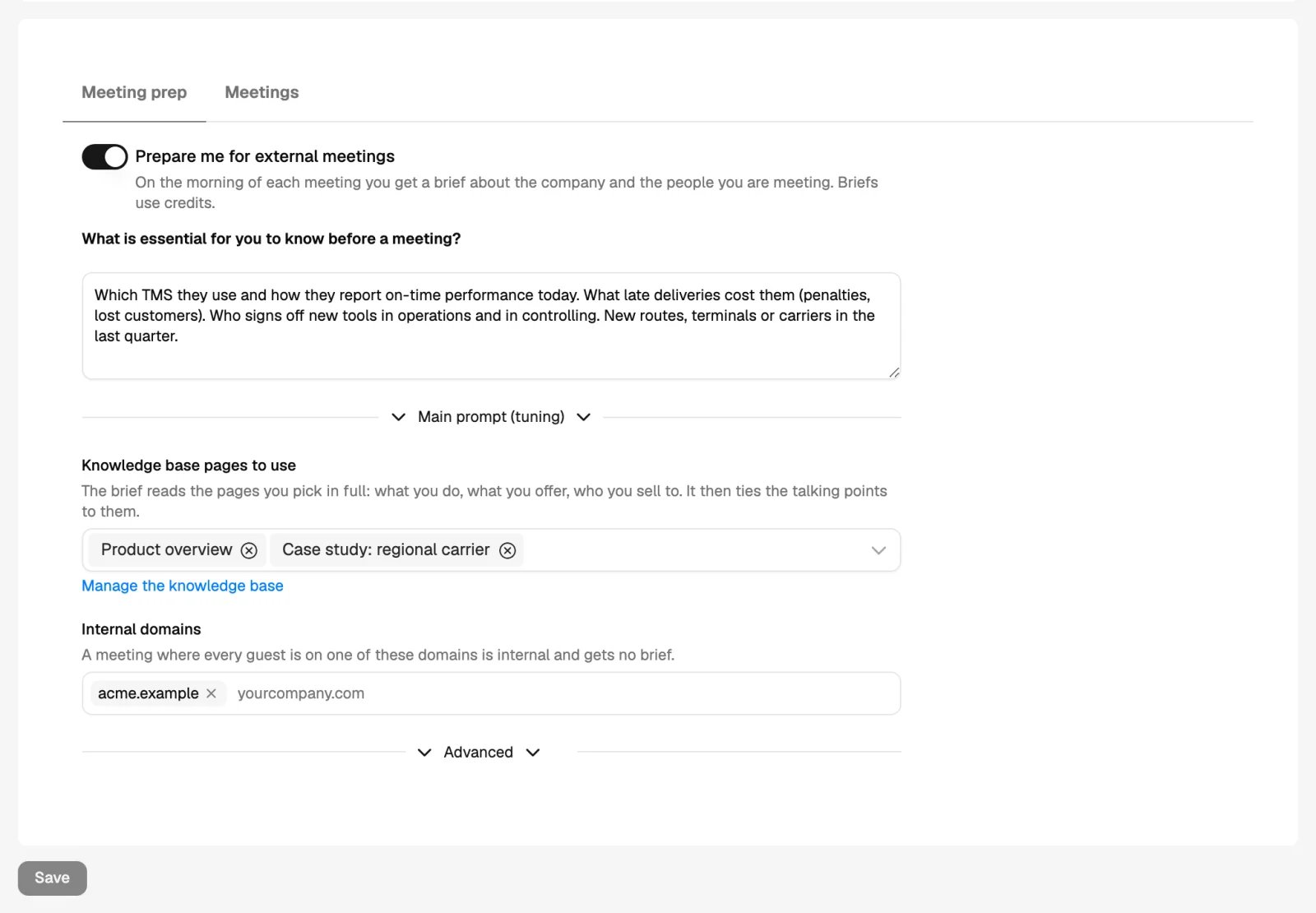
- Prepare me for external meetings switches the morning briefs on or off for this calendar.
- What is essential for you to know before a meeting? Your own instructions, for example which CRM they use or who decides about sales tools.
- Knowledge base pages to use. The brief reads the pages you pick in full and ties the talking points to what you sell.
- Internal domains. A meeting where every guest is on one of these domains is internal and gets no brief.
- Add attendee info to my calendar events, under Advanced. Guests of events you organise see the added text too; switching it off removes it from upcoming events.
The Meetings tab
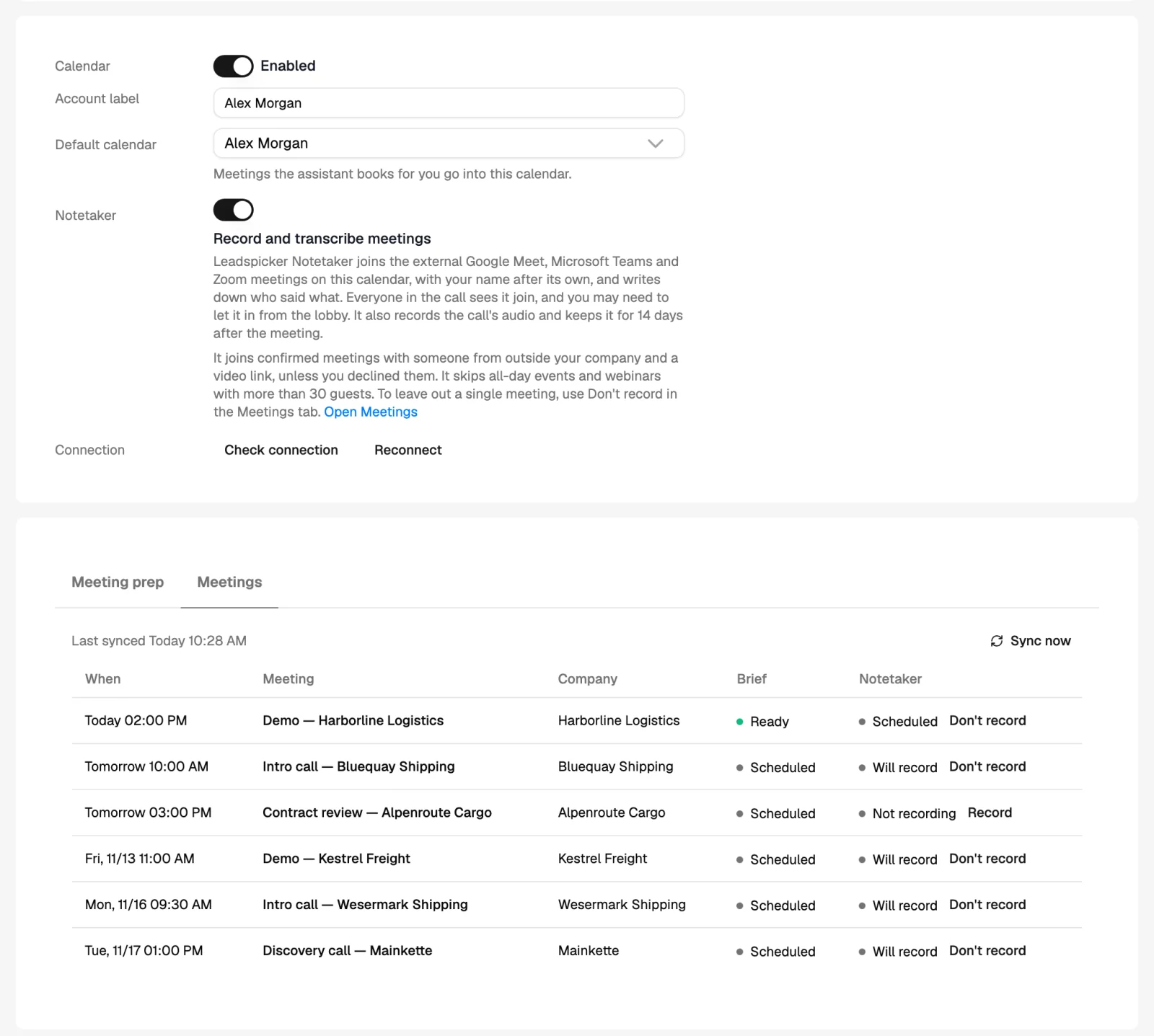
The tab lists the calendar's meetings with their time, the company, the brief and the notetaker's status. Sync now reads the calendar immediately, and each meeting has a Don't record switch. Only the owner of a calendar sees its meetings and their briefs.
Recording and privacy
- A visible participant. With Record and transcribe meetings on, the notetaker joins with your name after its own. Everyone in the call sees it join, and you may need to let it in from the lobby.
- Which meetings it joins. Confirmed meetings with someone from outside your company and a video link, unless you declined them. It skips all-day events and webinars with more than 30 guests.
- One meeting off. Use Don't record on the Meetings tab to leave a single meeting out.
- Audio. The call's audio is kept for 14 days after the meeting.
- Disconnecting. Leadspicker stops accessing the account. Your calendars and events stay as they are.
Do I get a brief for internal meetings?
No. A meeting where every guest is on your internal domains is treated as internal. Add your other domains there if colleagues use more than one.
Can colleagues see my meetings and briefs?
No. Only the owner of a connected calendar sees its meetings and their briefs.
How do I keep the notetaker out of one call?
Open the Meetings tab and switch that meeting to Don't record. To stop recording altogether, turn off Record and transcribe meetings.
Was this page helpful?
Still stuck? Email support@leadspicker.com or use the chat in the app.
Last updated 2026-11-12